|
|
Canvas: How to Assign Student Work Using Canvas |
To give a Classwork.com activity to students in Canvas: create the assignment in Classwork.com with Canvas as the delivery method, copy its link, then paste the link into an External Tool assignment in Canvas.
First time in this course? Add the Classwork.com app to the course once: How Do I Install Classwork.com as an App in Canvas? Skip this if your school already did it. Still have the TeacherMade app? Keep it installed and add Classwork.com too.
Step 1: Create the assignment in Classwork.com
- On the Activities page, check the box next to the Activity and click Assign. (Or open the Activity and click Create New Assignment.)
- Choose Canvas as the delivery method, finish the settings, and click Save.
- Click Copy next to the assignment link.
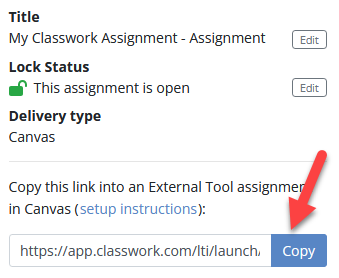
Step 2: Create the assignment in Canvas
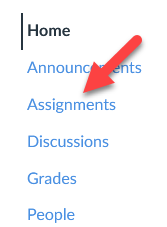
- In your Canvas course, click Assignments.
- Click + Assignment.
- Fill in the assignment as usual. Give it a points value: Classwork.com sends a percentage, and Canvas multiplies it by the points. With 0 points, every score shows as 0.
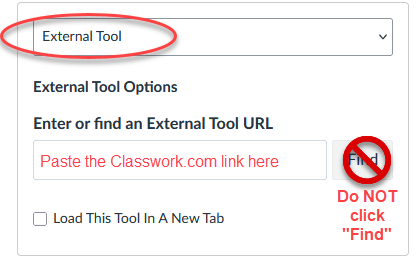
- For Submission Type, choose External Tool.
- Paste the Classwork.com link into Enter or Find an External Tool URL. Don’t click Find: Canvas cuts off the part of the link that opens this assignment.
- Click Save & Publish.

You’re done
Students open the assignment right inside Canvas. Scores come back to your Canvas gradebook, and SpeedGrader works too.
Students see only the main Classwork.com page instead of the assignment? The link was shortened by Find. Edit the Canvas assignment and paste the full link again. Getting a Forbidden (403) page? See Canvas: How to fix a “Forbidden (403)” Error.
Are you new to Classwork.com? Welcome!
Click here to start your 30 day risk-free PRO trial today.
Was this article helpful?
That’s Great!
Thank you for your feedback
Sorry! We couldn't be helpful
Thank you for your feedback
Feedback sent
We appreciate your effort and will try to fix the article