|
|
Administration - SIS Setup |
SIS Setup
For User Administrators.
SIS Setup connects your Student Information System to Classwork.com, so your schools, teachers and classes stay up to date without manual imports. Your Classwork.com Onboarding Team will help you gather the connection details and choose the right settings.
Go to Administration > SIS Setup.
1. SIS Connection
- Provider: Blackbaud, ClassLink, Infinite Campus, PowerQueries Export File, Skyward (Qmlativ), Other OneRoster 1.2 or Other OneRoster 1.1. If your SIS isn’t listed by name, ask your Onboarding Team which option to use; systems that support OneRoster use a OneRoster option.
- API URL, Auth URL, Client ID and Client Secret from your SIS.
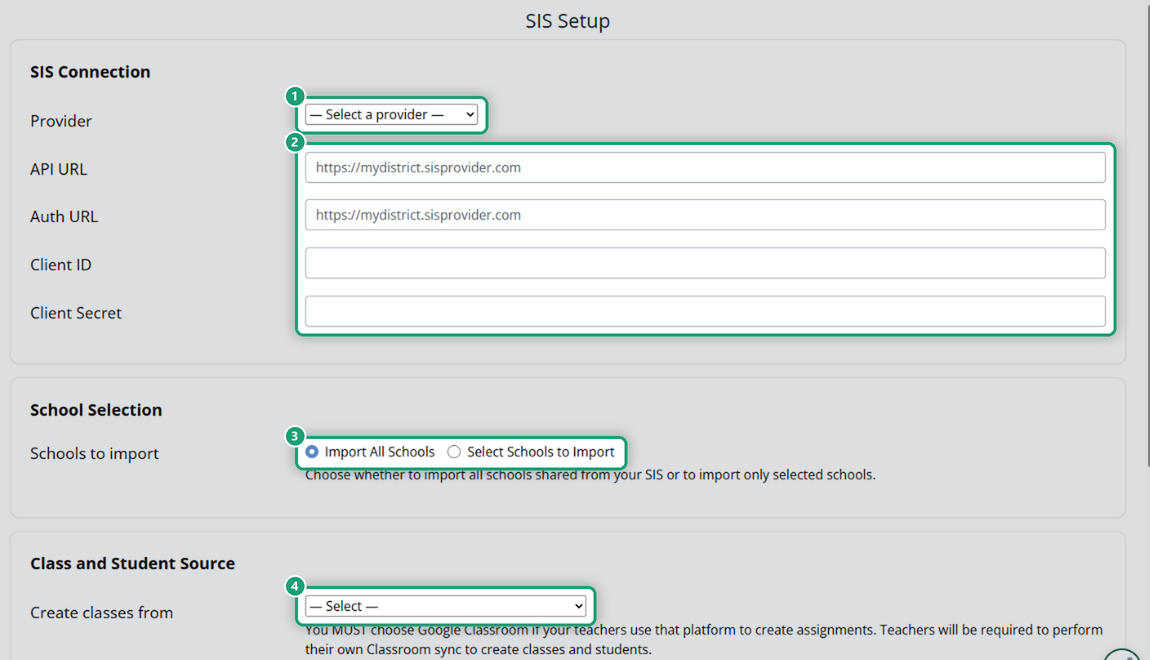
2. School Selection
Choose Import All Schools to bring in every school your SIS shares, or Select Schools to Import to pick some. You can pick schools once the connection is saved.
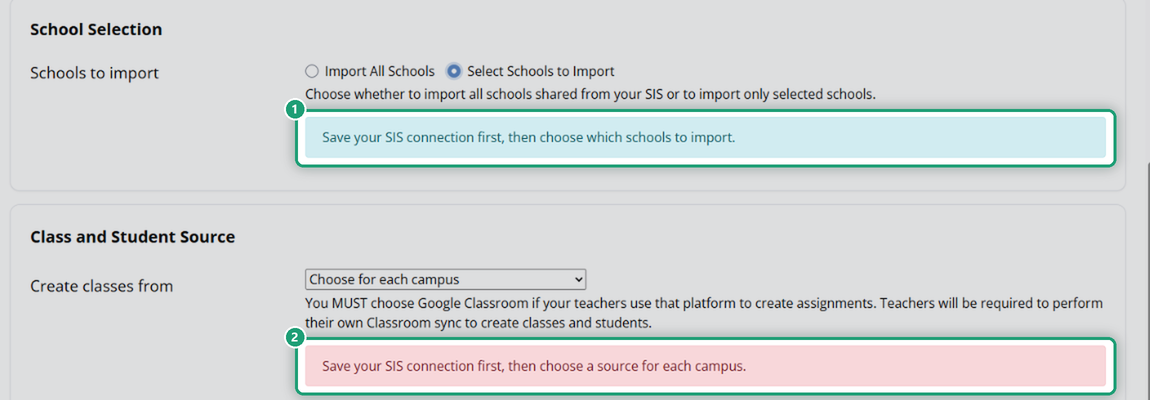
3. Class and Student Source
Create classes from sets where your classes and their students come from:
- Sync every campus from the SIS
- Sync every campus from Google Classroom
- Choose for each campus: once the connection is saved, each campus is listed (with its ID from your SIS) so you can pick Sync from the SIS or Sync from Google Classroom for each. Every campus needs a source. If the campus list looks out of date, click Refresh organizations from the SIS.
Important: choose Google Classroom for any campus whose teachers use Google Classroom to give assignments. Those teachers then do their own Classroom sync to create their classes and students.
4. Import Schedule
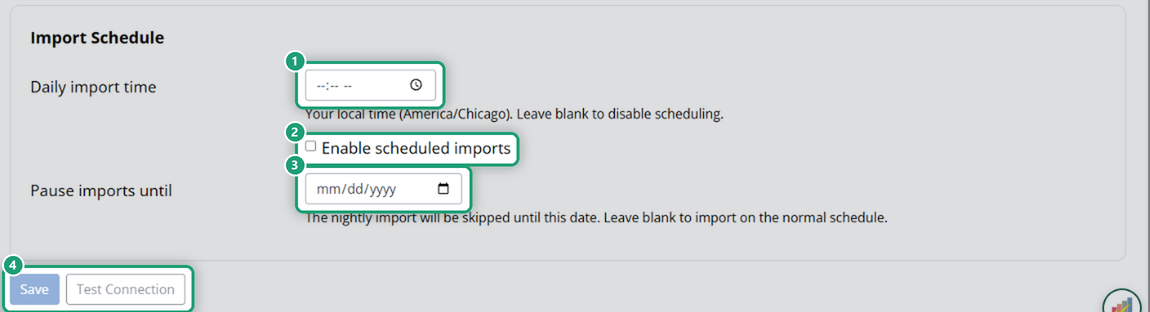
- Daily import time: when the nightly import runs, in your district’s time zone. Leave it blank to turn off scheduling.
- Enable scheduled imports: turns the nightly import on or off.
- Pause imports until: skips the nightly import until that date, then picks up again. Leave it blank to import as usual.
5. Save and test
Click Save. Click Test Connection to check that Classwork.com can reach your SIS with the details you entered.
If Clever rosters your district
SIS Setup isn’t available: a SIS connection and Clever would disagree about who your teachers and students are. Your users come from Clever instead. See Manage Users in Administration.
Sign-on is separate
Signing in with ClassLink or Clever (single sign-on) is set up separately from SIS rostering. Your Onboarding Team will help.
Was this article helpful?
That’s Great!
Thank you for your feedback
Sorry! We couldn't be helpful
Thank you for your feedback
Feedback sent
We appreciate your effort and will try to fix the article