|
|
Standards Mastery Report |
Standards Mastery Report
The Standards Mastery Report shows how your class is performing on each standard over time. It is closely related to the Quintile Report, but it flips the view. The Quintile Report sorts students by their average across the selected standards. The Standards Mastery Report sorts the standards themselves, placing each one into a score band based on how the whole class performed on it.
This report covers your own classes. Administrators can view standards mastery across their campus or district. See Standards Mastery Report for Admins.
Open the Standards Mastery Report
From the Classes page, open the Reports tab and select Standards Mastery Report.
Set Your Report Options
Two dropdowns appear at the top of the report:
- Standards Document: Choose the course whose standards you want to analyze (for example, Grade 3 Mathematics). This loads all of the standards in that course.
- Date Range: Optional. Click once on the calendar to set the start date, then click again to set the end date. If you don’t set one, the report uses the date range selected at the top of the Classes page.
Once you choose a standards document, a Select Standards filter is added beneath the dropdowns so you can narrow the report to specific standards. (Unlike the Quintile Report, there is no Bloom’s, Webb’s DOK, or question type filter on this report. It is organized by standard only.)
Standards by Score Band
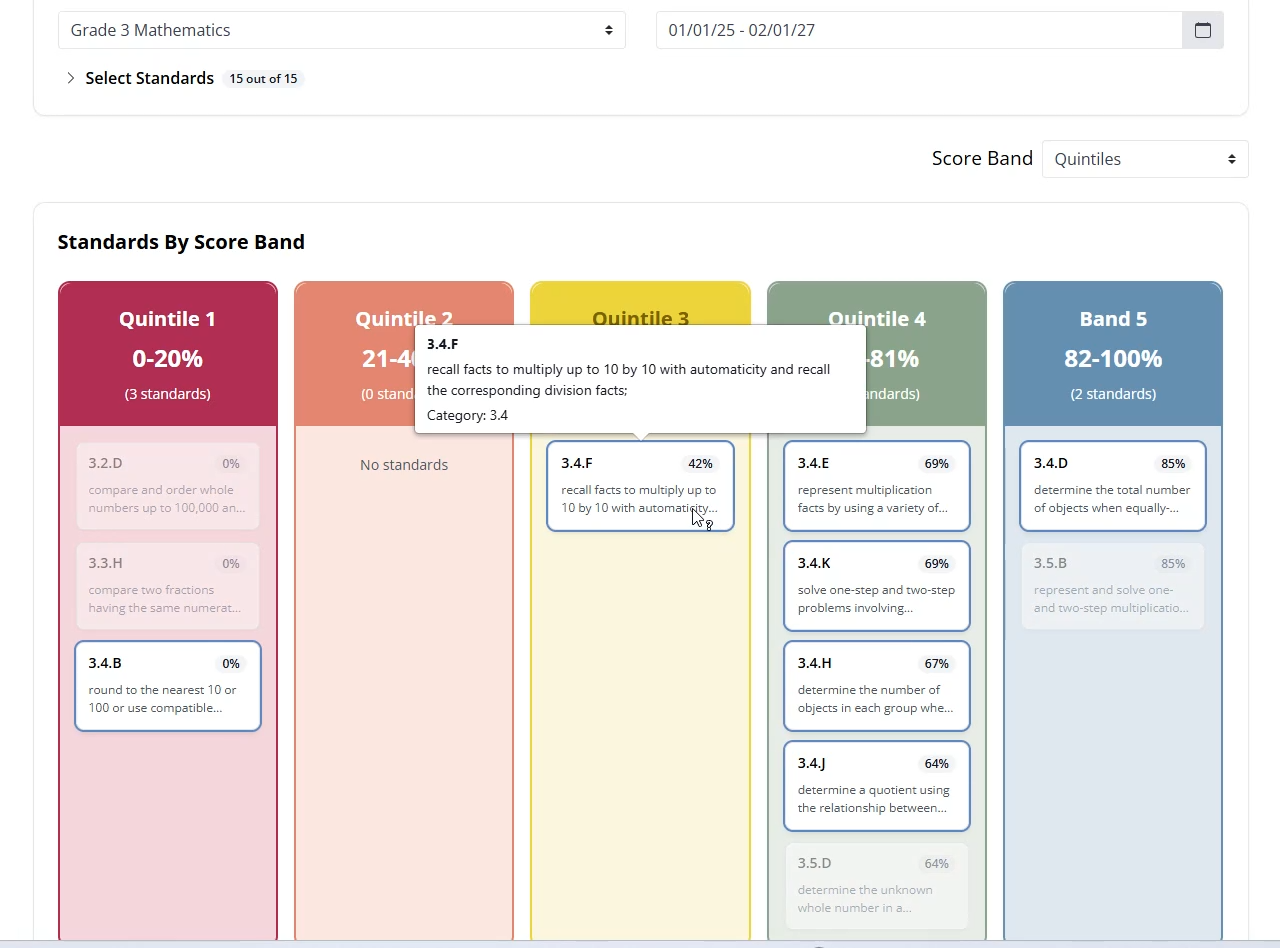
The report displays a Standards By Score Band view. Each selected standard is placed into a score band based on the average score of all students who answered questions tagged to that standard. In other words, instead of showing where students land, this report shows where your standards land.
Each band column lists the standards that fall within it. For every standard you will see:
- The standard code.
- The class average score for that standard.
- A short preview of the standard text.
The band header shows how many standards landed in it. A band with none reads No standards.
Use the Score Band dropdown above the report to change which score band group is applied. By default the report uses Quintiles (five color-coded bands running from lowest to highest). If your school or district has set up custom score band groups, you can select those here as well.
Explore a Standard
Hover over any standard in the report to learn more about it. Two things happen:
- A popup appears showing the full text of the standard along with its reporting category.
- Every other standard in that same reporting category is highlighted across all bands.
For example, hovering over 3.4.F highlights the rest of the 3.4 standards (3.4.A, 3.4.B, and so on), making it easy to see how an entire reporting category is performing at a glance.
Putting It All Together
The Standards Mastery Report gives you a standard-by-standard read on your class. Use it to quickly see which standards students have mastered and which ones may need to be retaught, then drill into a reporting category to spot patterns across related standards.
Was this article helpful?
That’s Great!
Thank you for your feedback
Sorry! We couldn't be helpful
Thank you for your feedback
Feedback sent
We appreciate your effort and will try to fix the article