|
|
How To Tag Questions With State Standards |
If you plan to use Classwork’s standards reporting tools, you will first need to align standards to your questions. You can tag standards before or after assigning the Activity.
In the Flex Editor, Texas teachers can tag standards automatically with AI. In either editor, you can also add standards manually. Both approaches are covered below.
Tag Standards Automatically with AI (Texas, Flex Editor)
In the Flex Editor, Texas teachers can let AI apply Standards, Bloom’s, and Webb’s DOK for you – one question at a time, or across the whole activity.
One Question at a Time
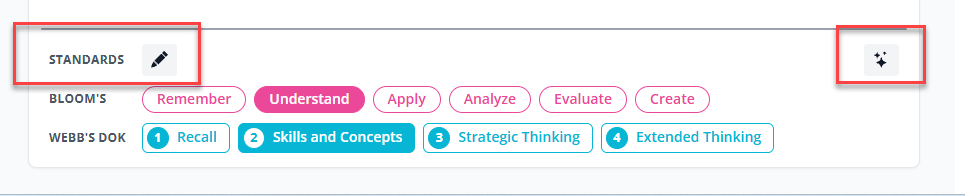
On the item, click the AI (sparkle) icon to the right of the standards area. AI applies the Standards, Bloom’s, and Webb’s DOK for that question.
The Whole Activity at Once
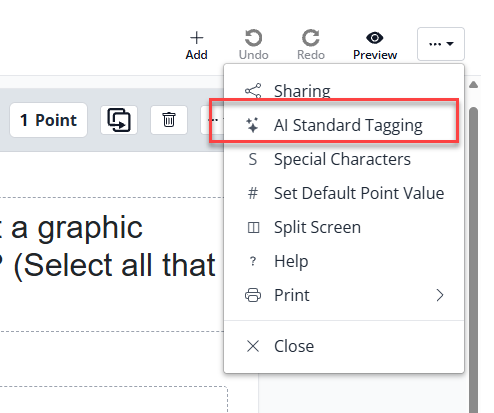
Click the 3-dot menu in the top right and choose AI Standard Tagging.
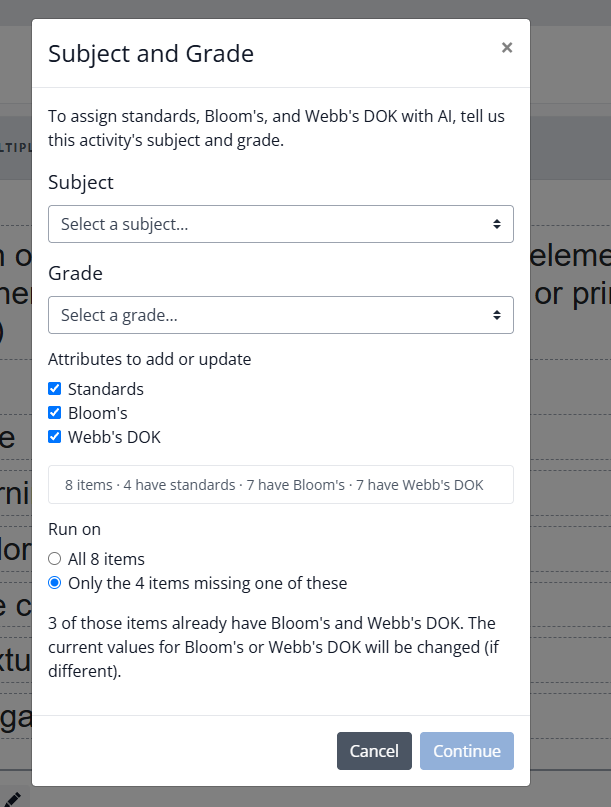
In the Subject and Grade dialog:
- Select the Subject and Grade.
- Under Attributes to add or update, choose any of Standards, Bloom’s, and Webb’s DOK.
- Under Run on, choose all items, or only the items missing one of these.
- Click Continue.
Add Standards Manually
You can also add standards by hand. This works the same in the Slide Editor and the Flex Editor.
To tag a question with a standard:
- Open the Activity in Edit mode. If Assignments already exist, open the Answer Key.
- Click on the question you want to align.
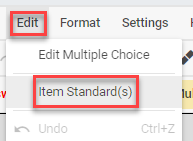
- In the Slide Editor, click Standard(s) in the top toolbar (or open Edit and choose Item Standard(s)). In the Flex Editor, click the pencil icon next to Standards on the item.
 |  |
- Click Search Standards or choose from your recently used standards.

- Select your State or standards document.

- Select the Subject.

- Select the Grade Level.

- Click the standard that applies to the question.

The selected standard will appear at the top of the selection window. Hover over the abbreviation to see the full text.

Click Save Changes when finished.

Tag Multiple Standards
A question can align to more than one standard.
To add another standard to the same question, click Search Standards again. You will return directly to the standards document and can select an additional standard.
Remove a Standard from a Question
- Click the question.
- Click Standard(s) or open Edit and choose Item Standard(s).
- Click the x next to the standard you want to remove.
- Click Save Changes.
Shortcuts
Classwork remembers your recently used standards documents and recently aligned standards.
If you frequently use the same standards set, select it from your recent list instead of searching by state, subject, and grade.

You can also quickly select recently aligned standards from the list provided.

When you duplicate a question, its standards alignments are copied automatically. A quick workflow is to align the first question, duplicate it using Ctrl+D, then edit the answer as needed.
View Student Performance by Standard
Once questions are aligned, you can view student performance by standard in your reports.
Was this article helpful?
That’s Great!
Thank you for your feedback
Sorry! We couldn't be helpful
Thank you for your feedback
Feedback sent
We appreciate your effort and will try to fix the article