|
|
Curriculum Review - Review Submitted Activities for HQIM |
Review Submitted Activities for HQIM
For Curriculum Reviewers.
When a teacher submits an activity for HQIM approval, it goes to the Review Team they picked. Here’s how a reviewer checks it and approves or declines it.
Open a submission
- Go to Administration > Curriculum Review. (See Curriculum Review Page.)
- On the Needs Review tab, click the activity’s title.
The Review For Approval window opens.
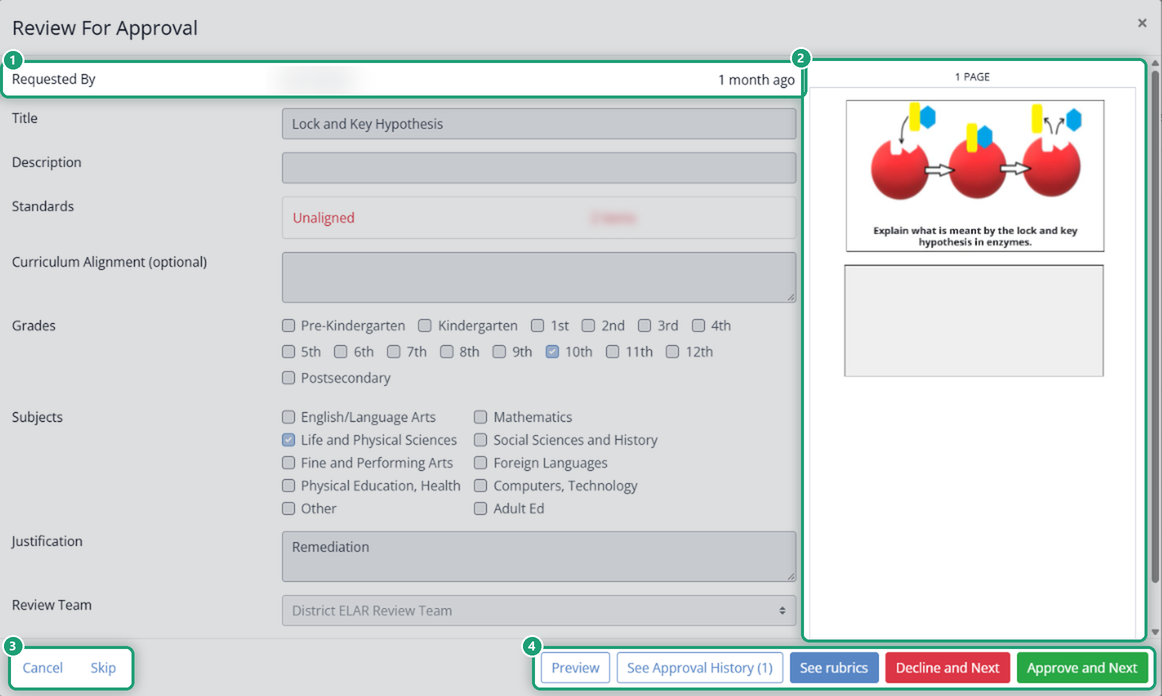
- Requested By shows who submitted it and how long ago.
- The teacher’s answers are shown read-only: Title, Description, Standards (untagged questions show as Unaligned in red), Curriculum Alignment, Grades, Subjects, Justification, Review Team, and whether they asked for it to go to the Shared Library.
- Previews of the pages are on the right.
Check the activity
- Preview: see the activity as students will.
- See Approval History: earlier submissions of this activity and the decisions on them.
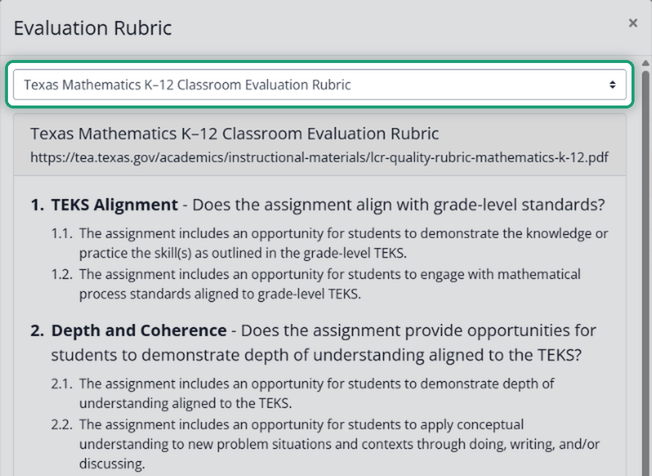
- See rubrics: TEA’s evaluation rubrics, with a menu to switch between the Texas Mathematics K–12 Classroom Evaluation Rubric and three reading rubrics (Reading Comprehension 4–8, Reading Comprehension K–3, and K–3 Foundational Literacy Skills). Each links to TEA’s PDF.
- Skip: move to the next submission without deciding. Cancel: close the window.
Approve or decline
Approve and Next
- Click Approve and Next.
- Choose the rubric you used and add your notes. Both are required.
- Click Submit. The next submission opens.
Decline and Next
- Click Decline and Next.
- For the rubric that applies, mark Yes or No for the criteria the activity didn’t meet, and explain in Notes. Everything required must be filled in before Submit works.
- Click Submit. The next submission opens.
After you decide
- The teacher sees a green Approved or red Declined badge on the activity.
- If it’s approved and the teacher asked for it, the activity goes into your district’s Shared Library of approved materials.
- It moves to your Approved or Declined tab.
Tips
- Use Preview to check question types and standards before you decide.
- Keep notes specific, so a teacher whose activity is declined knows what to fix before resubmitting.
Are you new to Classwork.com? Welcome!
Click here to start your 30 day risk-free PRO trial today.
Was this article helpful?
That’s Great!
Thank you for your feedback
Sorry! We couldn't be helpful
Thank you for your feedback
Feedback sent
We appreciate your effort and will try to fix the article