|
|
Curriculum Review – Administration Page |
Curriculum Review Page
This article applies to Curriculum Reviewers and Administrators.
The Curriculum Review page is where designated reviewers approve or decline activities submitted for HQIM or IMRA approval.
Access Requirements
Team Membership Unlocks Access
Any user added to at least one Review Team will automatically see the Administration menu in their navigation, even if they are not a District Administrator.
Limited View for Non-Administrators
Teachers without administrator rights will see only the Curriculum Review tab under Administration.
Full Administrator View
Users with Administrator roles will see the full Administration menu, including Curriculum Review and all other available admin tools.
How to Open the Curriculum Review Page
- Sign in with a District Administrator account or a teacher account that has been added to a Review Team.
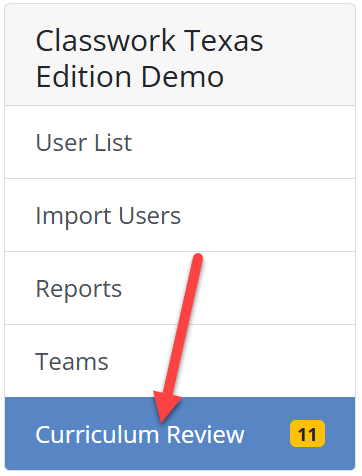
- Click Administration in the left navigation menu.

- Select Curriculum Review from the left menu.
A yellow badge next to the menu item displays the number of activities currently waiting for review.
Page Overview
The Curriculum Review page includes tools to help reviewers locate, filter, and manage submitted activities.
Search Bar
- Located at the top of the page.
- Search by teacher name or email address.
- Filters activities submitted by or reviewed by the selected user.

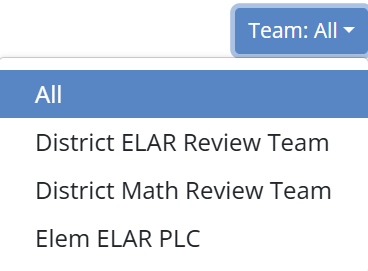
Teams Dropdown
This dropdown appears in the upper-right corner only if you belong to more than one Review Team.
- View activities for all teams you belong to, or
- Filter by a specific team.
Status Tabs
Directly below the search bar are three status tabs:
| Tab | Description |
|---|---|
| Needs Review (Blue) | Activities waiting for approval or decline. |
| Approved (Green) | Activities that have already been approved. |
| Declined (Red) | Activities that have been reviewed and declined. |
Click a tab to switch between categories.

Activity List
Below the status tabs is a sortable table showing activities that match your current filters.
| Column | Description |
|---|---|
| Title | Name of the submitted activity. |
| Teacher | The teacher who submitted the activity. |
| School | School associated with the teacher’s account. |
| Status | Current review status. |
| Submitted Date | Date the activity was submitted for review. |
| Reviewed By | The reviewer who last acted on the activity. |
| Reviewed Date | Date of the most recent review action. |
| Submitted to Library | Indicates whether the activity was added to the district Shared Library after approval. |
Next Step: Reviewing an Activity
Click any activity title to open the detailed review window. Reviewers can inspect standards alignment, curriculum alignment, justification, and supporting details before approving or declining.
For step-by-step instructions on reviewing and approving submissions, see: Reviewing and Approving Curriculum Submissions.
Was this article helpful?
That’s Great!
Thank you for your feedback
Sorry! We couldn't be helpful
Thank you for your feedback
Feedback sent
We appreciate your effort and will try to fix the article