|
|
Curriculum Review - Review Submitted Activities for HQIM |
Curriculum Review - Review Submitted Activities for HQIM
This article applies to Review Team members and district administrators.
Members of a Review Team can approve or decline activities that teachers submit for HQIM or IMRA approval.
This guide explains how to open a submission, preview the activity, and complete the approval or decline process.
Access the Curriculum Review Page
- Sign in with the account that was added to a Review Team.
- In the left navigation menu, click Administration.
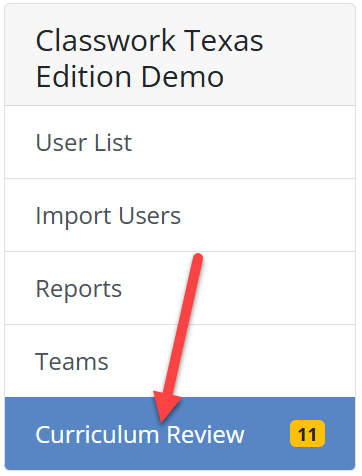
- Click Curriculum Review.

- If you are not a district administrator, the Administration page will appear with only the Curriculum Review tab.
- A yellow badge shows the number of activities awaiting review.
Use the search bar or the status tabs to locate the activity you want to review:
- Needs Review (Blue): Activities awaiting a decision
- Approved (Green): Activities already approved
- Declined (Red): Activities previously declined
Open an Activity for Review
Click any activity title in the Needs Review list to open the review window.
At the top of the window, you will see:
- Requested By: Displays the submitting teacher’s name and how long ago the activity was submitted.
- The submission fields (Title, Description, Standards, Curriculum Alignment, Grades, Subjects, Justification, Review Team, Shared Library option) appear grayed out for reference.
For details on what teachers complete during submission, see: Submit an Activity for Approval.
Navigation and Action Buttons
At the bottom of the review window, you will find these controls:
| Button | Function |
|---|---|
| Cancel | Close the review window without taking action. |
| Skip | Move to the next activity without reviewing the current one. |
| Preview | Open a full-screen, student-view preview of the activity. |
| See Approval History (#) | Open a pop-up listing prior submissions and decisions for this activity. |
| See Rubrics | Open a pop-up displaying TEA IMRA rubrics. Use the dropdown to switch between:
|

Decision Buttons
| Button | Function |
|---|---|
| Decline and Next (Red) | Open a rubric-based decline form, then move to the next activity after submitting. |
| Approve and Next (Green) | Open an approval form, then move to the next activity after submitting. |

Declining an Activity
When Decline and Next is selected:
- A pop-up appears with the TEA IMRA rubrics and a dropdown to switch among them.
- For each relevant rubric, choose Yes or No to indicate which criteria the activity failed to meet.
- Enter a justification in the Notes field.
- All required Yes or No choices and notes must be completed to enable Submit.
- Click Submit to record the decline and move to the next activity.
Approving an Activity
When Approve and Next is selected:
- A pop-up appears with a Rubric Selection dropdown.
- Choose the rubric used for evaluation.
- Enter reviewer notes to support the approval.
- Both a rubric selection and notes are required to enable Submit.
- Click Submit to approve and move to the next activity.
After Submission
The submitting teacher will see the activity marked with:
- A green Approved badge if approved, or
- A red Declined badge if declined.
If approved and the teacher selected Please submit to Shared Library for use by other teachers, the activity will appear in the district Shared Library of approved HQIM materials.
Tips for Reviewers
- Use Preview to confirm standards, question types, and the student experience before deciding.
- Approval History provides context for resubmissions and prior feedback.
- Decline notes are shared with the submitting teacher, so be specific and constructive.
Was this article helpful?
That’s Great!
Thank you for your feedback
Sorry! We couldn't be helpful
Thank you for your feedback
Feedback sent
We appreciate your effort and will try to fix the article