|
|
Keyboard Shortcuts |
Keyboard Shortcuts
Applies to: Slide Editor
The Slide Editor has keyboard shortcuts for the things you do most. Many are also listed next to their commands in the File, View and Edit menus.
Shortcut list
| Key | What it does |
|---|---|
| Ctrl+A | Select all the objects on the slide. |
| Ctrl+C | Copy. Works for selected objects and whole slides. |
| Ctrl+V | Paste. |
| Ctrl+X | Cut: remove the selection and keep a copy to paste somewhere else. |
| Ctrl+D | Duplicate the selected object. |
| Delete | Delete the selected object. |
| Ctrl+Z | Undo your last action. |
| Ctrl+Y | Redo the last action you undid. |
| Ctrl+P | Print to PDF: print the blank Activity. |
| Ctrl+F2 | Preview the Activity. |
| Ctrl++ | Zoom in. |
| Ctrl+- | Zoom out. |
| Space bar | Pick the same tool you inserted last. Then drag a rectangle to draw it on the slide. |
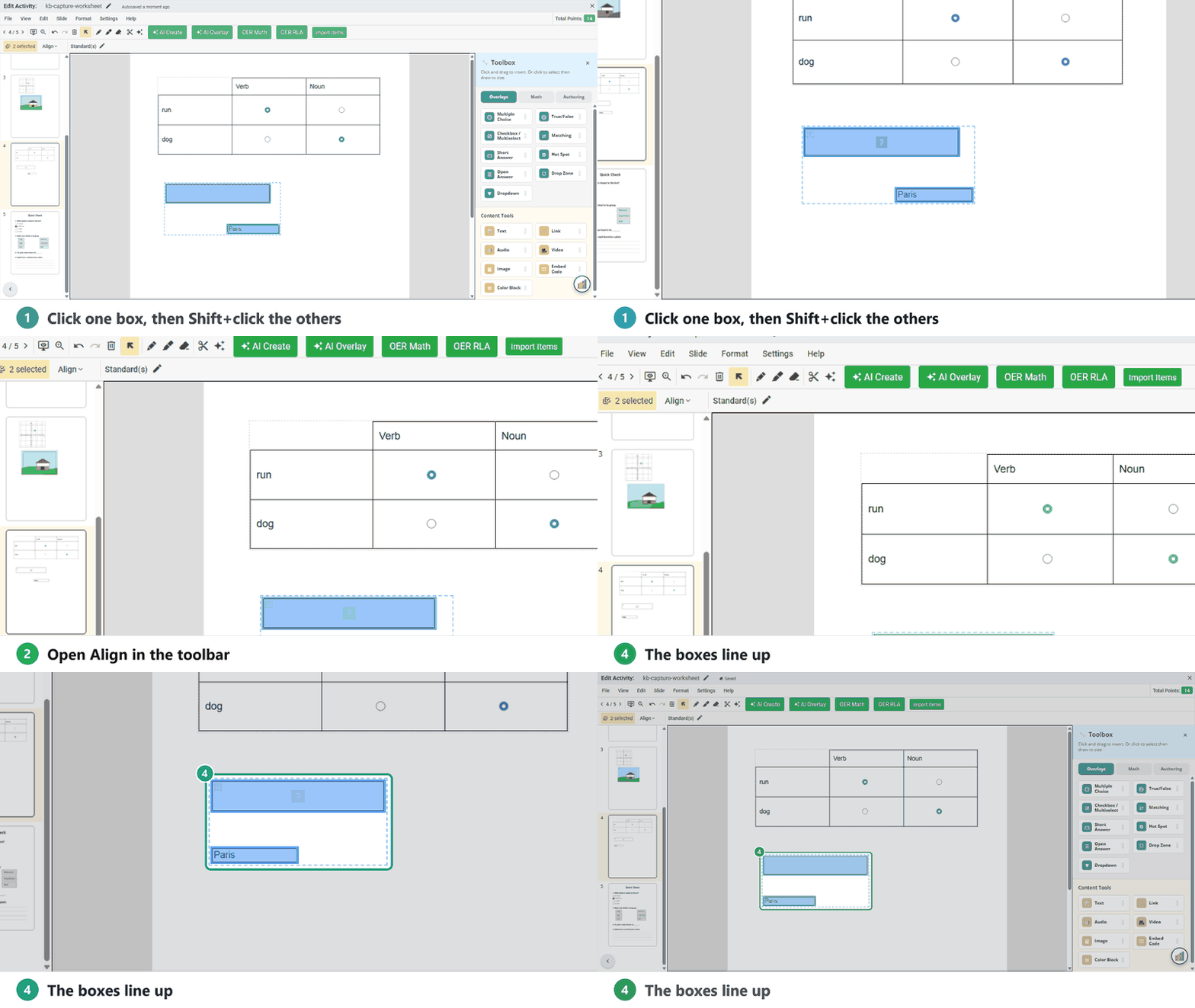
| Shift | Hold Shift and click (or drag) to select several objects. You can copy, cut, paste or delete them together, or line them up with Align. |
| Ctrl+M | Add a new blank slide. |
In the Flex Editor
To select several items in a Flex Activity, hold Shift and click them. A panel opens where you can group, duplicate or delete them, or change their points and standards. Use the Undo and Redo buttons at the top right to step back and forward. See Undo and Redo in the Editor.
Are you new to Classwork.com? Welcome!
Click here to start your 30 day risk-free PRO trial today.
Was this article helpful?
That’s Great!
Thank you for your feedback
Sorry! We couldn't be helpful
Thank you for your feedback
Feedback sent
We appreciate your effort and will try to fix the article