|
|
State Standards Reporting |
State Standards Reporting
The Standards view shows how your students did on each standard in one Assignment, right from their submissions. For standards across many Assignments, see More ways to see standards below.
First, tag your questions
The view only has something to show once the Activity’s questions are tagged with standards. See How to Tag Questions with State Standards. You can tag them any time, even after students have turned in their work: open the Activity with Edit (it opens in Answer Key Mode) and add the standards. The view updates on its own.
Open the Standards view
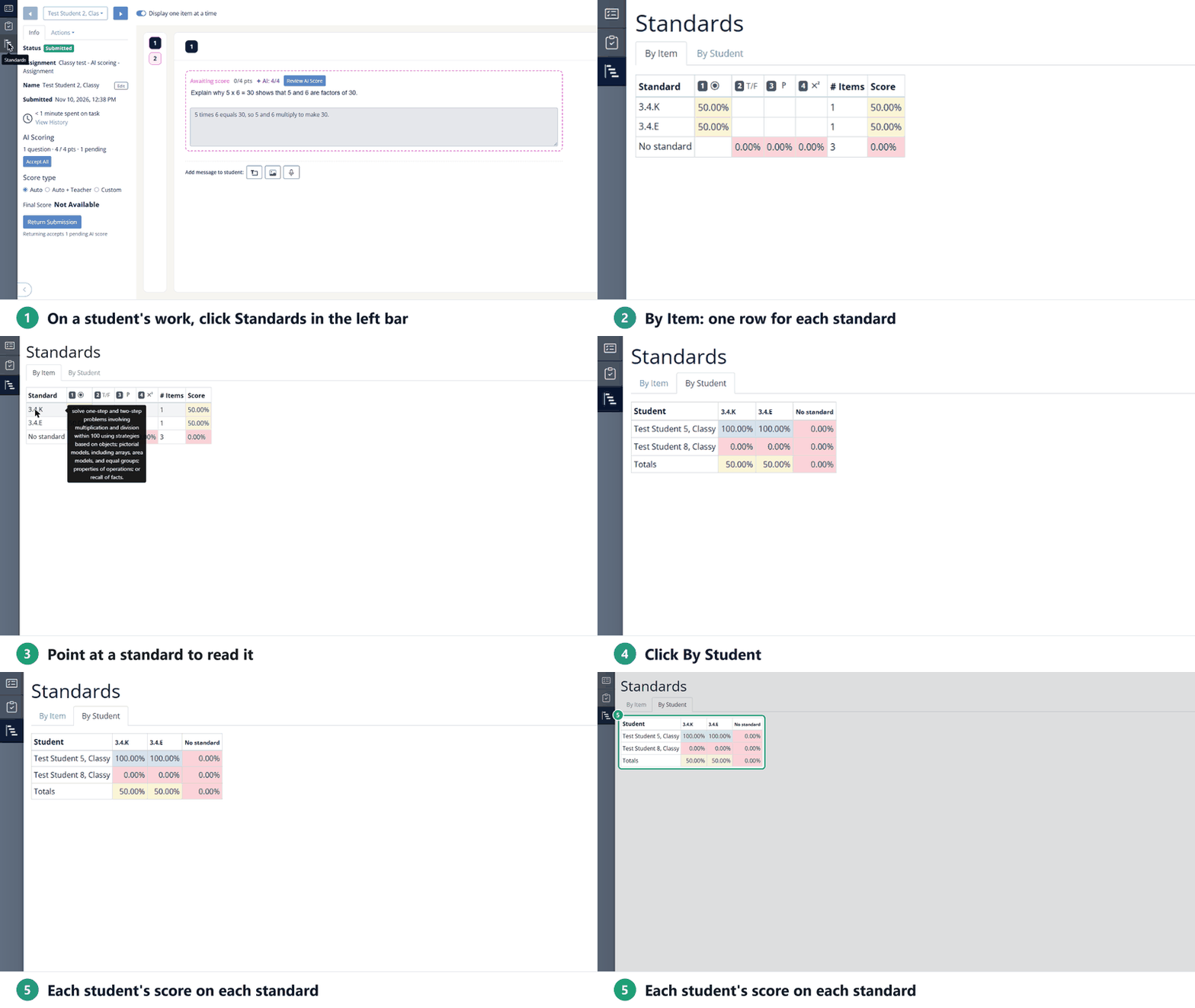
- Open the Assignment and click a student’s name to open their work.
- In the dark bar on the far left, click Standards (the third button).
- Use the By Item and By Student tabs to switch views.
- Click Close in the upper right when you’re done.
By Item
By Item opens first. Each row is one standard. Only scored questions are counted.
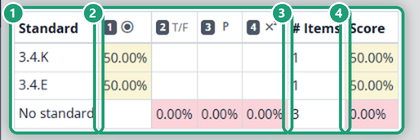
- Standard: the standard’s code. Point at it to read the full standard.
- Question columns: one column for each question, with its number and an icon for the question type. A cell shows the class score on that question for that standard. A question tagged with two standards shows up in both rows.
- # Items: how many questions are tagged with that standard.
- Score: the class score across all of those questions.
Scored questions with no standard are grouped in a No standard row. Cells are shaded by score, so low scores stand out. Questions are numbered in the order they appear in the Activity, which may not match the numbers printed on your page; see How Does Classwork.com Number Questions for Item Analysis?
By Student
Click By Student. Each row is a student and each column is a standard (plus No standard). A cell shows that student’s score across every question tagged with that standard. The Totals row at the bottom shows the class.
Tip: in a Slide activity, clicking a student’s answer also lists the question’s standards in the pop-up.
More ways to see standards
Your Classes page Reports tab has reports that use the same standards tags:
- Activity Report: One Assignment, like the Standards view above. The By Standard tab shows each student’s score on every standard in the Assignment, colored by score band, and Select Standards narrows the report to the standards you pick.
- Standards Mastery Report: Every Assignment in a date range. Sorts your standards into five score bands, so you can see which ones your classes have mastered and which need reteaching.
- Quintile Report: Every Assignment in a date range. Sorts your students into five score bands on the standards you choose.
- Texas OER Performance Report: For Texas OER Math and RLA work, with a Select Standards filter. Available if your school or district has the Texas OER Math or RLA Companion.
School and District Admins can see standards across a campus or district in the Standards Mastery Report for Admins. School Admins can also open any teacher’s Assignment, including its By Standard tab, in the Activity Report for Admins.
Was this article helpful?
That’s Great!
Thank you for your feedback
Sorry! We couldn't be helpful
Thank you for your feedback
Feedback sent
We appreciate your effort and will try to fix the article