|
|
Changing the Background Color |
Changing the Background Color
In a Flex Activity, use Style to give an item a background color (plus a border and font), one item at a time or many at once. In a Slide Activity, color a whole slide with Slide → Set Background Color.
Flex Editor: color an item
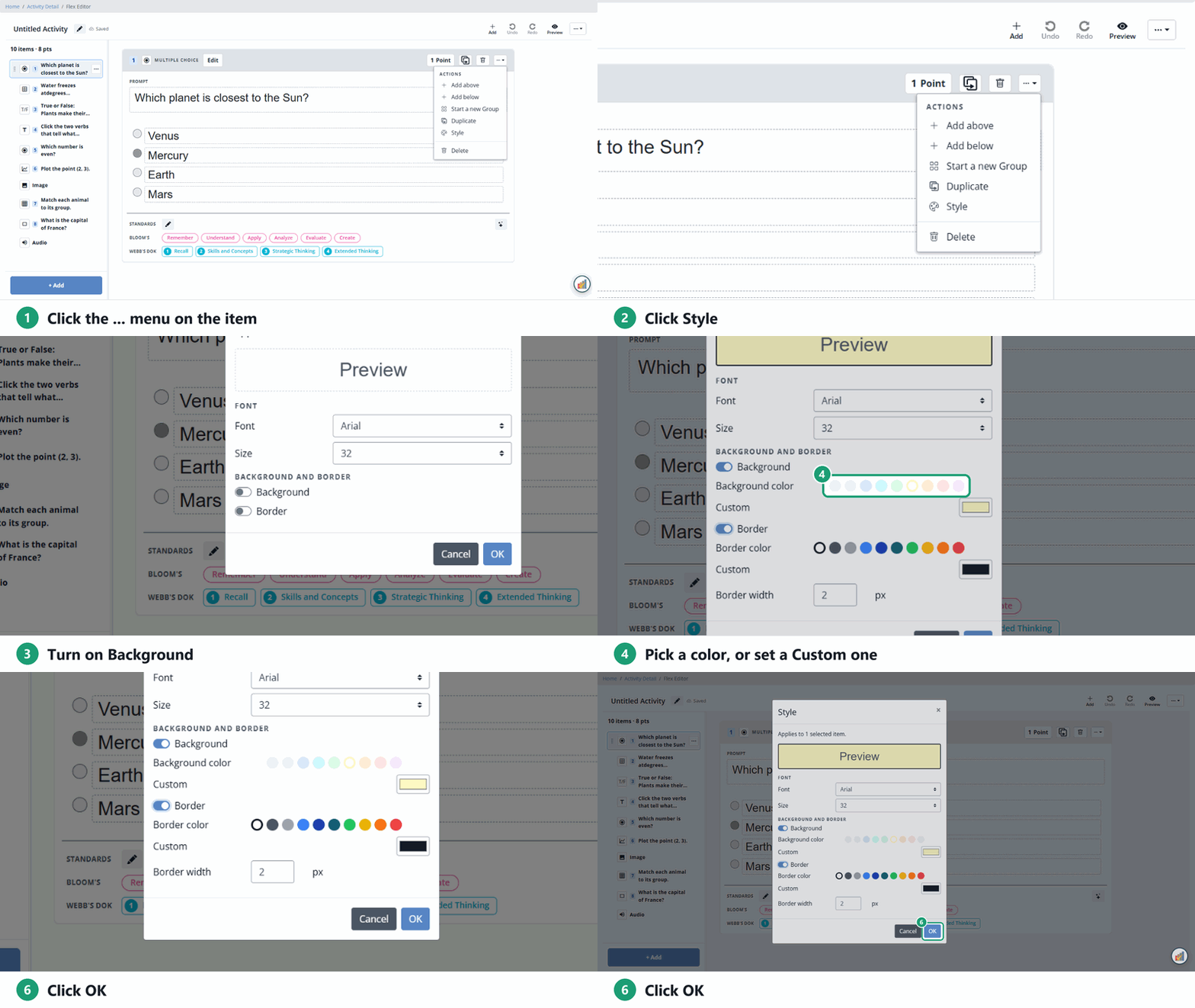
- Click the … menu at the top right of the item and choose Style.
- Turn on Background and pick a color, or set your own under Custom.
- If you like, turn on Border to pick a border color and width, and change the Font and Size.
- Check the Preview at the top of the window, then click OK.
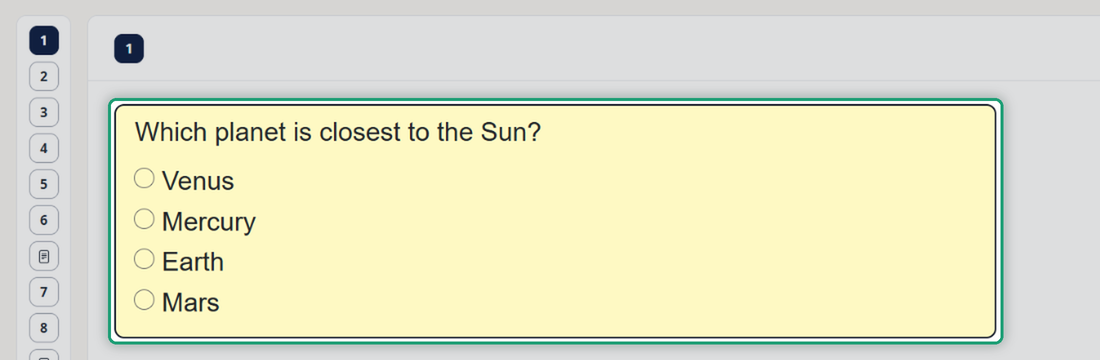
Students see the color behind the item:
In the editor, the item shows a small color dot next to Edit instead.

Color several items, or all of them, at once
- In the item list on the left, click an item, then Shift+click another to select everything in between. To pick every item, click Select All.
- Click Style. The window says how many items it applies to.
- Turn on Background, pick a color and click OK.
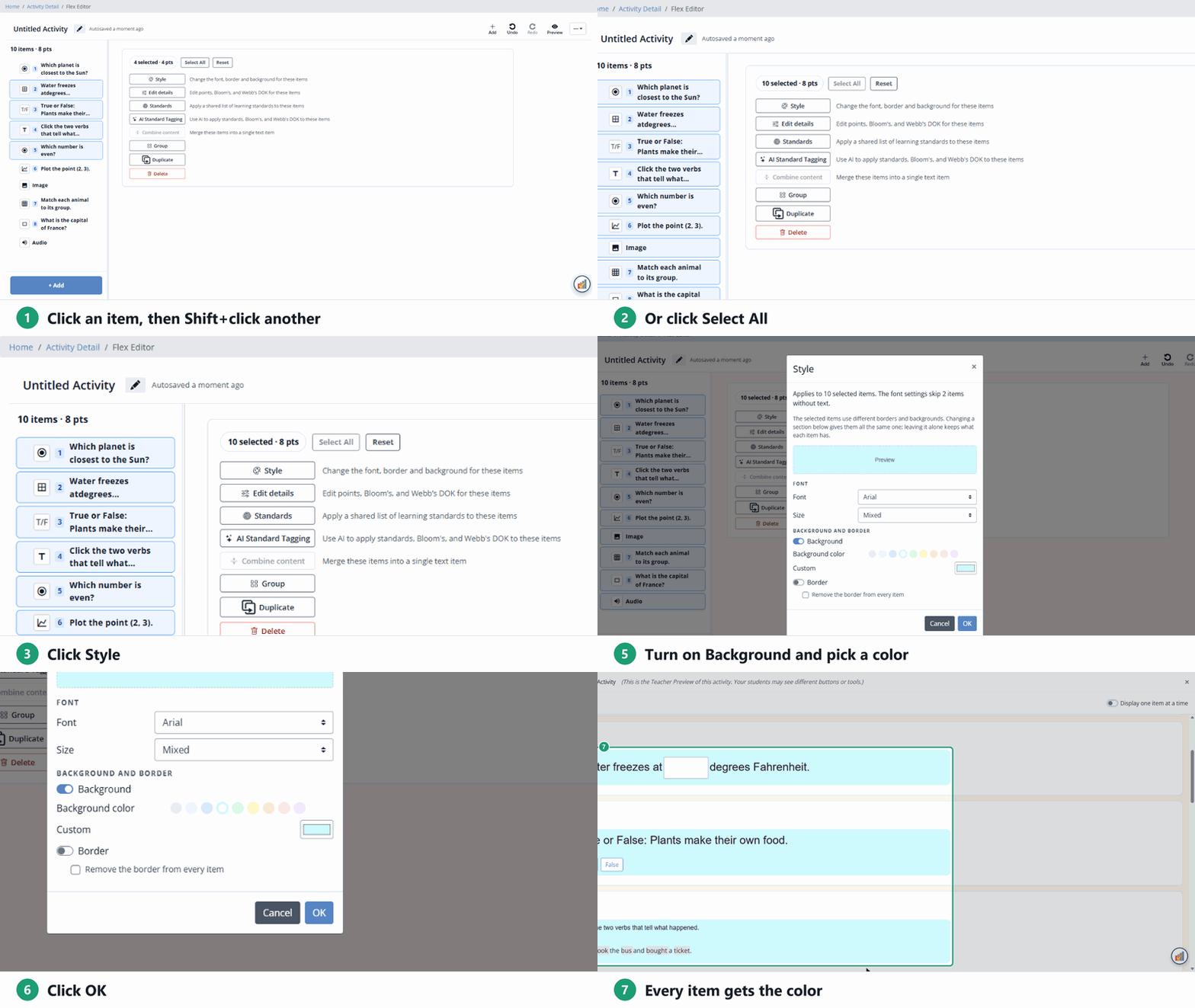
If the selected items have different backgrounds or borders, only the sections you change are applied; the rest keep what each item has. To clear them, check Remove the background from every item or Remove the border from every item. Font settings skip items without text, such as images.
Slide Editor: color a slide
- In the Slide Editor, go to the blank slide you want to color.
- Open the Slide menu and choose Set Background Color.
- Pick a color from the palette, or click + under Custom colors for your own.
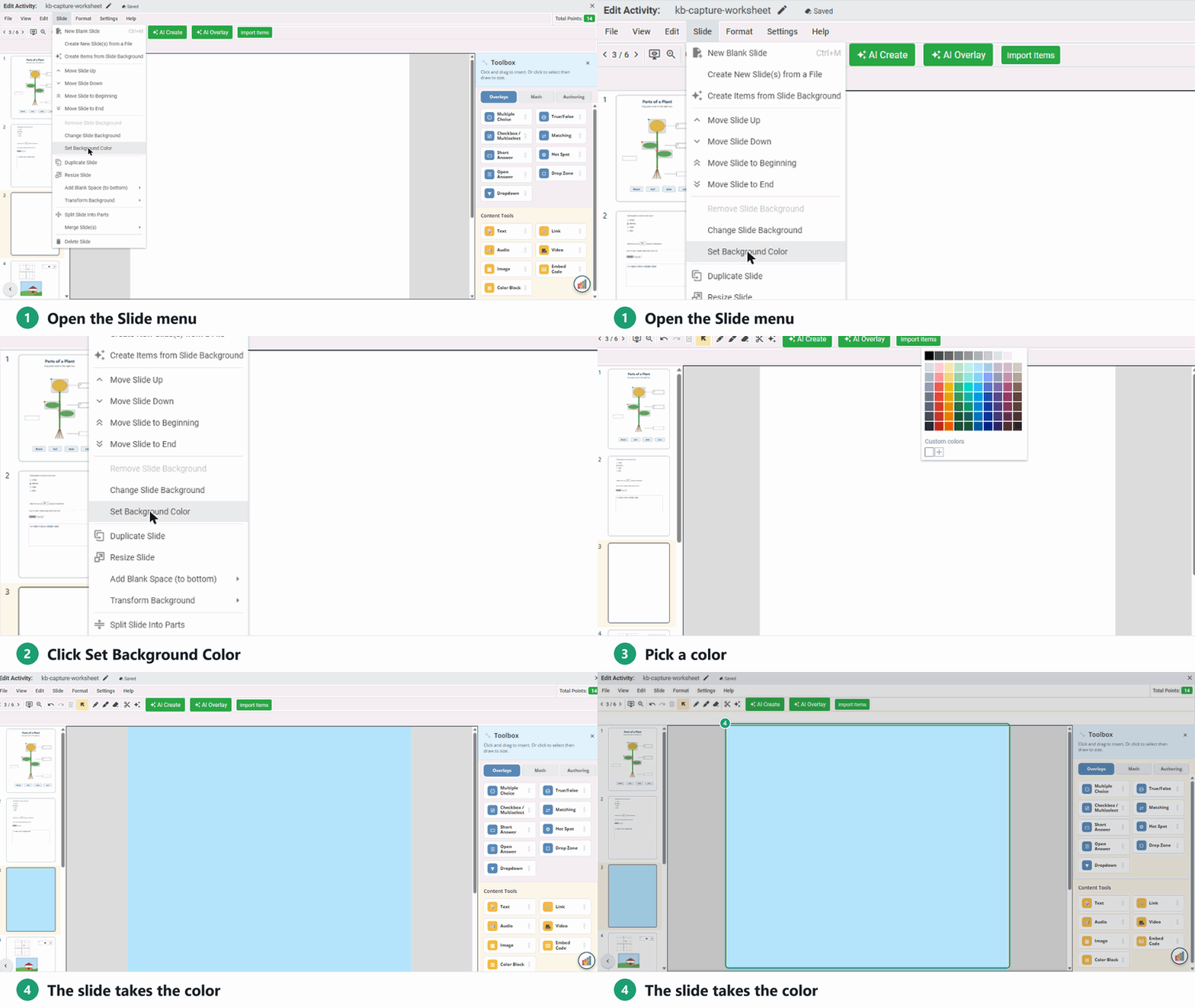
Each slide has its own color, so repeat this for every slide you want to change.
Question colors
In a Flex Activity, use Style (above) to color a question. In a Slide Activity, most question types can’t have a background color, but you can change their font color and border color. See Can I Change the Background Color of My Question?
Want background colors somewhere else? Let us know at support@classwork.com.
Was this article helpful?
That’s Great!
Thank you for your feedback
Sorry! We couldn't be helpful
Thank you for your feedback
Feedback sent
We appreciate your effort and will try to fix the article