|
|
Sorting Lists |
Sorting Lists
Most lists in Classwork.com can be sorted. On the Activities page, click a column header; on the Classes page and in the Library, use Sort by.
Activities page
- Click Name to sort A to Z. Click it again for Z to A.
- Click Updated to sort by the date of the last change. Click it again to reverse the order.
The arrow next to the header shows which way the list is sorted.
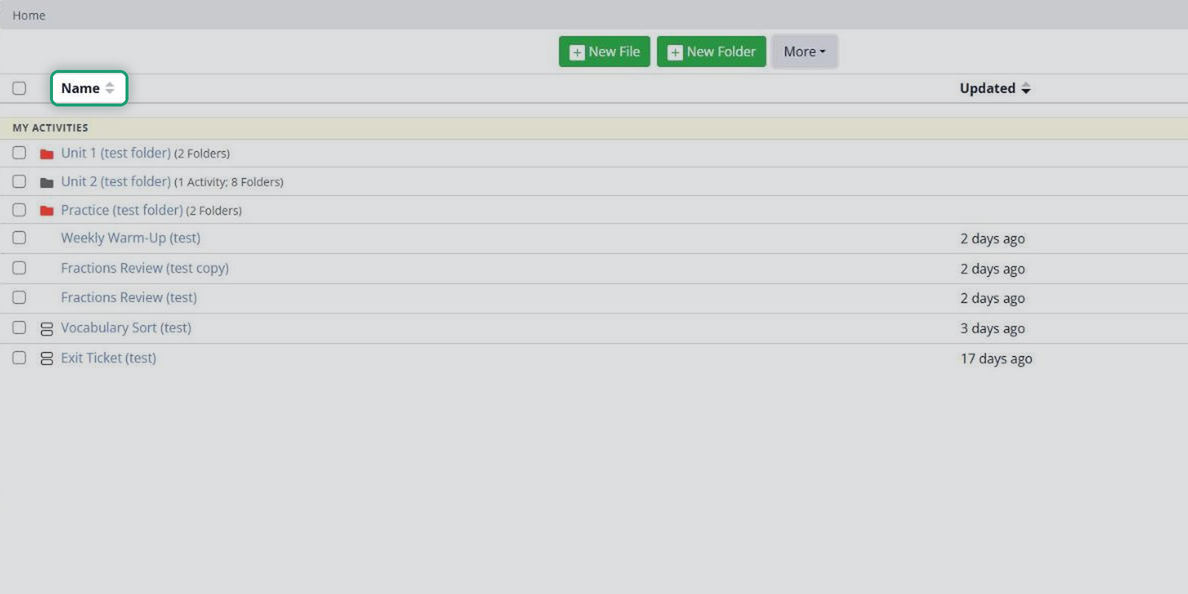
Folders always stay above Activities, in alphabetical order. They can’t be pinned or dragged; to move a folder up the list, rename it. Each folder keeps its own sort for what’s inside it. See How to Sort Folders and Activities on the Activities Page.
Classes page
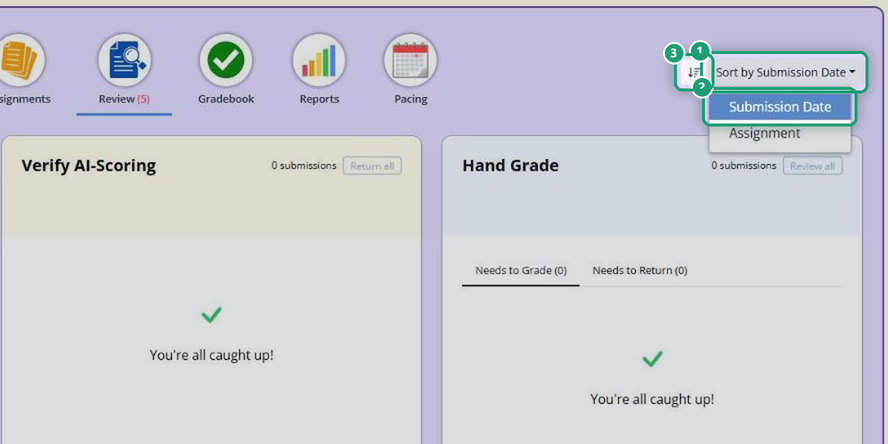
On the Assignments and Review tabs, pick an option from Sort by (on the Review tab, Submission Date or Assignment). Click the sort order button next to it to switch between ascending and descending.
Library
Use Sort by at the top of the Library to sort by Rating, Popularity, Title or Keyword.
Was this article helpful?
That’s Great!
Thank you for your feedback
Sorry! We couldn't be helpful
Thank you for your feedback
Feedback sent
We appreciate your effort and will try to fix the article