|
|
Locking and Unlocking an Assignment |
Locking and Unlocking an Assignment
Lock an Assignment to stop students from working on it: they can’t start a new submission or keep working on one they started. Unlock it to let them back in.
From the Activity page
- On the Activities page, click the name of the Activity you assigned. Its assignments are listed on the right, one per class.
- Click the … menu next to the assignment.
- Click Lock Assignment (or Unlock Assignment if it’s already locked).
- In the popup, choose Lock or Unlock, then click Save.
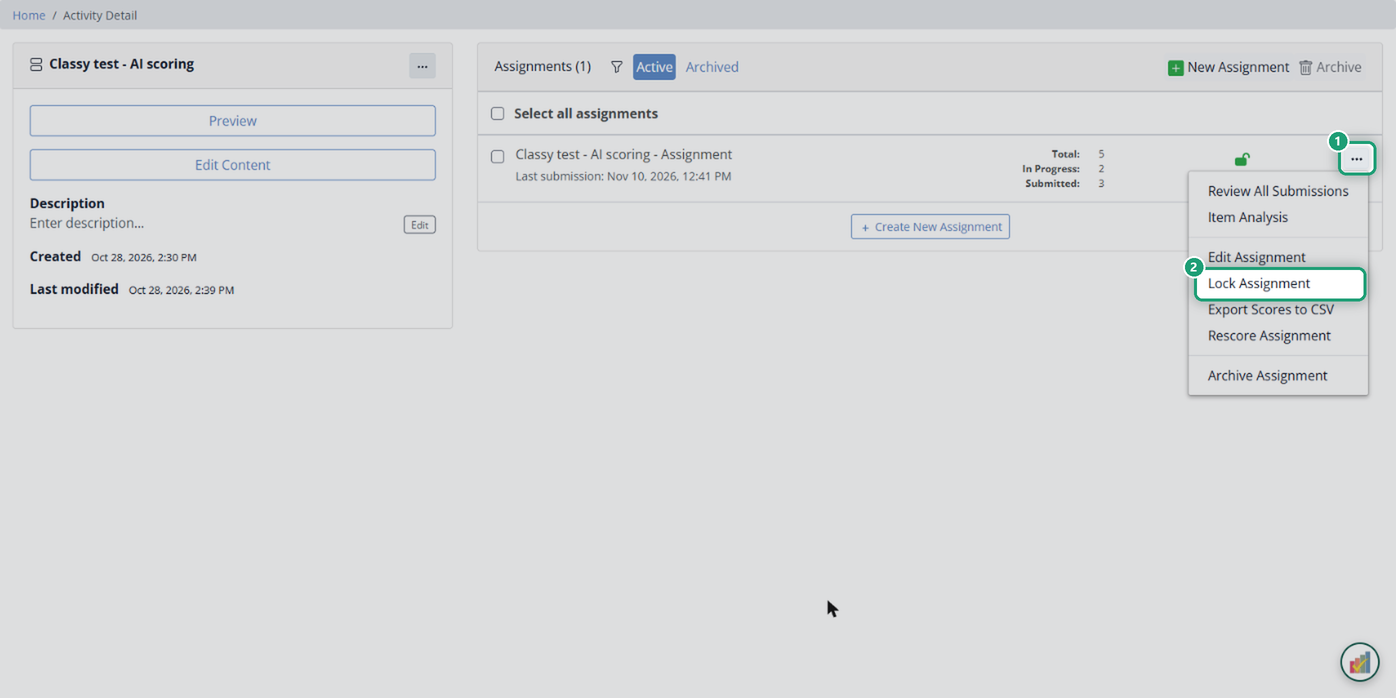
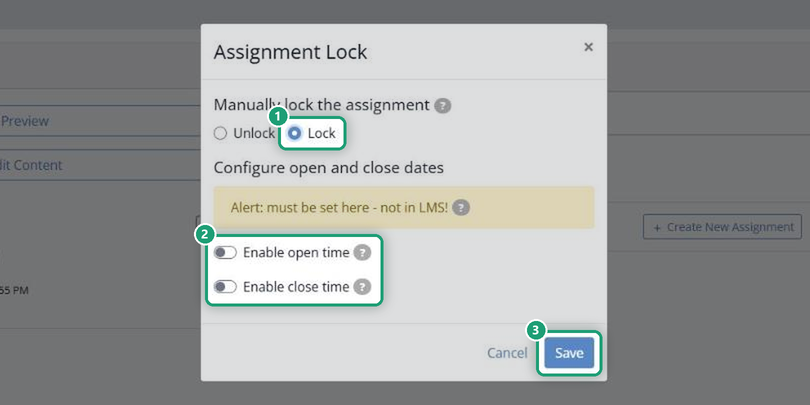
The padlock next to the assignment shows whether it’s open (green) or locked (red).
From the Assignment Detail page
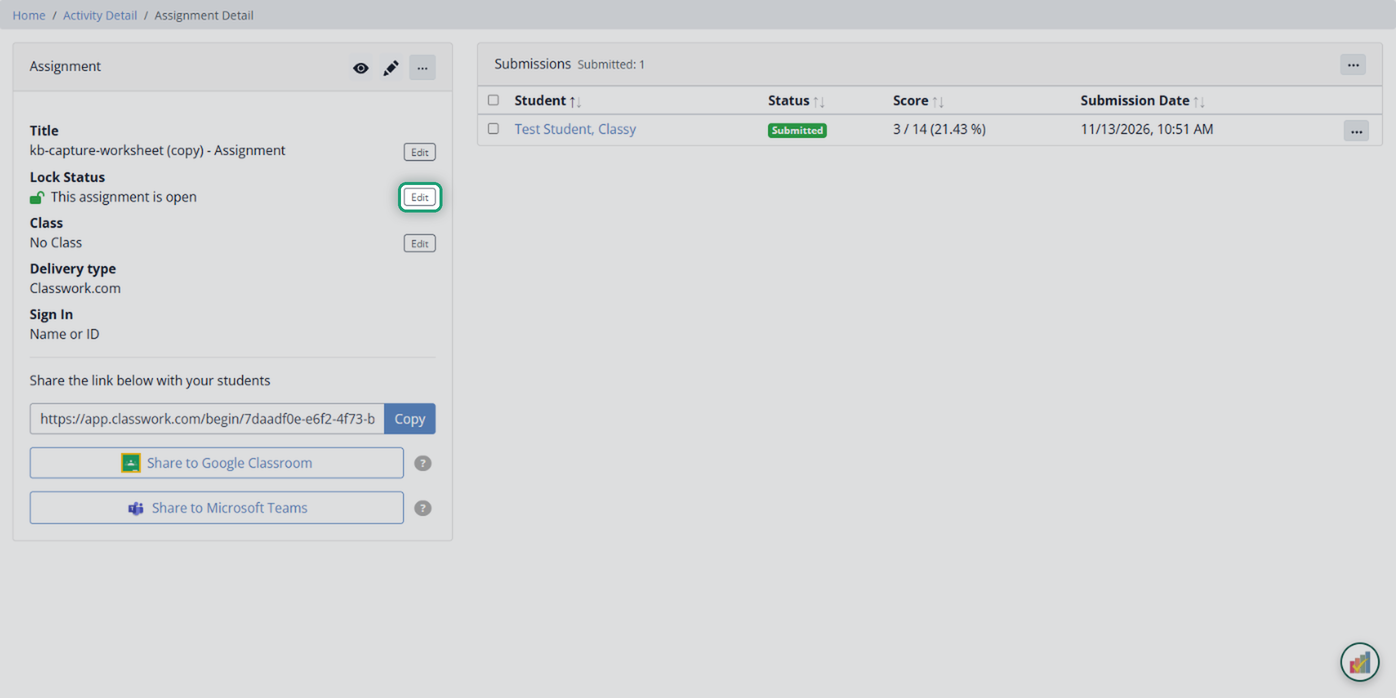
On an assignment’s page, click Edit next to Lock Status (it reads “This assignment is open” while it’s unlocked). You can also use the … menu at the top of the left panel and click Lock Assignment. The same popup opens.
Lock or unlock on a schedule
The lock popup also has an open time and a close time, so the assignment can open and lock on its own. See Are there Time Management Features in Classwork.com?
What students see
When students open a locked assignment, they can’t start or change their work.
Note: a red Locked label next to one student is different. That student was locked out by Academic Integrity for leaving the assignment. Unlock them from their submission with Unlock Assignment; the assignment’s lock doesn’t change it.
Was this article helpful?
That’s Great!
Thank you for your feedback
Sorry! We couldn't be helpful
Thank you for your feedback
Feedback sent
We appreciate your effort and will try to fix the article