|
|
How Do I Remove the Margins Before Importing |
How Do I Remove the Margins Before Importing?
Applies to: Slide Editor
To make imported pages blend into one seamless scrolling document, crop the top and bottom margins off the PDF before you import it. Google Docs and Microsoft Word always leave a little space, even with margins set to 0, so use a PDF cropping tool. Adobe Acrobat works; a free option we’ve found useful is DeftPDF.
Crop the PDF
- In Google Docs (or Word), set the margins to 0″ and download the document as a PDF.
- Go to deftpdf.com/crop-pdf and upload the PDF.
- Choose to set each page’s margins on its own.
- Don’t use Auto-Crop: it trims the left and right sides too much. Instead, set the left and right margins of each page to 1″ (or whatever they were in your document) and the top and bottom to 0.
- Scroll to the bottom of each page and drag the bottom of the selection box up to just below the last line.
- When every page is done, click CROP PDF TOOL. (On a small screen an ad may cover the button; click the small arrow on the ad to hide it.)
- Download the cropped PDF.
Import it into Classwork.com
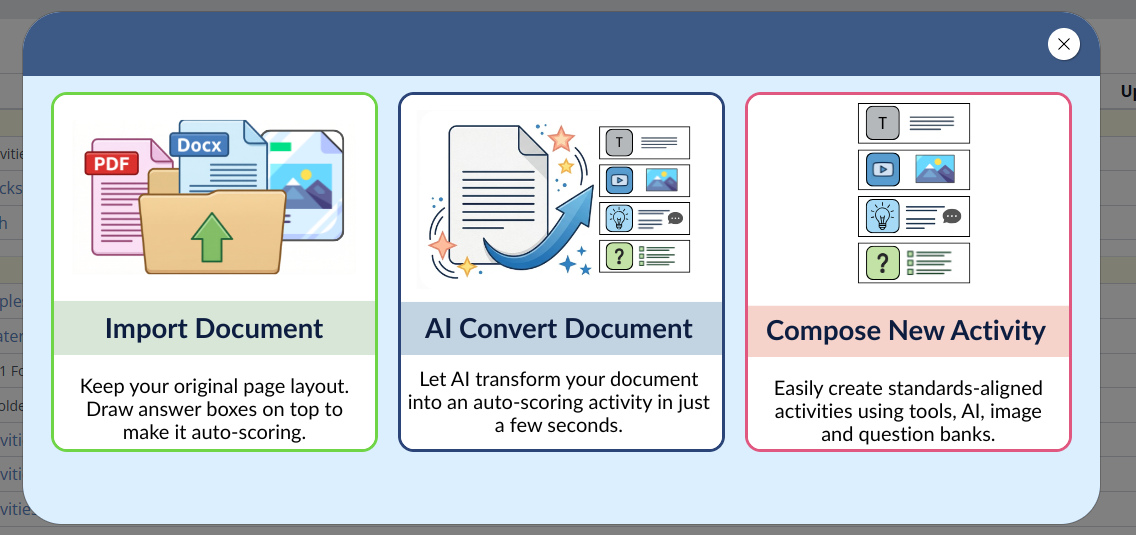
On the Activities page, click + New File and choose Import Document. Import Document keeps your page layout and opens the Slide Editor. See Import Document.
Are you new to Classwork.com? Welcome!
Click here to start your 30 day risk-free PRO trial today.
Was this article helpful?
That’s Great!
Thank you for your feedback
Sorry! We couldn't be helpful
Thank you for your feedback
Feedback sent
We appreciate your effort and will try to fix the article