|
|
How Do I Give Partial Credit On a Question? |
How Do I Give Partial Credit on a Question?
You can give partial credit two ways: change the points by hand on any question with Set Score, or turn on Allow Partial Credit when you build some question types so Classwork.com does it for you.
Set the score by hand (Flex)
- Open the student’s work from the Assignment.
- Next to the question’s points, click Set Score.
- Under Adjust Points, type the new points. Decimals like 0.5 are fine.
- Click Save.
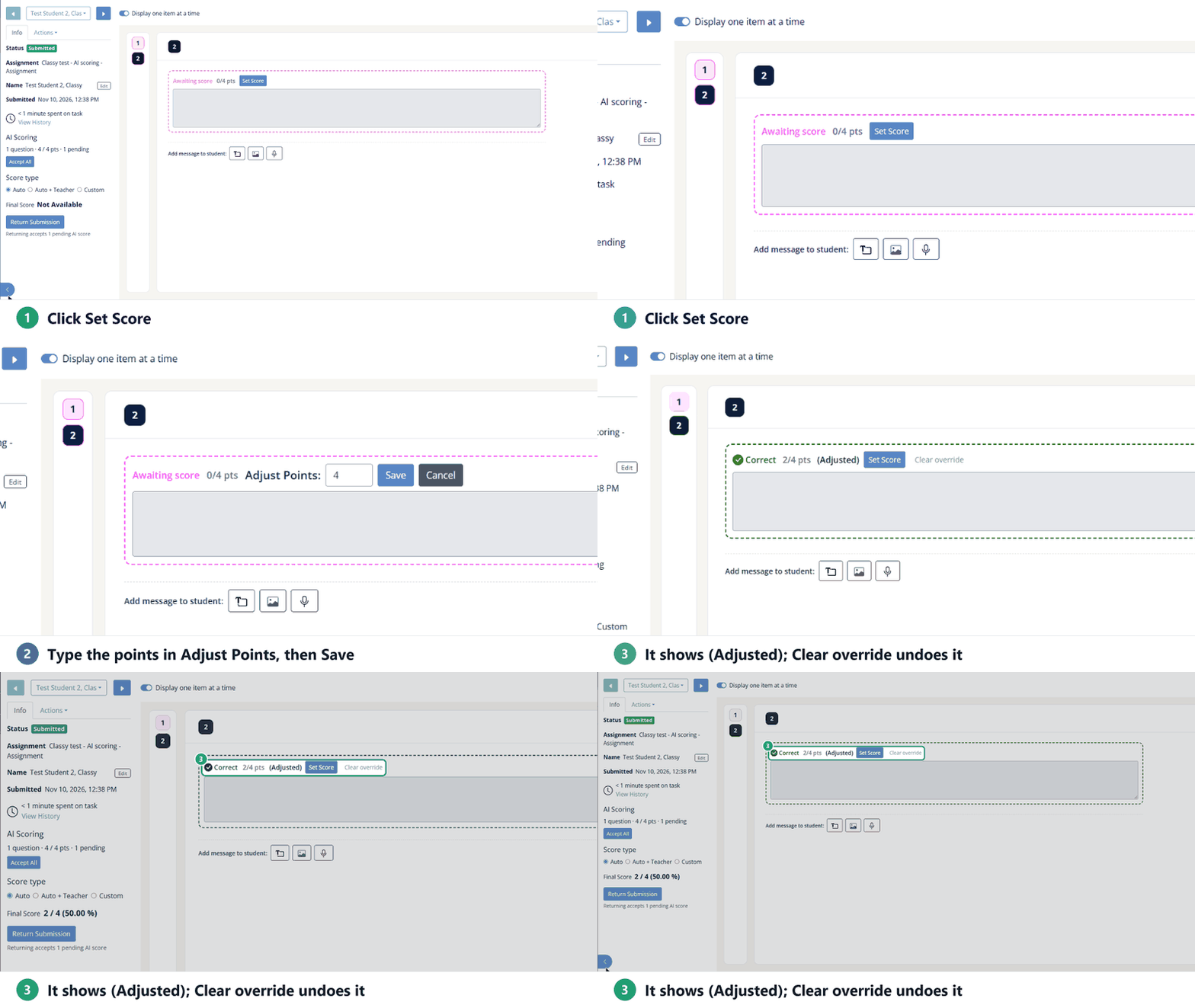
The question now shows (Adjusted). To go back to the automatic score, click Clear override.
Set the score by hand (Slide)
- Open the student’s work and click the answer. A pop-up shows the student’s answer, the correct answer and the points.
- Click Set Score.
- Type the new points (up to the question’s maximum, decimals are fine) and click Save.
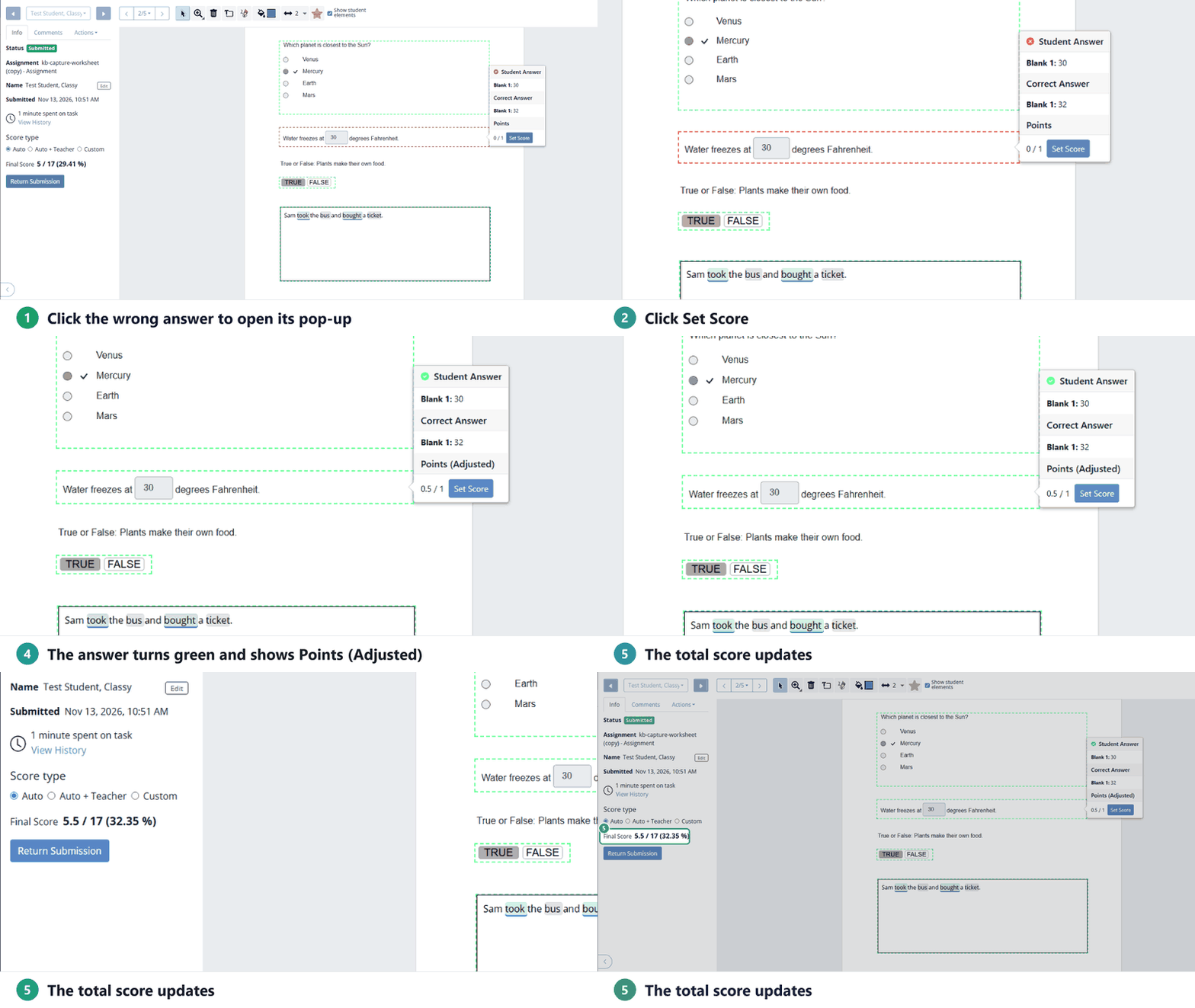
The answer’s outline turns green, the pop-up says Points (Adjusted), and the total score updates.
Let Classwork.com give partial credit
These question types have an Allow Partial Credit setting in their edit window. Turn it on and students earn some of the points for a partly right answer:
- Multiselect (when you limit the number of selections)
- Fill in the Blank (points for each blank)
- Inline Choice (points for each drop-down)
- Match Table Grid (choose whether wrong answers take points away)
Other question types score all or nothing. For those, use Set Score.
Scores in your gradebook
An adjusted score counts in the Assignment total right away. If you use Google Classroom, Canvas or Schoology, the new total goes to the gradebook with the rest of the scores.
Was this article helpful?
That’s Great!
Thank you for your feedback
Sorry! We couldn't be helpful
Thank you for your feedback
Feedback sent
We appreciate your effort and will try to fix the article