|
|
How Do I Score an Open Answer Question? |
How Do I Score an Open Answer Question?
Open Answer questions let students answer in their own words, so they aren’t scored automatically. You score them yourself after students submit, or turn on AI Scoring (PRO) to get a suggested score you check before it counts.
Set the points
Set how many points the question is worth before you assign the Activity. That’s the most a student can earn on it.
- Flex Editor: click the points button at the top of the item (for example, 4 Points) and type the value.
- Slide Editor: select the Open Answer box and type the value next to Points in the toolbar. A new Open Answer box starts at 0 points, so set this before you assign.

Score answers (Flex)
Open the student’s work: on the Assignment, click the student’s name. An Open Answer waiting for you shows Awaiting score.
- Go to the item with the numbered list on the left, or Next.
- Click Set Score.
- Type the points in Adjust Points and click Save.
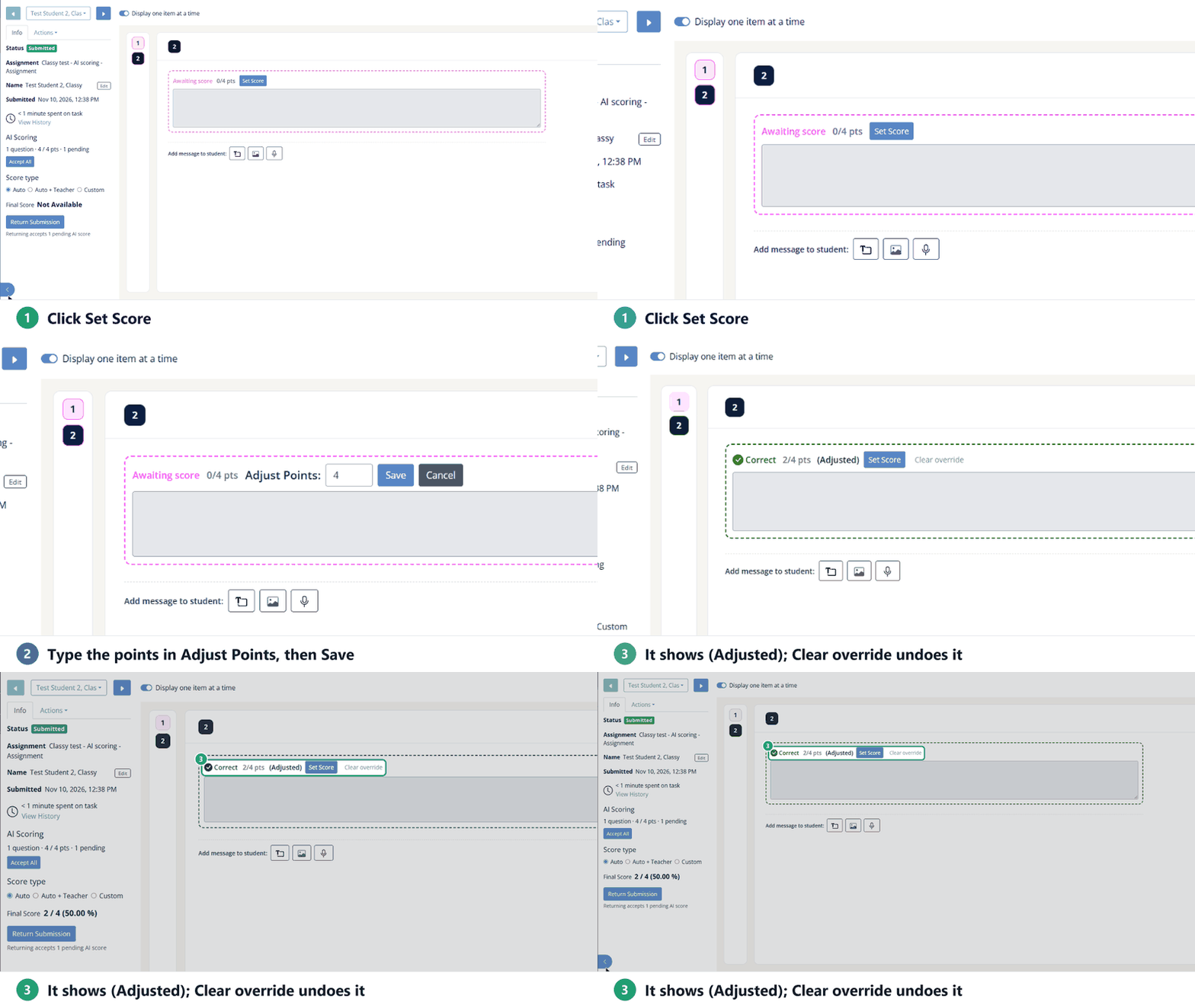
The item now shows (Adjusted). To undo it, click Clear override.
Score answers (Slide)
- Open the student’s work and go to the page. Open Answer boxes that still need a score are outlined in purple.
- With the arrow tool, click the student’s answer. A pop-up shows the answer and Points (Teacher scored), for example 0 / 3 (pending).
- Click Set Score, type the points (up to the question’s value) and click Save.
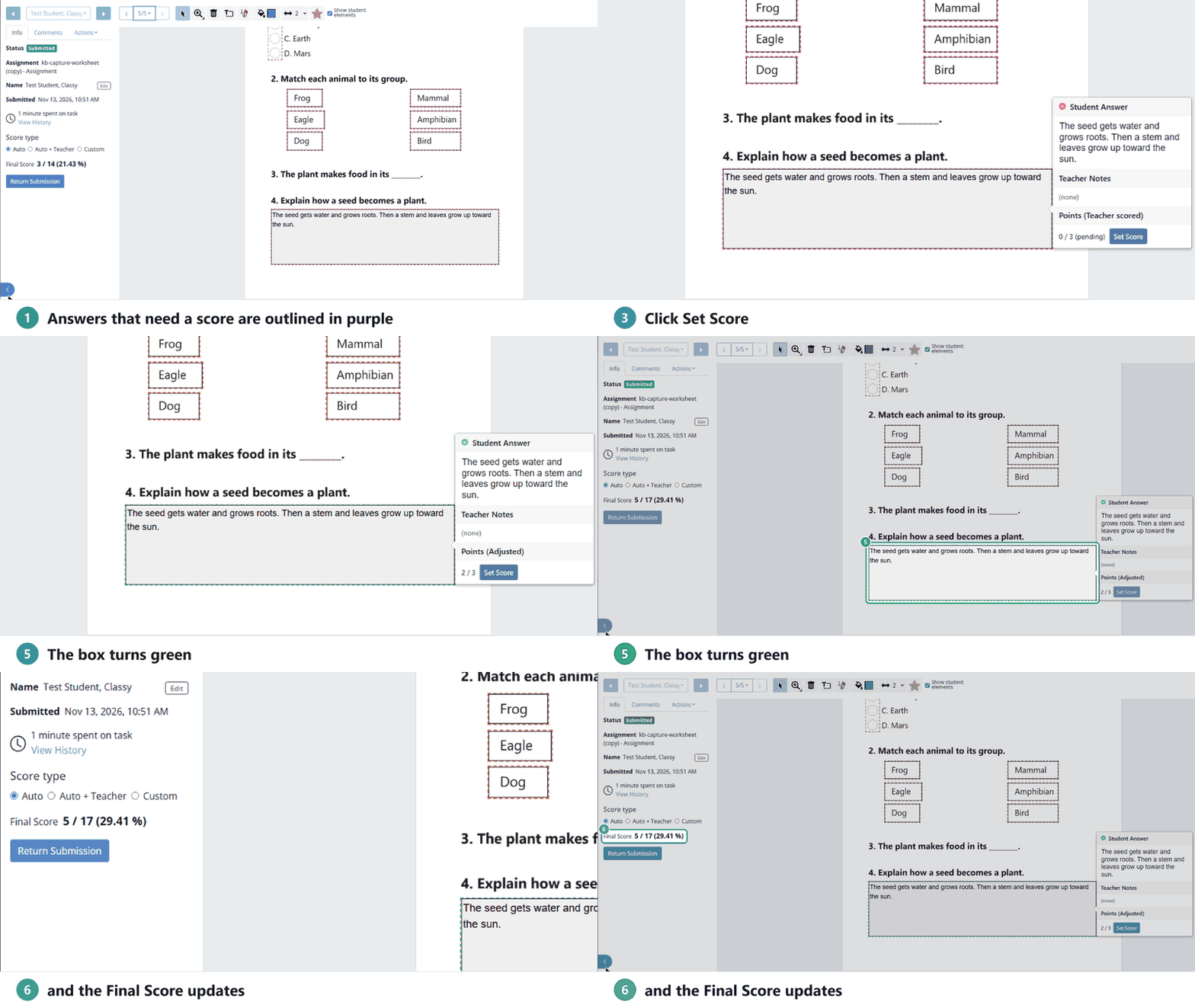
The box turns green and the points are added to the student’s Final Score. Until you score it, an Open Answer isn’t counted in the total.
Let AI score it first (PRO)
With AI Scoring turned on for an Open Answer question, the AI scores each answer using your scoring criteria. Its score doesn’t count until you check it:
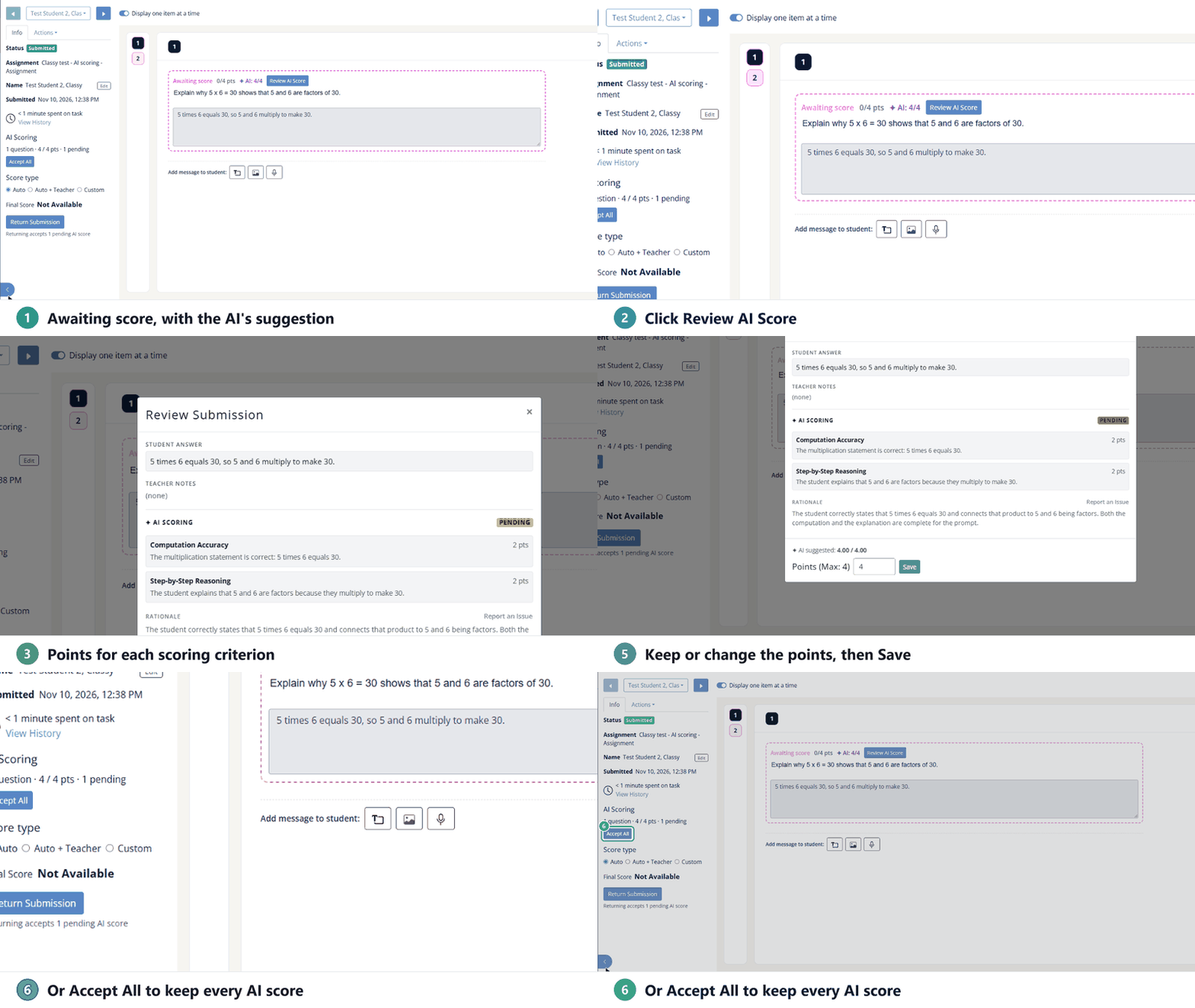
- The answer shows Awaiting score with the AI’s points next to it (for example, AI: 4/4).
- Click Review AI Score to see the points for each criterion and the reason. Keep the AI’s points or type your own, then click Save.
- To keep every AI score on a submission at once, click Accept All under AI Scoring on the left. Returning the work also accepts any AI scores still pending.
To set it up, see AI Scoring for Open Answer Questions.
Add feedback
- Flex Editor: under the item, use Add message to student to add text, an image or a recording.
- Slide Editor: use the teacher toolbar above the submission to add text, draw or add stickers on the student’s page. See Submissions Screen: Teacher Toolbar.
When you’re done scoring, return the work so students can see their scores and feedback.
Was this article helpful?
That’s Great!
Thank you for your feedback
Sorry! We couldn't be helpful
Thank you for your feedback
Feedback sent
We appreciate your effort and will try to fix the article