|
|
Submissions Screen: Teacher Toolbar |
Submissions Screen: Teacher Toolbar
When you open a student’s Slide activity to grade it, the teacher toolbar across the top lets you score answers, write notes, draw and add stickers right on their page. (In a Flex activity, use Add message to student under each item instead.)

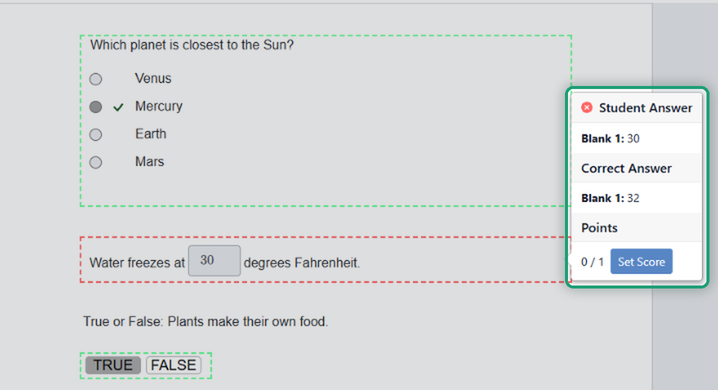
Select (arrow): check and change scores
With the arrow selected, click any answer to see the student’s answer, the correct answer and the points. Click Set Score, type the points and click Save to change them. You can also click your own notes, drawings and stickers to move them.
Zoom and Delete
- Zoom: make the page bigger or smaller while you grade.
- Delete (trash can): remove a note, drawing or sticker you added.
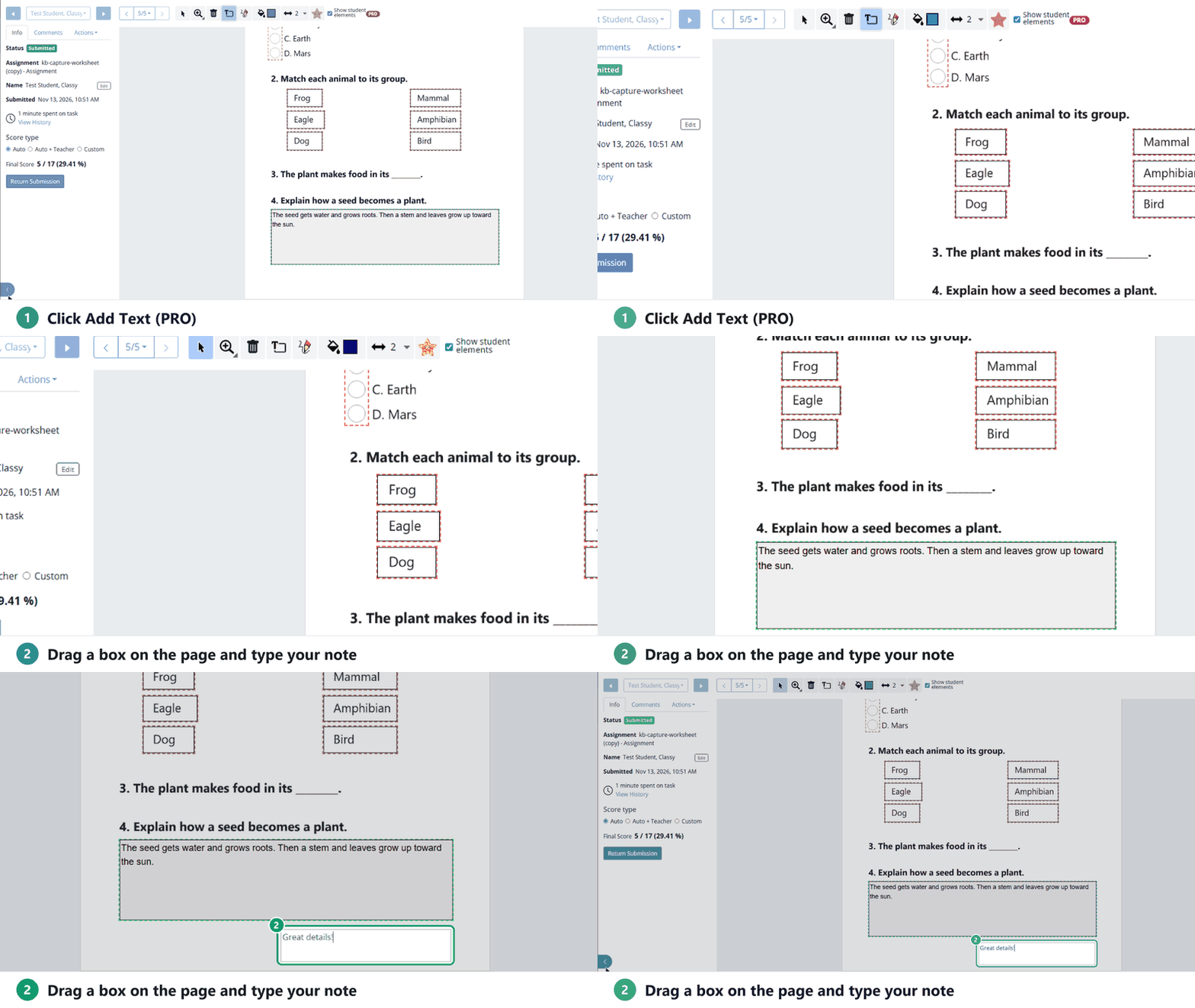
Add Text (PRO)
- Click Add Text.
- Drag a box where you want the note on the student’s page.
- Type your note. It uses the color picked in Color.
Draw, Color and Line width
- Draw: write or draw freehand on the student’s page.
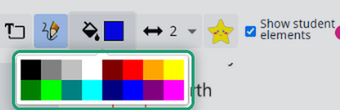
- Color: pick the color for your drawing and notes.
- Line width: pick how thick your drawing lines are.
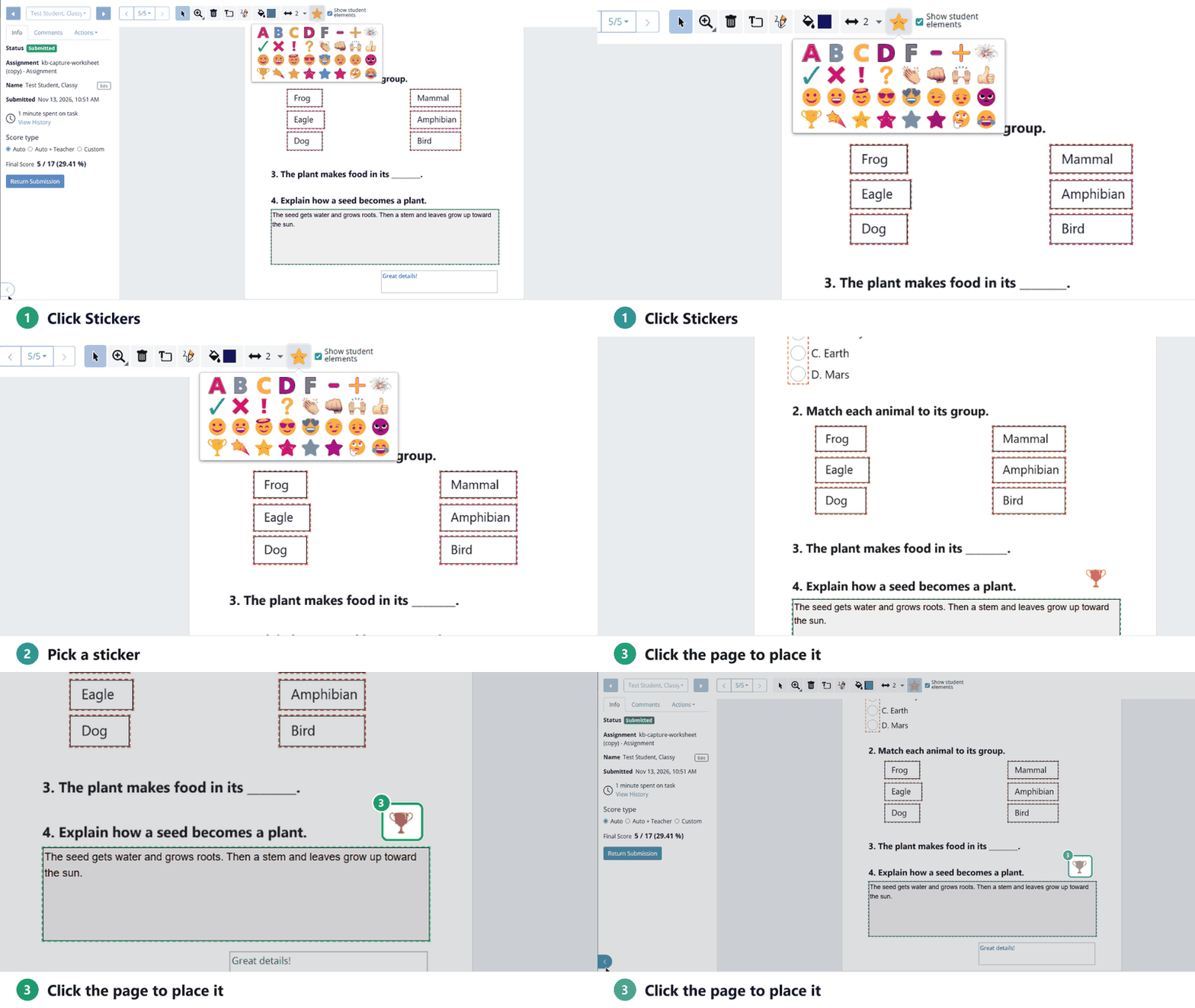
Stickers
- Click the Stickers star.
- Pick a sticker: letter grades, check marks, emoji, trophies, stars and more.
- Click the page where it should go. With the arrow, you can move or resize it.
Show student elements
Show student elements is checked to start, so you see anything the student added to the page (their own text, drawings or pictures). Uncheck it to hide those and see the page with just your marks. Check it again to bring them back; nothing is deleted.
Was this article helpful?
That’s Great!
Thank you for your feedback
Sorry! We couldn't be helpful
Thank you for your feedback
Feedback sent
We appreciate your effort and will try to fix the article