|
|
Power of the Classwork Snipping Tool |
Snipping Tool
The Snipping tool (the scissors) turns any part of your slide’s background into an image you can move, copy or delete. Use it to build drag-and-drop questions, rearrange a worksheet, hide an answer key, or turn background text into editable text, without recreating the page.
Snipping works only on a slide with a background (an imported PDF, document or image). It isn’t in the Flex Editor.
Snip part of a slide
- Open the Activity in the Slide Editor.
- In the toolbar under the menus, click the scissors (Snipping Tool). Items on the slide hide for a moment so you can see the page.
- In the row that appears, leave Image selected. Hide the background is on to start; check Create draggable image if students will drag it.
- Click and drag over the area you want to snip.
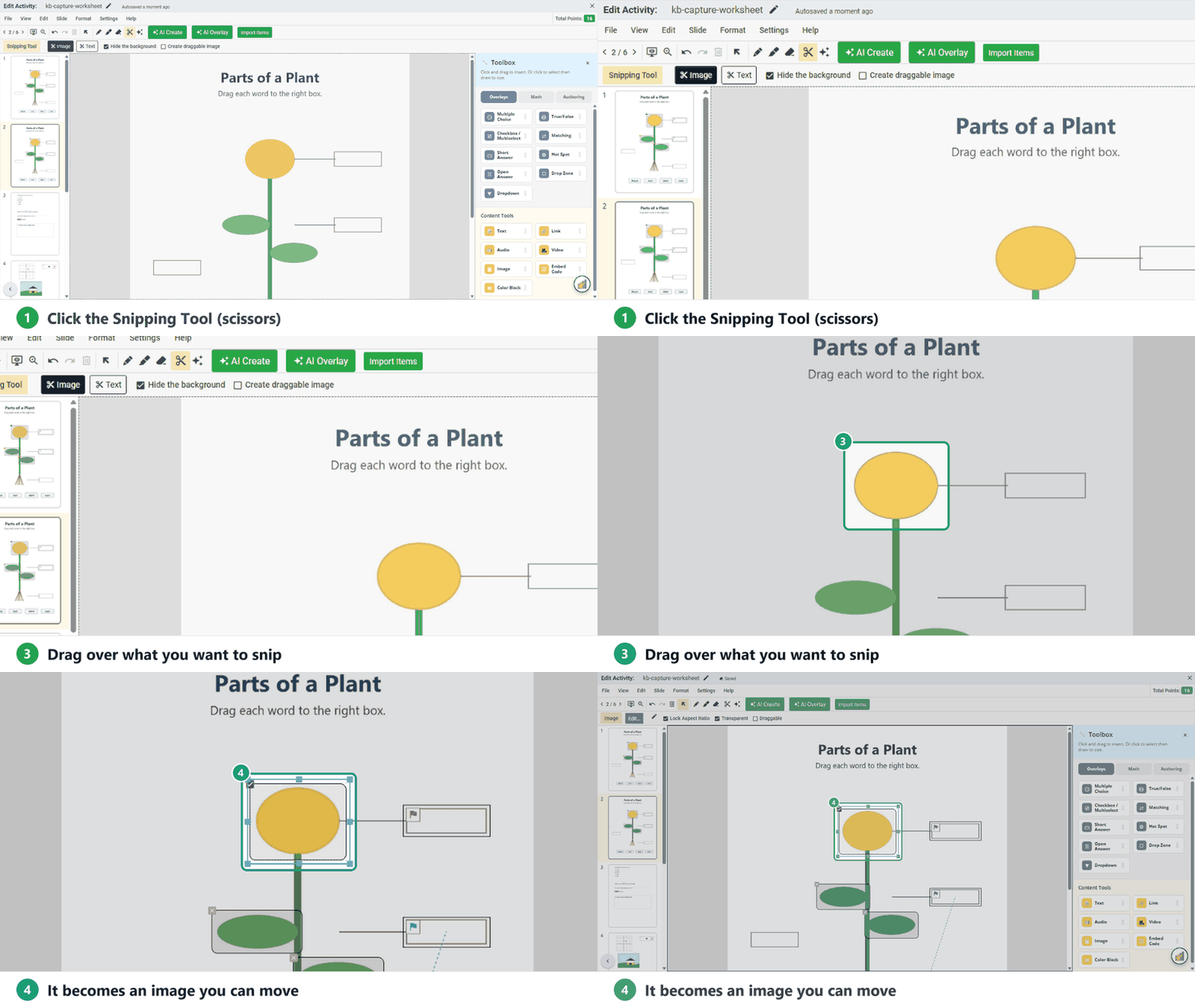
What a snip does
Snipping never removes anything from your original file. It creates an image (or text) from the area you selected. With Hide the background on, that spot on the page is covered, so moving the snip doesn’t leave a copy behind.
Ways to use it
Hide part of a worksheet
To hide something without moving it, such as an answer key, use the Color Block tool instead: it covers the spot in white with no border.
Move content on the page
Snip a table, picture, question or block of text, then drag the image anywhere on the slide.
Make a drag-and-drop item
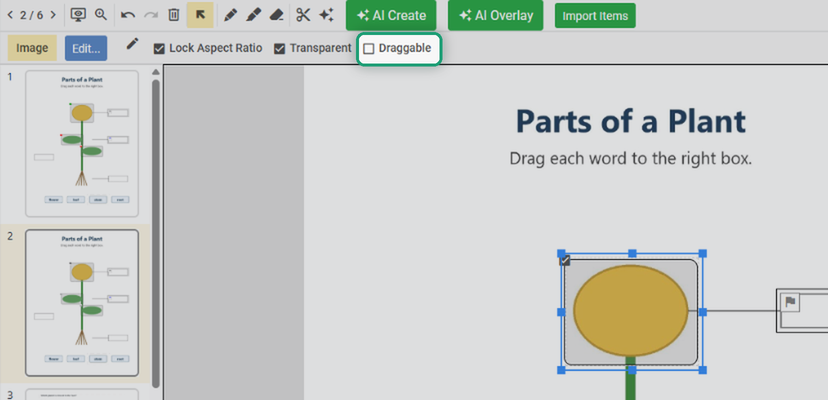
Select the snipped image and check Draggable in the toolbar (or check Create draggable image before you snip). Students can then drag it into a Drop Zone.
Copy content to another Activity
- Snip the area you want.
- Press Ctrl + C (Cmd + C on a Mac).
- Open the other Activity in the Slide Editor and press Ctrl + V (Cmd + V).
Turn background text into editable text
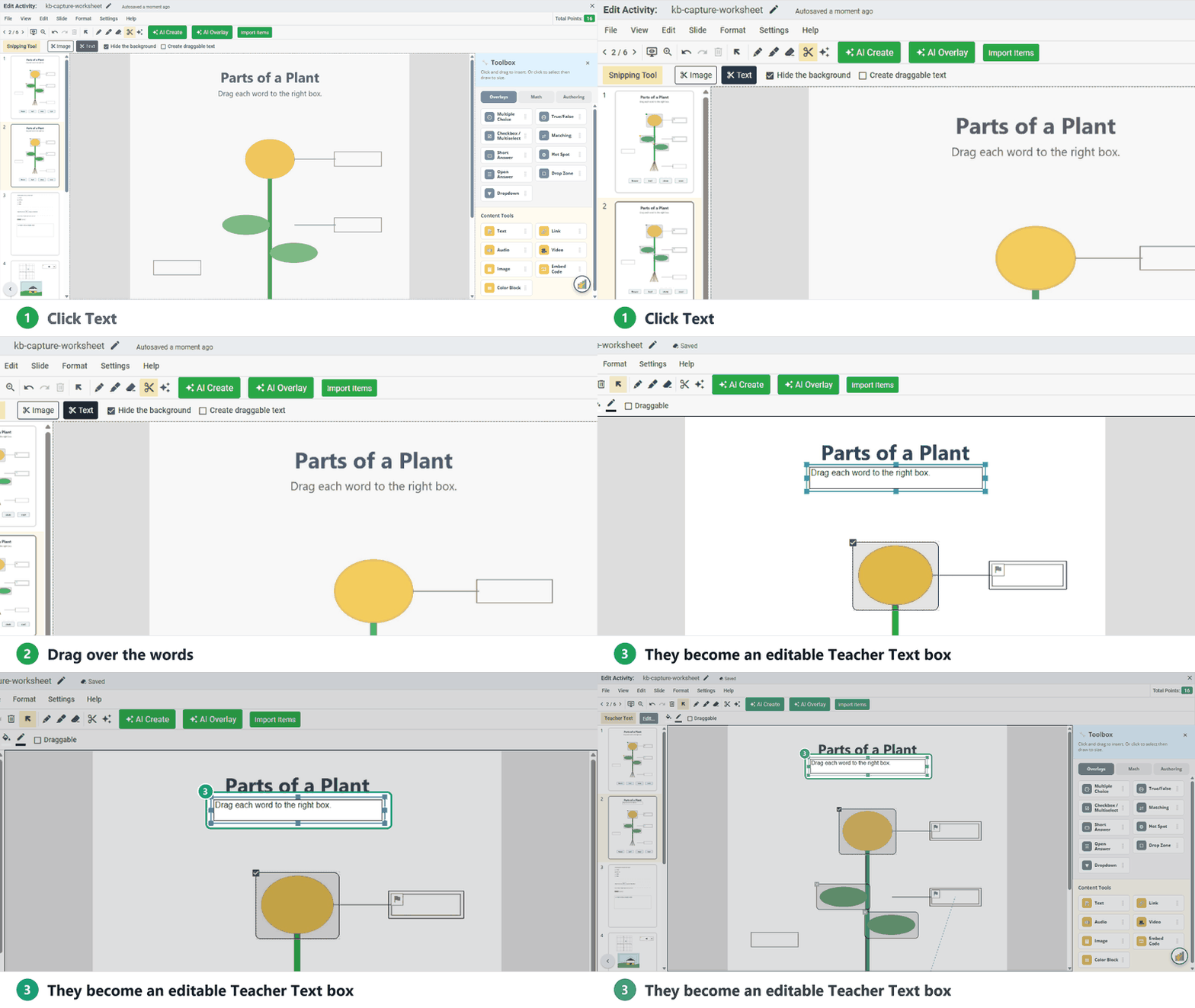
- Click the scissors, then click Text in the row that appears.
- Drag over the text you want to capture.
The text becomes a Teacher Text box. You can edit the wording, resize or reformat it, or make it draggable for a Drop Zone. Screen readers and Read Aloud can read it, too.
Unusual fonts and complex layouts can convert imperfectly. Snip small sections and check the text before you assign the Activity.
Was this article helpful?
That’s Great!
Thank you for your feedback
Sorry! We couldn't be helpful
Thank you for your feedback
Feedback sent
We appreciate your effort and will try to fix the article