|
|
Using the Color Block Tool |
Color Block Tool
Applies to: Slide Editor
A Color Block covers part of a slide so students don’t see it. Use it to hide page numbers, headers, watermarks, an answer key, directions that don’t fit digital work, or the old letters under your answer bubbles.
Using the Flex Editor? Flex activities have no background page to cover, so there’s no Color Block. Edit or delete the item instead.
Add a Color Block
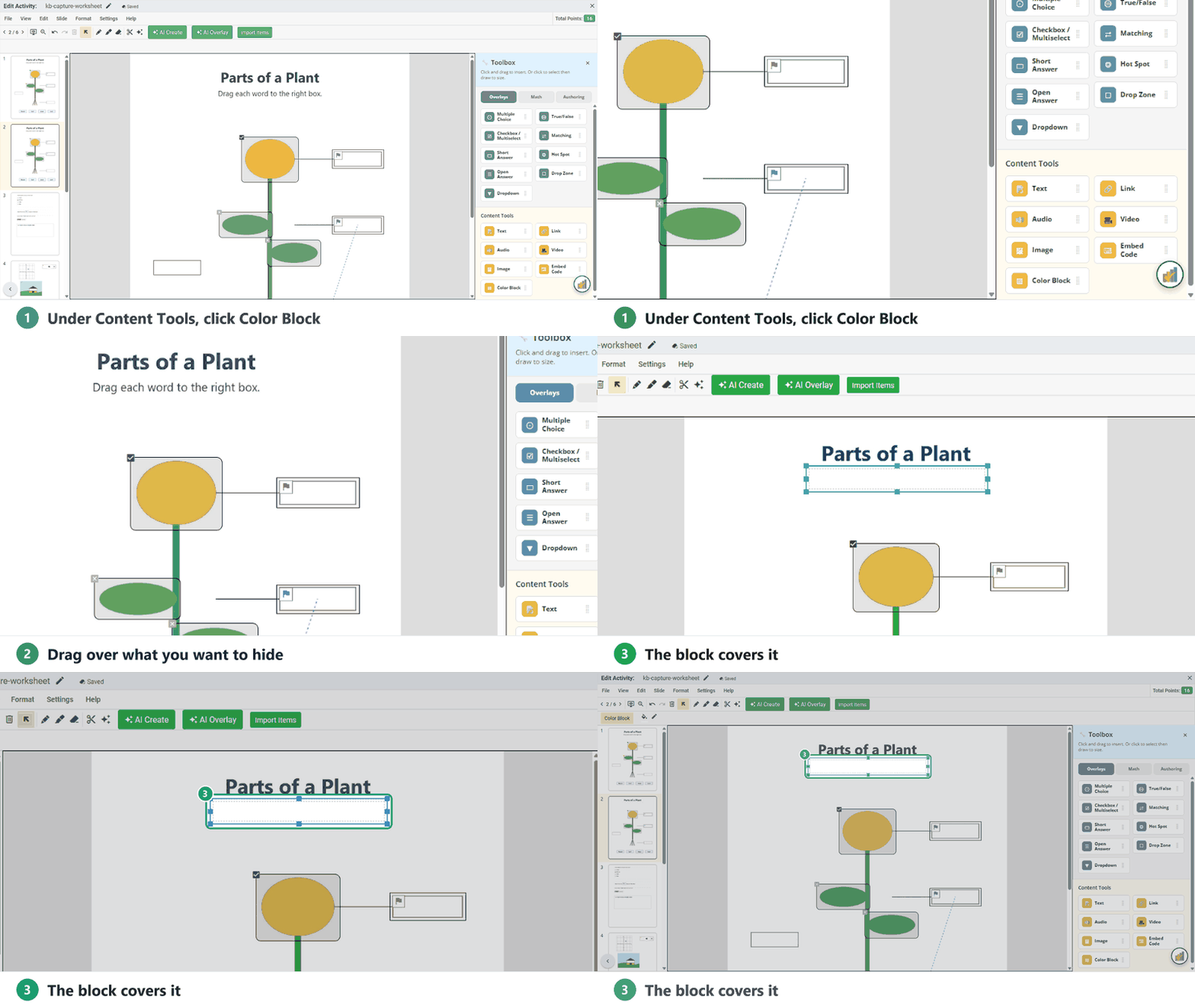
- In the Tool Box on the right, under Content Tools, click Color Block. (Content Tools show on every Tool Box tab.)
- Click and drag over what you want to hide. The block starts white with no border, so it blends into most pages.
- Drag the block to move it, or drag its corners to resize it. Add as many blocks as you need.
Change the color and border
Select the Color Block to see its options in the toolbar under the menus:
- Fill color (the paint bucket): white to start. Pick another color if the page behind it isn’t white.
- Border color (the pen): No Border to start. Pick a color if you want the block outlined.
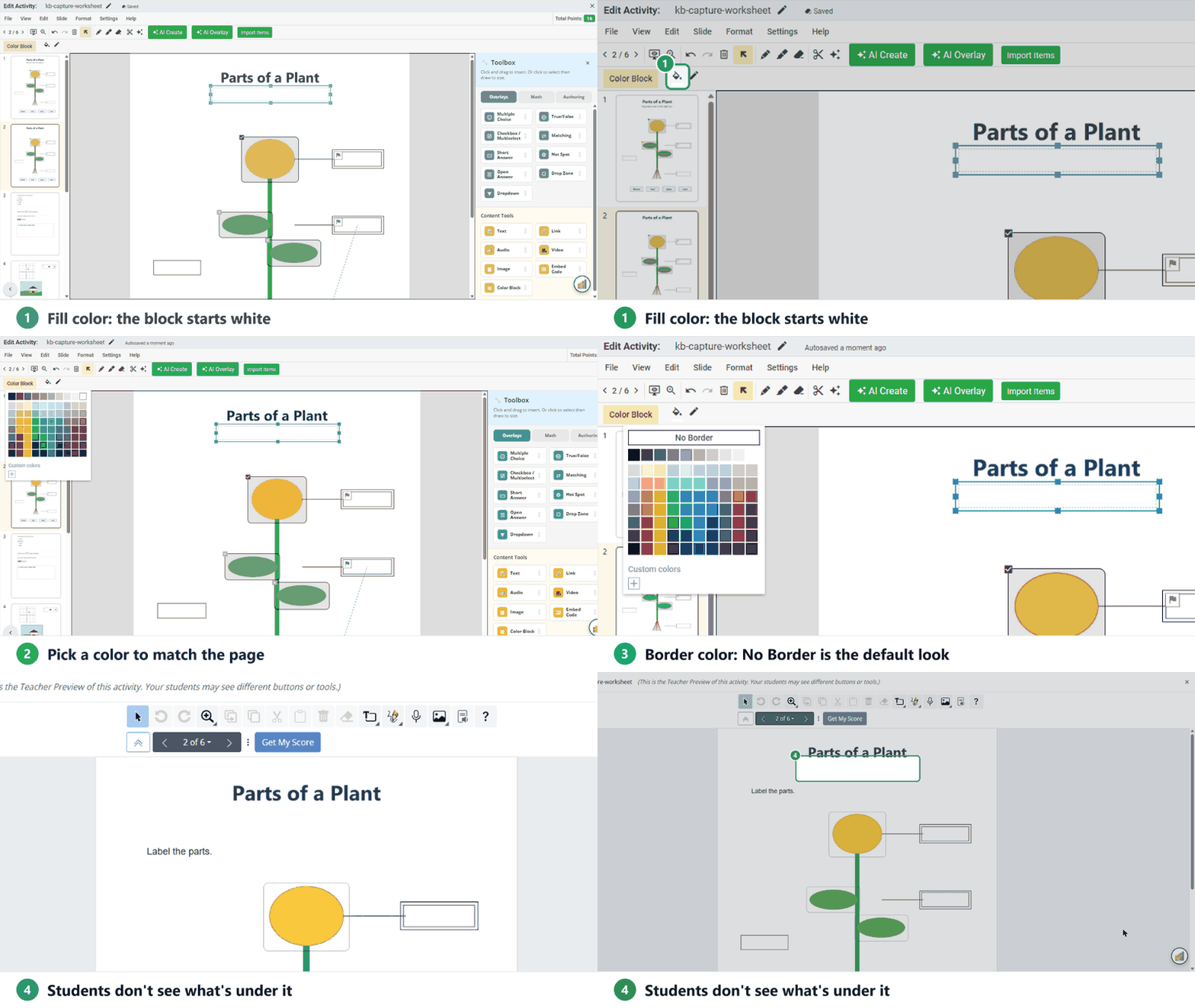
To see it the way students will, click Preview (the monitor icon in the toolbar).
Good to know
- Questions in the way: if answer boxes or other items already sit in the area you want to hide, delete them first so the Color Block can cover the whole spot.
- Already assigned? Content Tools, including Color Block, still work in Answer Key Mode, so you can cover something after you assign.
- More ways to edit a PDF page: see the Snipping Tool.
Are you new to Classwork.com? Welcome!
Click here to start your 30 day risk-free PRO trial today.
Was this article helpful?
That’s Great!
Thank you for your feedback
Sorry! We couldn't be helpful
Thank you for your feedback
Feedback sent
We appreciate your effort and will try to fix the article