|
|
Submissions Screen: Actions, Details, Scoring, and Feedback |
Submissions Screen: Actions, Details, Scoring, and Feedback
On the submissions screen you see each student’s details, set their score, leave feedback, and return, reopen, print or delete their work. For a tour of the whole screen, see Submissions Screen Overview.
Move between students
Use the blue arrows at the top left to go to the previous or next student, or pick a name from the menu between them. A green dot next to a name means that student is working right now.
Info
The Info tab shows:
- Status: In Progress (with percent done), Submitted or Returned.
- Name with Edit: change the name you see for this student. Only you see it; it doesn’t change how the student signs in.
- Submitted date and time on task. Click View History for every save, submit and reopen.
- Score type and Final Score (below).
- Return Submission, which becomes Undo Return after you return it.
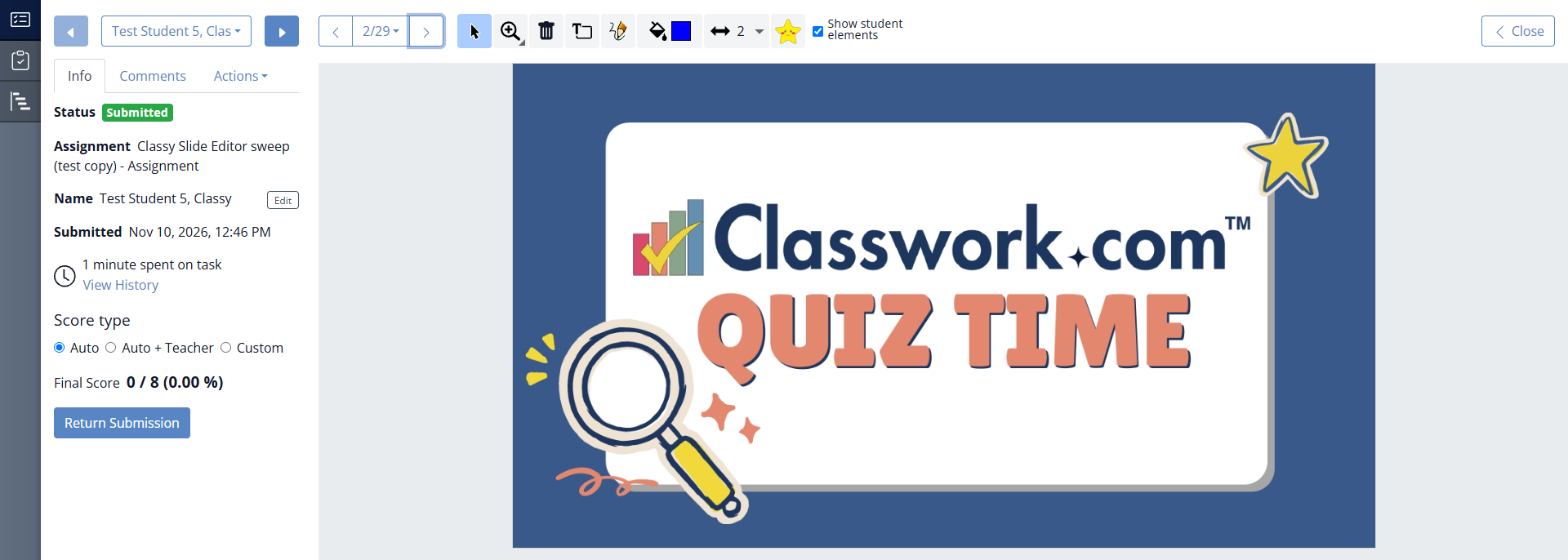
Score type
- Auto: the score Classwork.com calculated.
- Auto + Teacher: start from the auto score and add or take away points, from the student’s points or the points possible. Good for extra credit or points for showing work. It changes only this student’s score.
- Custom: type the score yourself.
In a Flex activity you can also change one item’s points with Set Score on that item.
Feedback
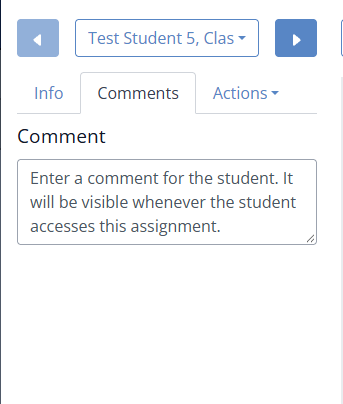
Slide activities: open the Comments tab and type. The comment saves by itself, and the student sees it whenever they open the assignment. Drag the box’s corner to make it bigger. You can also write, draw or add stickers on the page with the teacher toolbar.
Flex activities: under each item, use Add message to student to leave a text, image or recorded message. It shows under that item for the student.
Actions menu
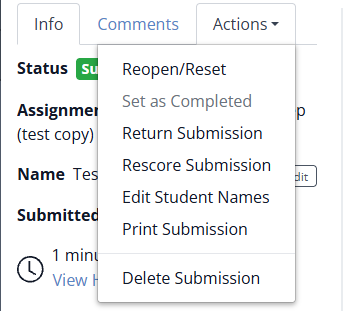
- Reopen/Reset: Reopen lets the student keep working on their answers; Reset clears the work so they start over. See Reopening vs Resetting.
- Set as Completed: end the student’s work on an assignment they haven’t submitted.
- Return Submission: the student can see their score and your feedback.
- Accept All AI Scores (Flex, with AI Scoring): accept every AI-suggested score at once.
- Rescore Submission: score this submission again.
- Edit Student Names: change the names you see for several students at once. Only you see them.
- Print Submission: choose the page orientation and size, then click Create PDF.
- Delete Submission: removes the student’s work for good.
Close
When you’re done, click Close at the top right to go back to the Assignment.
Was this article helpful?
That’s Great!
Thank you for your feedback
Sorry! We couldn't be helpful
Thank you for your feedback
Feedback sent
We appreciate your effort and will try to fix the article