|
|
Submissions Screen Overview |
Submissions Screen Overview
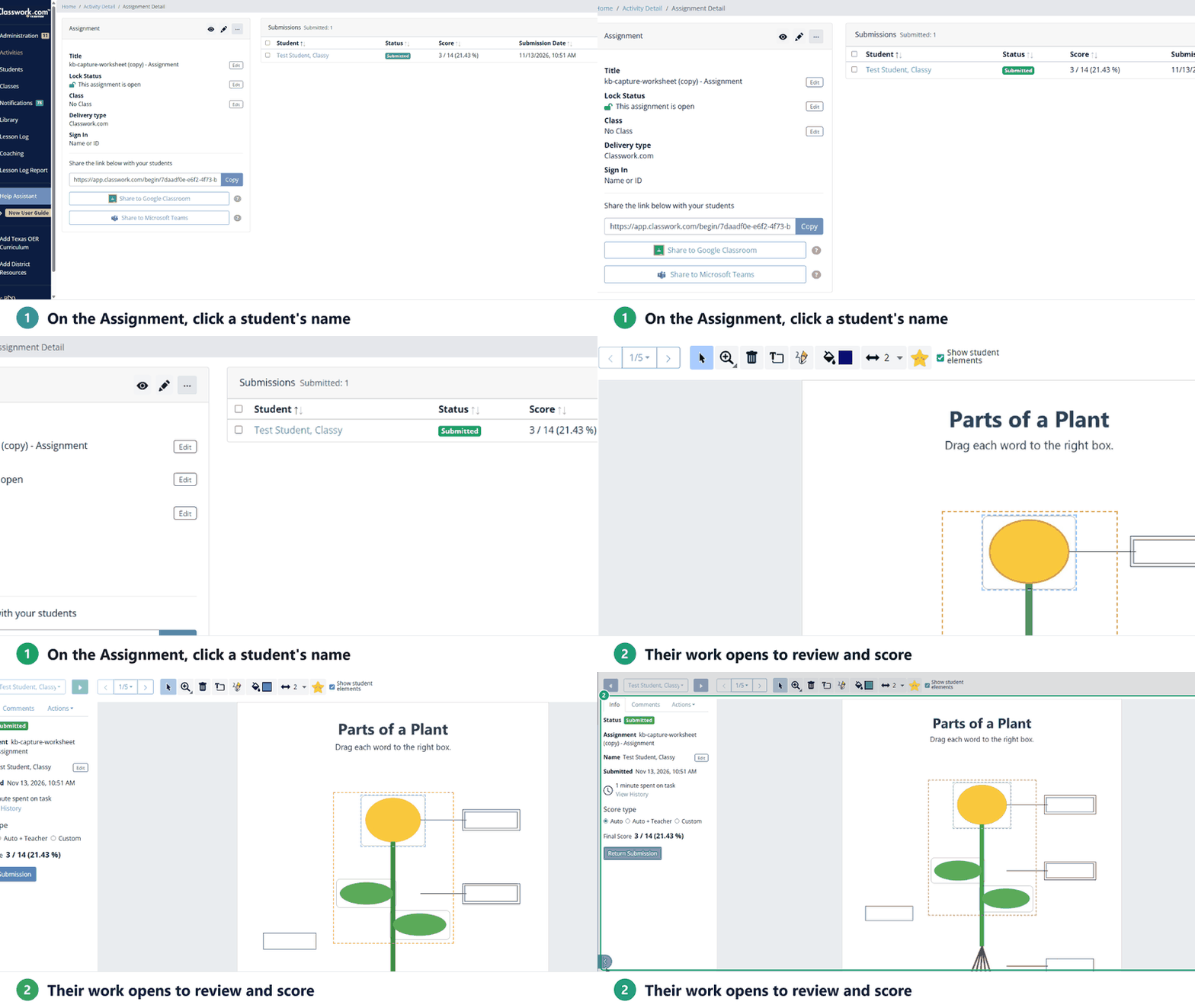
The submissions screen is where you look at one student’s work, score it, leave feedback and return it. To open it, go to the Assignment and click a student’s name under Submissions. It looks a little different for Flex and Slide activities.
Flex activities
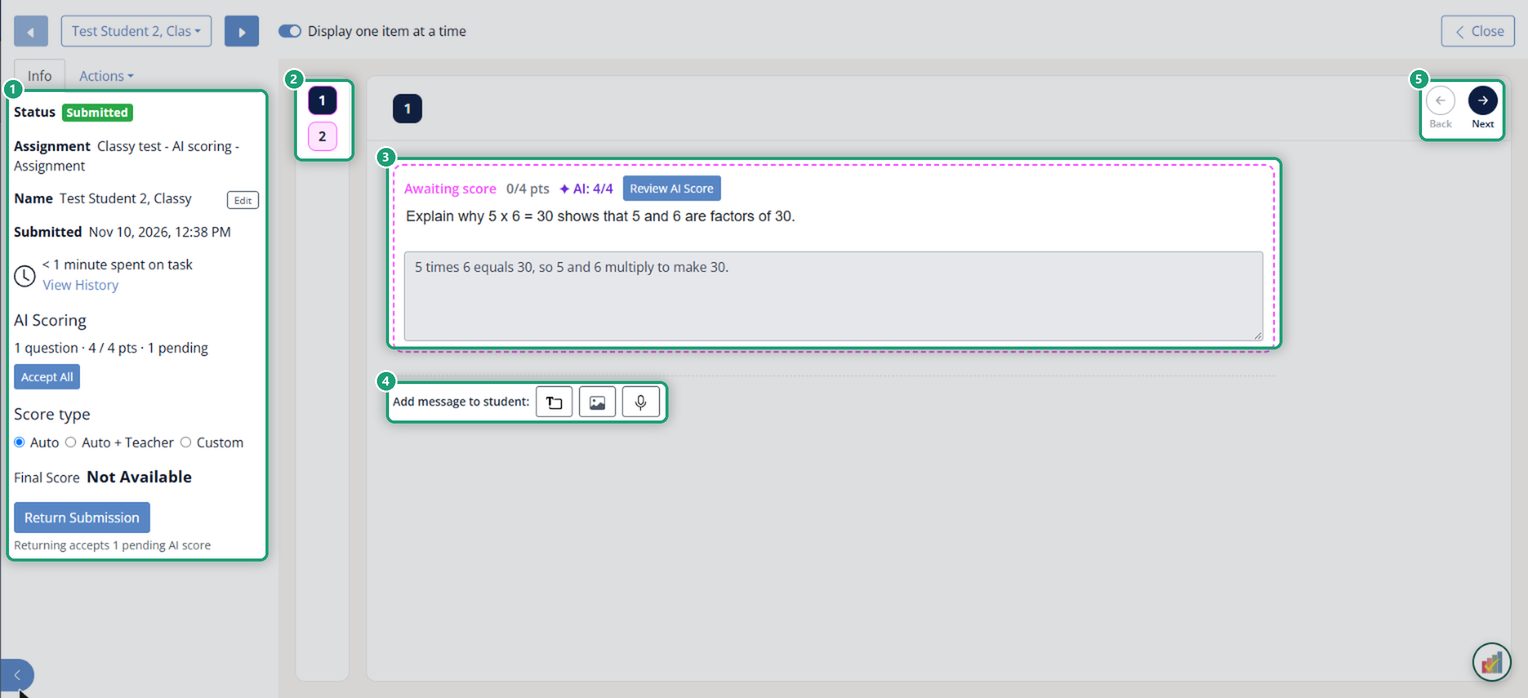
- Info / Actions: the status, time on task (View History), Score type (Auto, Auto + Teacher or Custom), Final Score and Return Submission. With AI Scoring, an AI Scoring summary and Accept All show here too.
- Item list: one number per item. Click a number to jump to it. Turn off Display one item at a time to see every item on one page.
- The item: the student’s answer, Correct or Incorrect, and the points. Click Set Score to change the points (for an AI-scored answer, Review AI Score). A changed score shows (Adjusted) and a Clear override link.
- Add message to student: leave a text, image or recorded message. It shows under the item for the student.
- Back / Next: move between items.
Slide activities
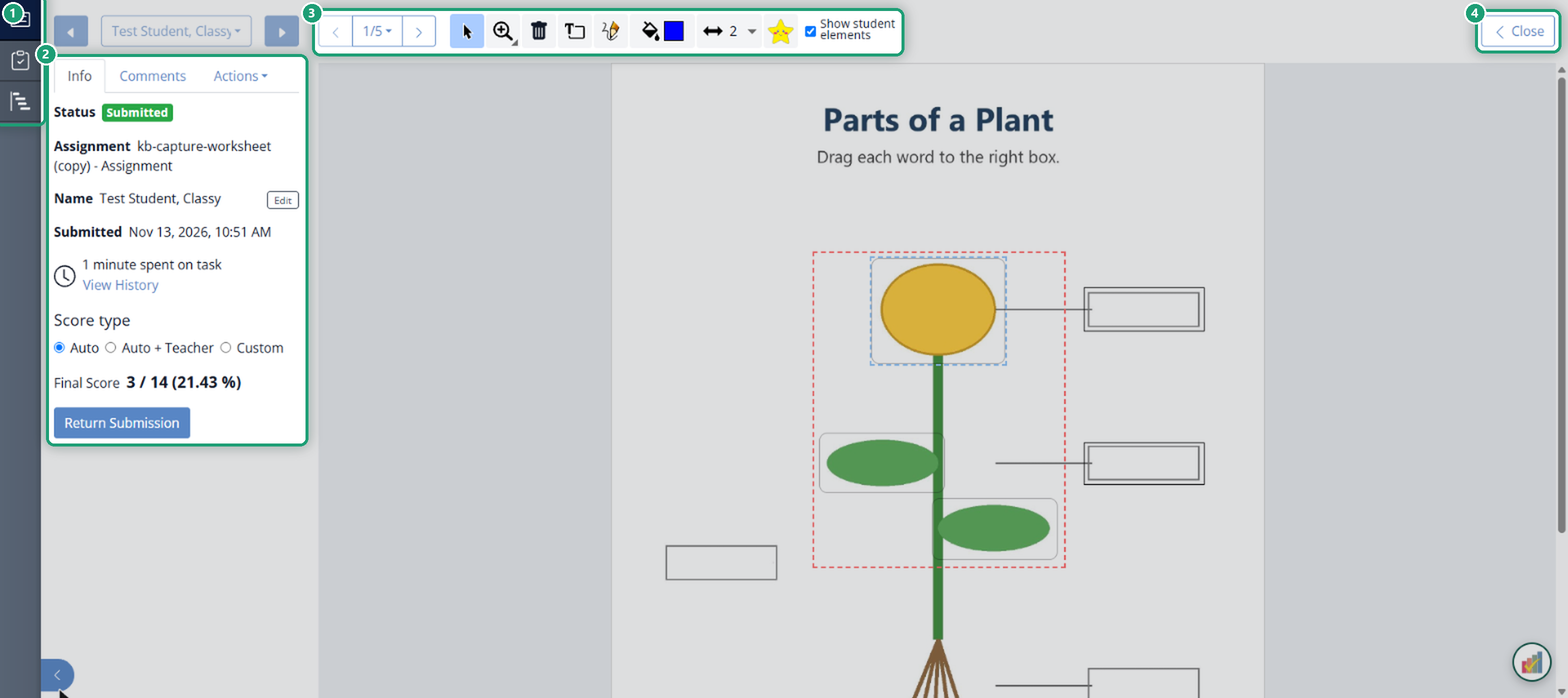
- Left rail: Review All (one student at a time), Item Analysis and Standards (the whole class, by question or by standard).
- Info / Comments / Actions: the submission details, score type, Final Score and Return Submission; a comment box for the student; and the Actions menu.
- Teacher toolbar: page arrows, zoom, delete, add text, draw, color, line width, stickers and Show student elements. See Submissions Screen: Teacher Toolbar.
- Close: back to the Assignment.
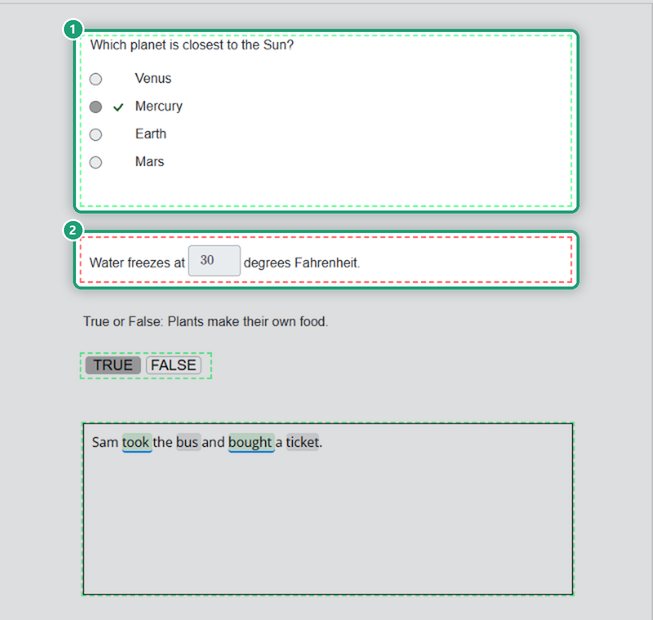
Right answers are outlined in green and wrong ones in red. Click any answer to see the correct answer and the points.
Use the arrows and the name menu at the top left to move from student to student. A green dot next to a name means that student is working right now.
Item Analysis
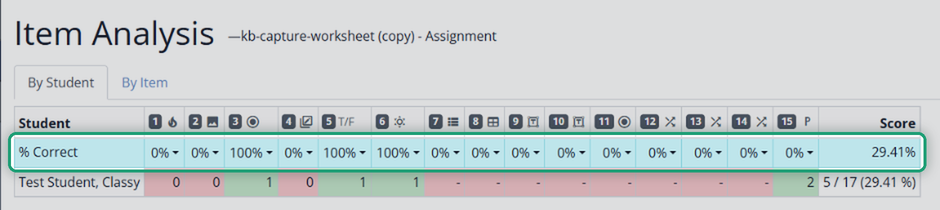
Item Analysis shows the whole class at once: each student’s points on every question and the percent correct for each question. Switch between By Student and By Item, or click Print Item Analysis.
Was this article helpful?
That’s Great!
Thank you for your feedback
Sorry! We couldn't be helpful
Thank you for your feedback
Feedback sent
We appreciate your effort and will try to fix the article