|
|
How to Assign an Activity Using Google Classroom |
How to Assign an Activity Using Google Classroom
With the Google Classroom delivery method, Classwork.com posts your assignment to your Google Classroom class (or classes). Students open it from Google Classroom, and their scores can sync back to your Google Classroom gradebook. Because students access the assignment through Google Classroom, there is no separate student sign-in step.
Step 1: Choose Google Classroom and Authorize
On Step 1 of 3 of the Create Assignment page, select Google Classroom, then click Next.
Note: The first time, you need to allow Classwork.com to access your Google account. If you have not done this yet, you will be prompted to authorize Classwork.com to display your Google Classroom courses. Click the prompt.
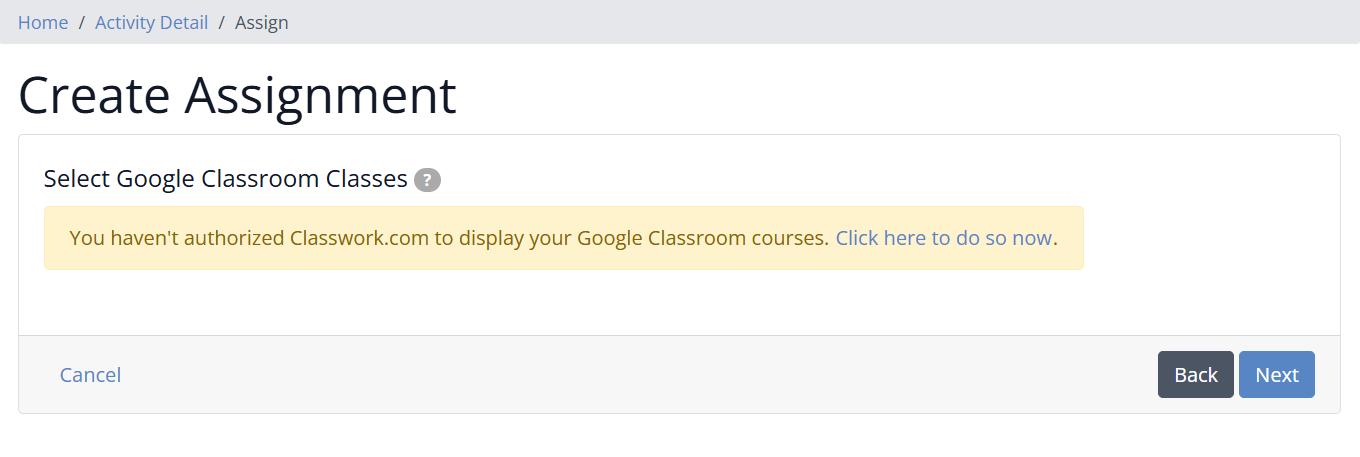
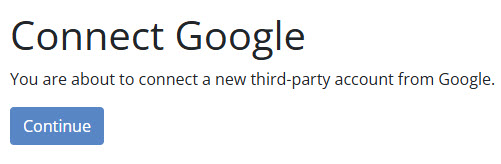
On the next screen, click Continue to connect to Google. Choose your account, then grant access by checking the boxes:
- Coursework & Grades for classes you administer
- Class Rosters
- Google Classroom Classes
Click Continue to grant access. Google will remember your choices.
Step 2: Choose Your Google Classroom Classes
On Step 2 of 3, choose the Google Classroom classes that receive the assignment.
- Check the box next to each Google Classroom class you want. A separate assignment is created for each class you select.
- For each class, choose who gets it:
- All Students (the default): everyone in the class now, plus any student who joins later.
- Select Students: only the students you pick (students who join later are not included; you can add them in Google Classroom). Click the pencil icon to choose students.

Note: Because students open the assignment from Google Classroom, you will not see a student sign-in screen.
Step 3: Set Your Assignment Options
On Step 3 of 3, choose:
- Assignment Status: Assign Immediately (publishes as soon as you finish), Schedule (releases at a date and time you choose), or Save as Draft (creates it in Google Classroom without publishing).
- Auto Sync Scores: when on, Classwork.com updates scores in Google Classroom automatically as students finish. When off, sync manually by opening the assignment and clicking Sync Scores. Turn it off if you want to control when scores push to Google Classroom.
- Google Classroom Points: the points the assignment is worth in Google Classroom. Classwork.com scales each student’s score to these points. For example, 8 out of 10 on the activity with Google Classroom Points set to 100 shows as 80 in your gradebook.
- Block Students not in the class: when on, only students in that Google Classroom class can access the assignment. We recommend keeping this on to avoid score-sync issues and to prevent access through a third-party email.
- General Settings: the options available for every assignment type, such as the Submit button, checking answers, score display, and student tools. See How to Assign an Activity Using Classwork.com for those.
After you click Save, your assignment is created and posted to Google Classroom.
Related Articles
Was this article helpful?
That’s Great!
Thank you for your feedback
Sorry! We couldn't be helpful
Thank you for your feedback
Feedback sent
We appreciate your effort and will try to fix the article