|
|
How to Assign an Activity Using Classwork.com |
How to Assign an Activity Using Classwork.com
The Classwork.com delivery method generates a link you share with your students directly. Students open the link to complete the assignment. You can also share that link through Google Classroom, but scores will not sync back to it.
If you want scores recorded in another system, use the Google Classroom, Canvas, or Schoology delivery method instead.
Note: This method does not require you to grant access to your Google Classroom classes or students.
Step 1: Choose the Classwork.com Delivery Method
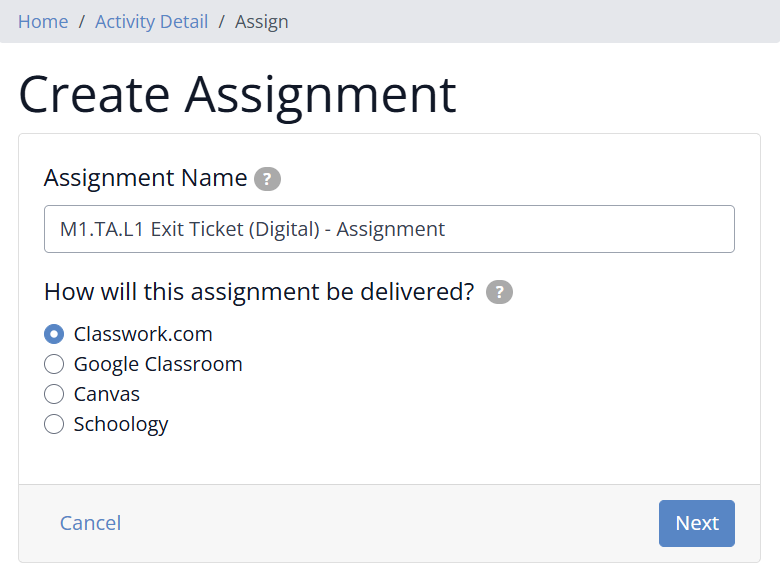
On Step 1 of 3 of the Create Assignment page, select Classwork.com, then click Next.
Step 2: Select Your Classes
On Step 2 of 3, choose which classes receive the assignment. (This step works the same for every delivery method.) When you assign to a class, students reach the assignment through their class roster, so you skip the sign-in step below. This is the easiest way to assign, and we highly recommend setting up your Classes.
- Check the box to the left of each class you want to assign to.
- For each selected class, choose an option on the right: All Students, or Select Students.
- If you choose Select Students, the class roster appears. Check the box next to each student you want to include.
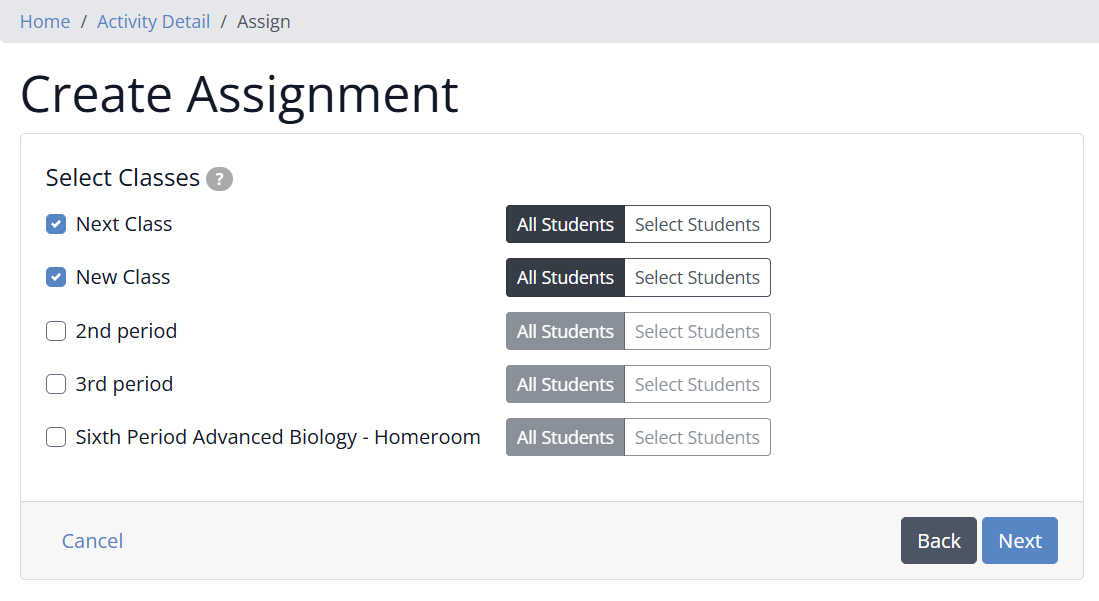
Note: If you select one or more classes, students access the assignment through their class, so you will not see the student sign-in screen.
If You Do Not Select a Class
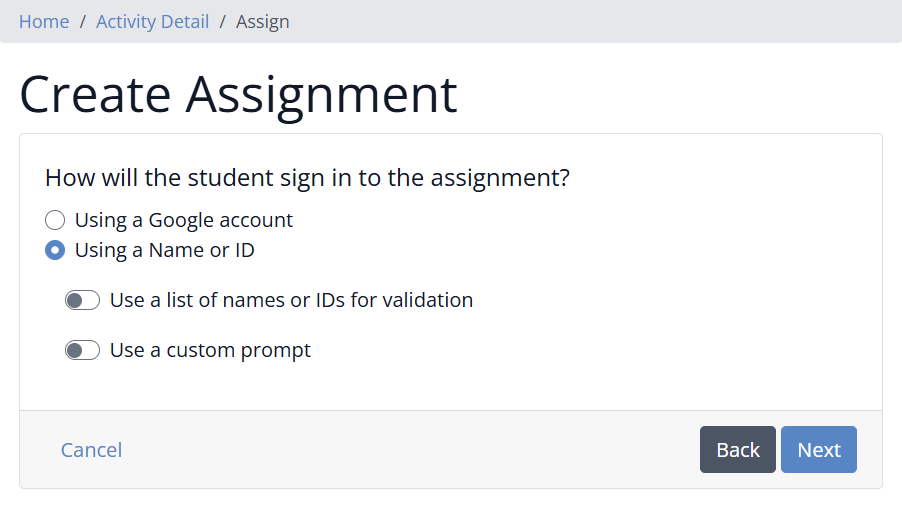
You can skip the class step: leave every class unselected (or if you have not set up Classes yet) and click Next. You will then choose how students sign in to the assignment:
- Google Account: students sign in with their Google account.
- Name or ID: enter a list of names or IDs for students to choose from, and add a custom prompt for them to see.
Step 3: Set Your Assignment Options
On Step 3 of 3, choose how the assignment behaves for students. You can change most of these settings later.
- Disable the Submit button: prevents accidental submissions. Students can keep working until you mark the submission complete.
- Check answers before submitting: decide whether, and how many times, students can check their answers. Choices: No, 1–3 times, Unlimited, or Custom.
- Score display: how the score appears to you and your students. Choices: Points Earned; Points Earned / Points Possible; Points Earned / Points Possible (Score %); or Score %. You can change this at any time.
- What students see when they submit: only scores from auto-scored items are shown. Choices: Make Assignment hidden, Show total score, Show score on individual items, Show correct answers. Items you score by hand appear after you score and return the work.
- What students see when work is returned: Show total score, Show score on individual items, Show correct answers.
- Student tools: choose which tools students can use on the assignment: Text Boxes, Drawing, Links, Math, Images, and Audio.
Note: When work is returned to a student, the assignment is always visible to that student. If you are concerned about sharing, wait to return work until all students in all your classes have finished.
Note: Students who sign in with Name or ID can add images and record audio, the same as students who sign in with Google or through a class.
Save and Manage Your Assignment
Click Save. Classwork creates the assignment and opens the Assignment Detail screen, where you can:
- View student submissions in real time.
- Preview the assignment.
- Edit the answer key, title, and student names.
- Edit, lock, restore, or archive the assignment.
- Sync with other programs.
You have two ways to share the assignment: a generated link to send to students, and Share to Microsoft Teams. You can also share it to Google Classroom (this does not sync scores).
Student results appear under Submissions once students begin the assignment.
Related Articles
Was this article helpful?
That’s Great!
Thank you for your feedback
Sorry! We couldn't be helpful
Thank you for your feedback
Feedback sent
We appreciate your effort and will try to fix the article