|
|
How to Make Assignments for Your Students |
How to Make Assignments for Your Students
Once your Activity is ready, give it to students by making an Assignment. An Assignment is one Activity sent to one class or group, with its own settings and its own list of student work. You can make as many Assignments from one Activity as you need.
Start an Assignment
- On the Activity’s page, click New Assignment (top right) or Create New Assignment (under the list of Assignments).
- Or, on the Activities page, check the box next to the Activity and click Assign in the menu that appears.
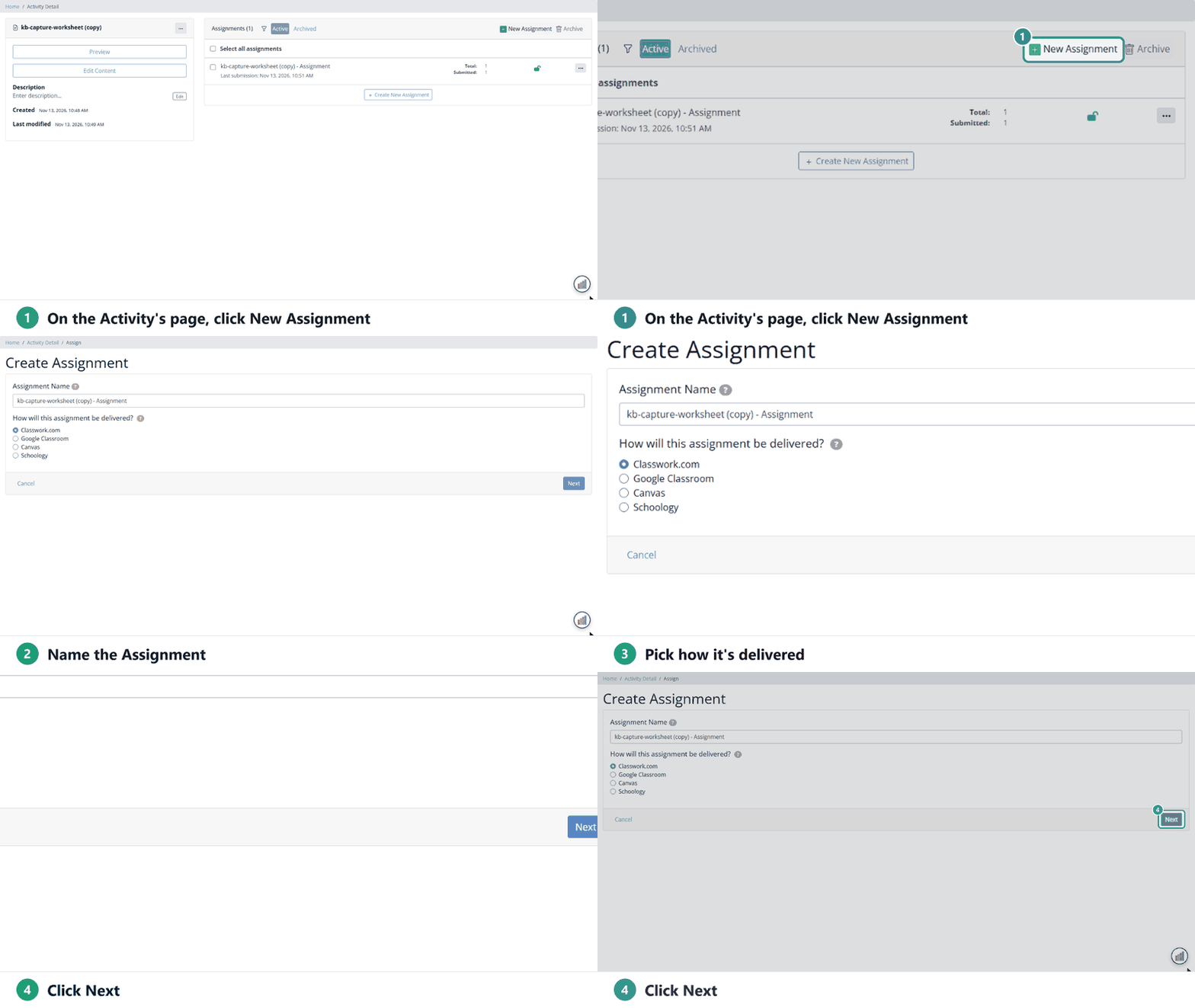
Step 1: Name it and pick how it’s delivered
Type an Assignment Name (students see it), then choose how students will get it: Classwork.com, Google Classroom, Canvas or Schoology. Click Next.
Step 2: Choose who gets it
If you use Classes
Check each class that should get the Assignment. Classwork.com makes a separate Assignment for each class. For each class, choose:
- All Students: everyone in the class now, and students who join later.
- Select Students: only the students you check. Students who join later don’t get it.
To set up Classes, see Sync or Add New Classes. For more on several classes at once, see How Do I Assign My Activity to Multiple Classes?
If you don’t use Classes
Leave every class unchecked and click Next. Then choose how students sign in:
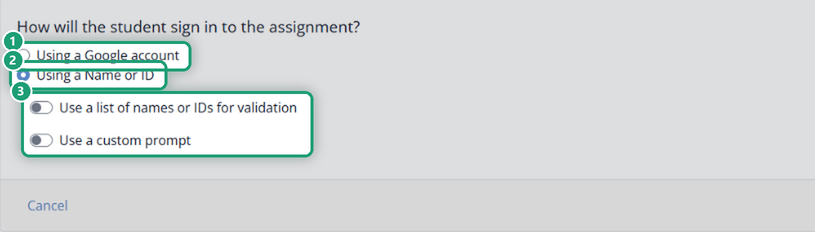
- Using a Google account
- Using a Name or ID: students type their name or ID to start.
- With Name or ID you can also turn on Use a list of names or IDs for validation (only names on your list can start) or Use a custom prompt (change what students are asked to type).
Google Classroom
Pick one or more Google Classroom courses and, if you like, specific students.
Step 3: Settings
The last step has the Assignment’s settings. You can change any of them later from the Assignment’s page (three-dot menu > Edit Assignment).
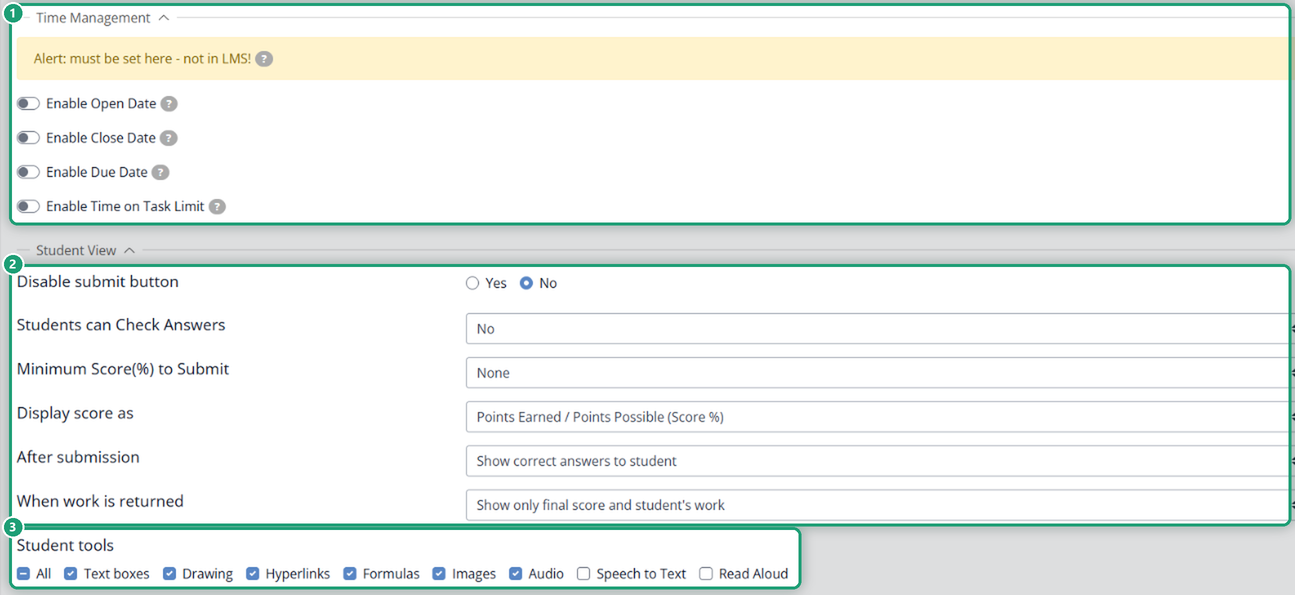
- Time Management: Enable Open Date, Enable Close Date, Enable Due Date and Enable Time on Task Limit. Set these here, not in your LMS. See Are There Time Management Features in Classwork.com?
- Student View:
- Disable submit button: students can’t turn it in themselves; you turn it in for them with Set Selected as Completed.
- Students can Check Answers: No, 1× to 3×, Unlimited or Custom.
- Minimum Score(%) to Submit: None, 50% to 100%, or Custom.
- Display score as: Points Earned; Points Earned / Points Possible; Points Earned / Points Possible (Score %); or Score %.
- After submission: Hide student’s work; Show only total score to student; Show item-by-item scoring to student; or Show correct answers to student.
- When work is returned: Show only final score and student’s work; Show item-by-item scoring to student; or Show correct answers to student.
- Student tools: check the tools students can use: Text boxes, Drawing, Hyperlinks, Formulas, Images, Audio, Speech to Text and Read Aloud (or All).
The Academic Integrity section at the bottom controls copying and pasting (Allow or Prevent) and what happens when students leave the Assignment (Off, Record only or Record and auto lock). See Academic Integrity.

Click Save.
Extra settings for Google Classroom
- Assignment Status: assign now, schedule it, or save it as a draft.
- Assignment Points to Use in Google Classroom: the points sent to Google Classroom. Points in Classwork.com don’t change.
- Auto-Sync Scores: turn off if you want to decide when scores go to Google Classroom.
- Block Students Not in the Class: only students in the course can open it.
After you save
The Assignment’s page opens. Share the link with students (or they’ll find it in your LMS) and watch their work come in. From there you can preview the Assignment, edit the answer key, lock or archive it, and open each student’s work to grade it.
Was this article helpful?
That’s Great!
Thank you for your feedback
Sorry! We couldn't be helpful
Thank you for your feedback
Feedback sent
We appreciate your effort and will try to fix the article