|
|
GC: How do I use the Google Classroom Integration? |
When you distribute your Activity via Google Classroom, your students receive the assignment in their Google Classroom stream, and grades transfer from Classwork.com to your Google Classroom gradebook automatically. Here are the instructions for using this time-saving integration.
Create an Assignment
Sign in to Classwork.com and click the Activity Title. That takes you to the Activity Detail screen. Click Create an Assignment if this is the first assignment you have created for this Activity, or Create New Assignment if you have already created one or more.
OR

Choose Google Classroom Delivery
On the Create Assignment screen, name your assignment. Next, choose how to deliver it. Check Google Classroom, as shown below.
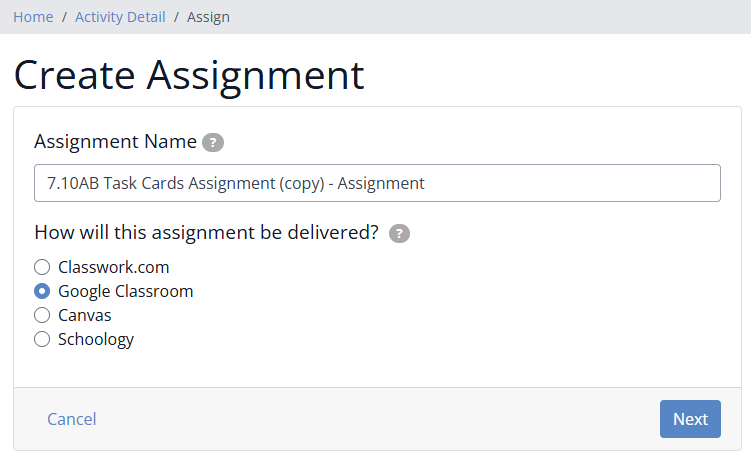
Click the Next button.
Grant Permissions (First Time Only)
If this is the first time you have connected to Google Classroom, you will need to grant Classwork.com permission to read your class data from Google. Click the blue Click here to do so now.
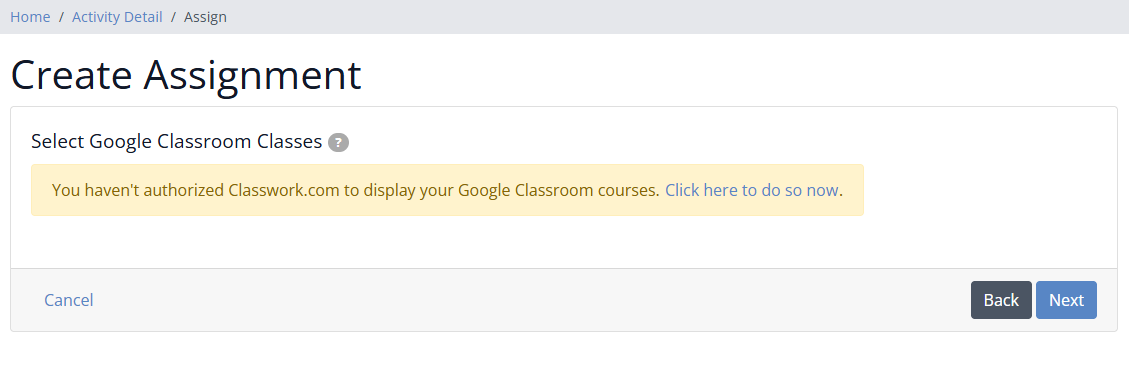
Google may ask you to enter your password first, then approve the permissions. Be sure to grant all the permissions Classwork.com requests, or you will not be able to make assignments in Google Classroom.
Select Your Classes and Students
Choose a class, and optionally specific students, from your Google Classroom. You should see a list of each of your Google Classroom courses. Choose one or more by checking the box to the left of the class name.
You can also choose whether to give the assignment to all students in the class or to select individual students.
Note: If you choose All Students, even students added later will receive the assignment. If you select individual students, Google Classroom will not give the assignment to any students added after you create it, though you can add them yourself in the Google Classroom application.

Set Scoring Preferences and Google Classroom Options
Next, choose your scoring preferences and the tools your students will have access to. This step includes a few options specific to Google Classroom:
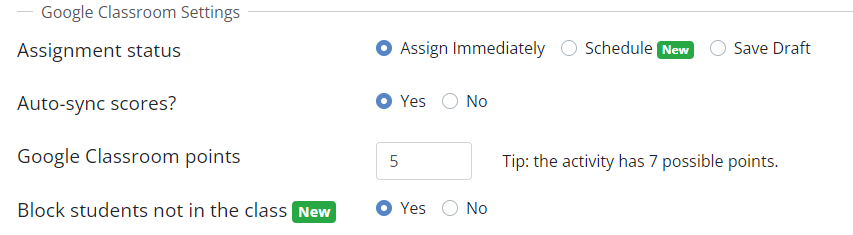
- Assignment Status lets you create an assignment that becomes available immediately, or at a date and time of your choosing. You can also save the assignment as a Draft in Classroom. If you do, you will later need to log in to Google Classroom to make it available to your students.
- Auto-sync scores tells Classwork.com to send score updates to Google Classroom so they appear in the class's gradebook automatically. It is the best!
- Google Classroom points sets the points for the assignment in Google Classroom. You can set this to any value you wish, though we recommend using the same value shown in Classwork.com. Google Classroom scores the assignment proportionately, dividing each student's achieved points by the possible points.
- Block students not in class keeps students from starting this assignment unless they are registered in the class. If you see students in your Submissions list who do not belong there, this might be the setting for you.
Save and Publish
Once you hit Save, your Classwork.com assignment is published to the class and/or individual students you selected in Google Classroom. You will also see a list of the students who started the assignment on the Activity Detail screen.

Nice job! You have created assignments in Google Classroom. Remember, if you created a Draft, you will need to go into Google Classroom to make it visible when you are ready.
Was this article helpful?
That’s Great!
Thank you for your feedback
Sorry! We couldn't be helpful
Thank you for your feedback
Feedback sent
We appreciate your effort and will try to fix the article