|
|
Disconnecting/Reconnecting Google Classroom and Classwork.com |
Getting an error when you create a Google Classroom assignment? Reset the connection: remove Classwork.com from your Google account, then connect again. It takes about two minutes.
Step 1: Remove Classwork.com from your Google account
- Go to myaccount.google.com/connections (Google’s Linked apps page). Sign in with the Google account you use for Google Classroom.
- Click Classwork.com.
- Scroll down and click Delete all, then confirm.
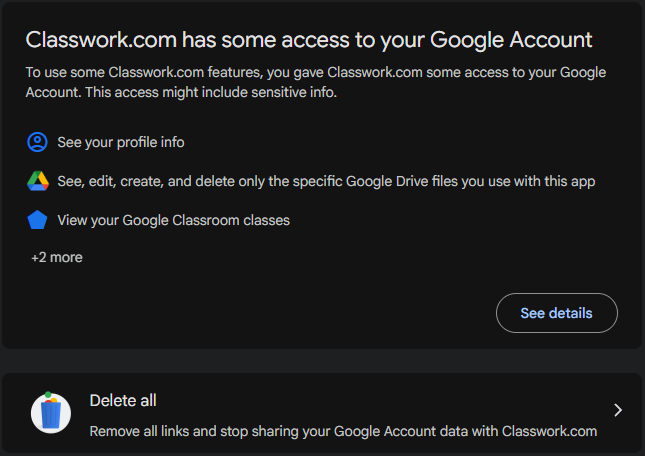
See TeacherMade in your Linked apps too? Remove it the same way.
Step 2: Connect again
- In Classwork.com, create a new Google Classroom assignment from any Activity. Classwork.com says it doesn’t have permission yet. Click Retry.

- Sign in to Google when asked.
- Check all the permissions so Classwork.com can see your Google Classroom classes. Your screen may look a little different.

- Click Continue.
When your Google Classroom students show up, it’s fixed. Return to the Activities page and carry on.
Are you new to Classwork.com? Welcome!
Click here to start your 30 day risk-free PRO trial today.
Was this article helpful?
That’s Great!
Thank you for your feedback
Sorry! We couldn't be helpful
Thank you for your feedback
Feedback sent
We appreciate your effort and will try to fix the article