|
|
Edit Your Answer Key After Assigning or While Grading Assignments |
Edit Your Answer Key After Assigning or While Grading
Yes, you can fix an answer key after you assign an Activity, even after students start or you start grading. Open the Activity with Edit. Classwork.com rescores every submission with the new key.
Edit the answer key
- On the Activities page, check the box next to the Activity.
- In the menu that appears, click Edit. (You can also click the pencil at the end of the Activity’s row.)
- The Activity opens in Answer Key Mode. Make your changes. They save automatically.
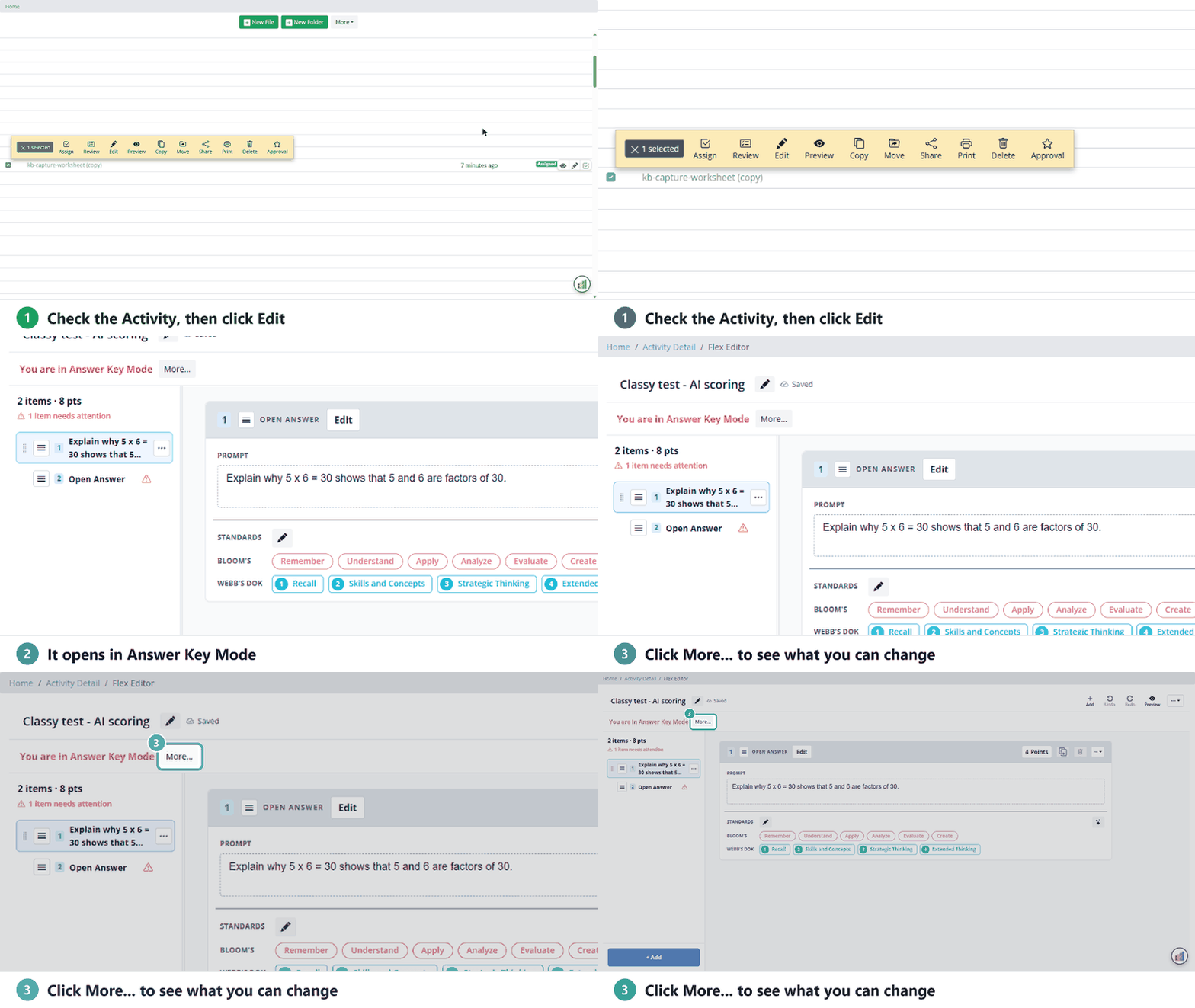
Click More… next to the red You are in Answer Key Mode banner for the full list of what you can change. Answer Key Mode starts as soon as an Activity has an assignment, even if no one has opened it yet.
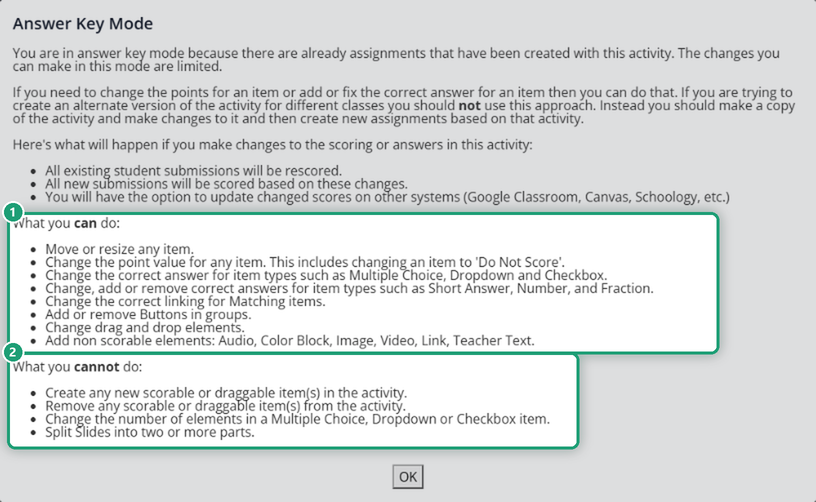
What you can change
- Move or resize any item.
- Change the point value of any item, including setting it to Do Not Score.
- Change the correct answer for Multiple Choice, Dropdown and Checkbox items.
- Change, add or remove correct answers for Short Answer, Number and Fraction items.
- Change the correct links for Matching items, and change drag and drop elements.
- Add or remove buttons in groups.
- Add content that isn’t scored: audio, color blocks, images, video, links and teacher text.
What you can’t change
- Add or delete scored or draggable items.
- Change how many choices a Multiple Choice, Dropdown or Checkbox item has.
- Split a slide into parts.
For bigger changes, or a different version for another class, make a copy of the Activity and assign the copy.
What happens to scores
When you change an answer or a point value:
- All submissions already turned in are rescored.
- New submissions are scored with the new key.
This is different from changing one student’s score. To do that, see How Do I Score an Open Answer Question? (the same Set Score steps work on any item).
Send new scores to Google Classroom, Canvas or Schoology
If the assignment went out through Google Classroom, Canvas or Schoology, send the new scores there too.
- Close the editor. A message at the top of the page says scores need updating. Click Click here to resolve.

- Click Select Assignments to Sync.

- Check each assignment to update, then click Update Scores.

The scores update right away, and you’ll see a message when it’s done.
Was this article helpful?
That’s Great!
Thank you for your feedback
Sorry! We couldn't be helpful
Thank you for your feedback
Feedback sent
We appreciate your effort and will try to fix the article