|
|
Where can I give feedback and/or make comments on students' work? |
Where Can I Give Feedback on Students’ Work?
Applies to: Flex Editor & Slide Editor
Open a student’s work from the Assignment to leave feedback. What you can add depends on the kind of Activity.
Flex activities
Each question has its own Add message to student buttons underneath it: text, a picture, or a voice recording.
- Click the text button under the question.
- Type your message. You can format it and add a picture, table or link.
- Click Save.
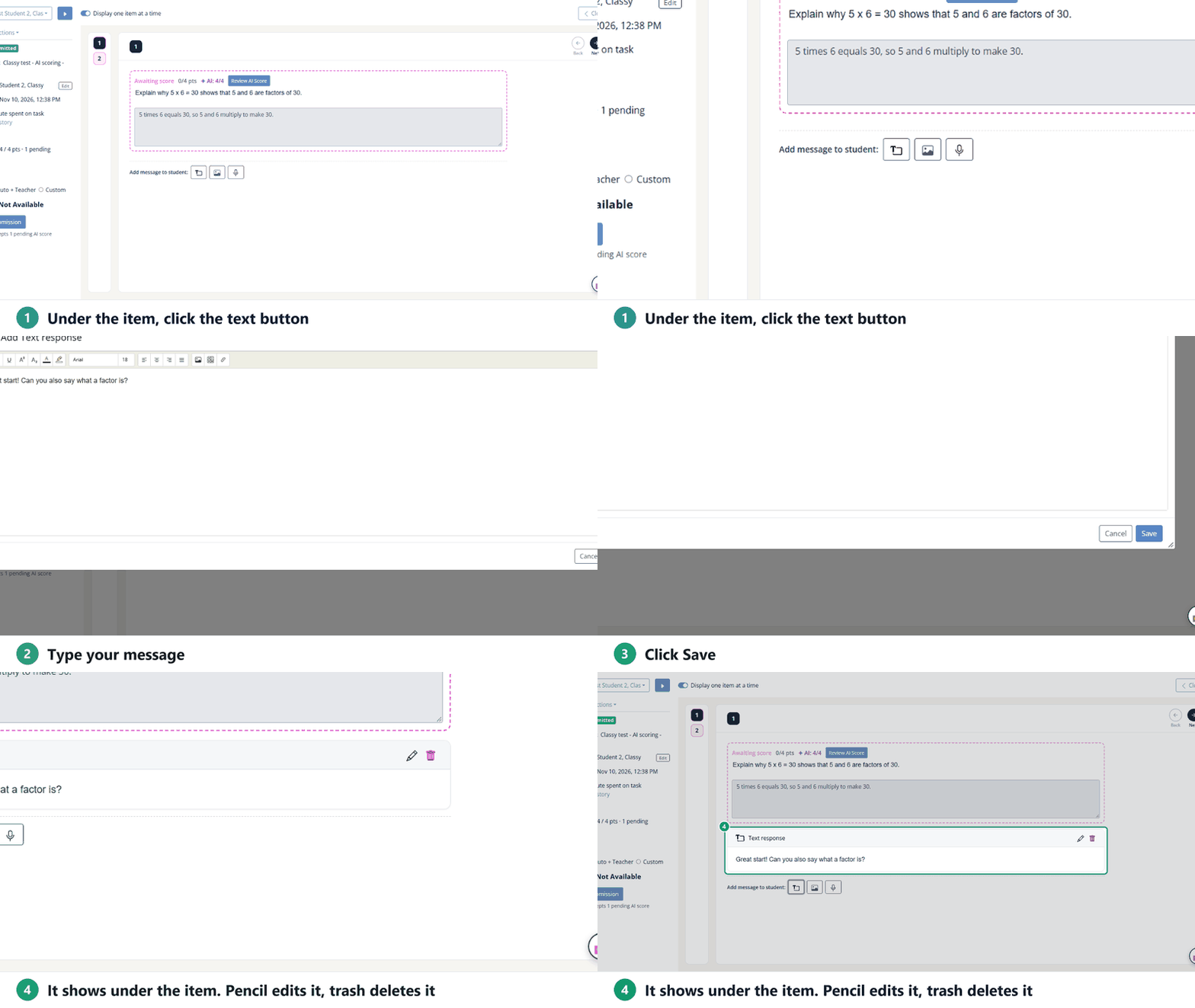
The message shows under the question. Click the pencil to change it or the trash can to delete it.
Slide activities
A comment for the whole Assignment
- In the left panel, click the Comments tab.
- Type your comment. It saves on its own.
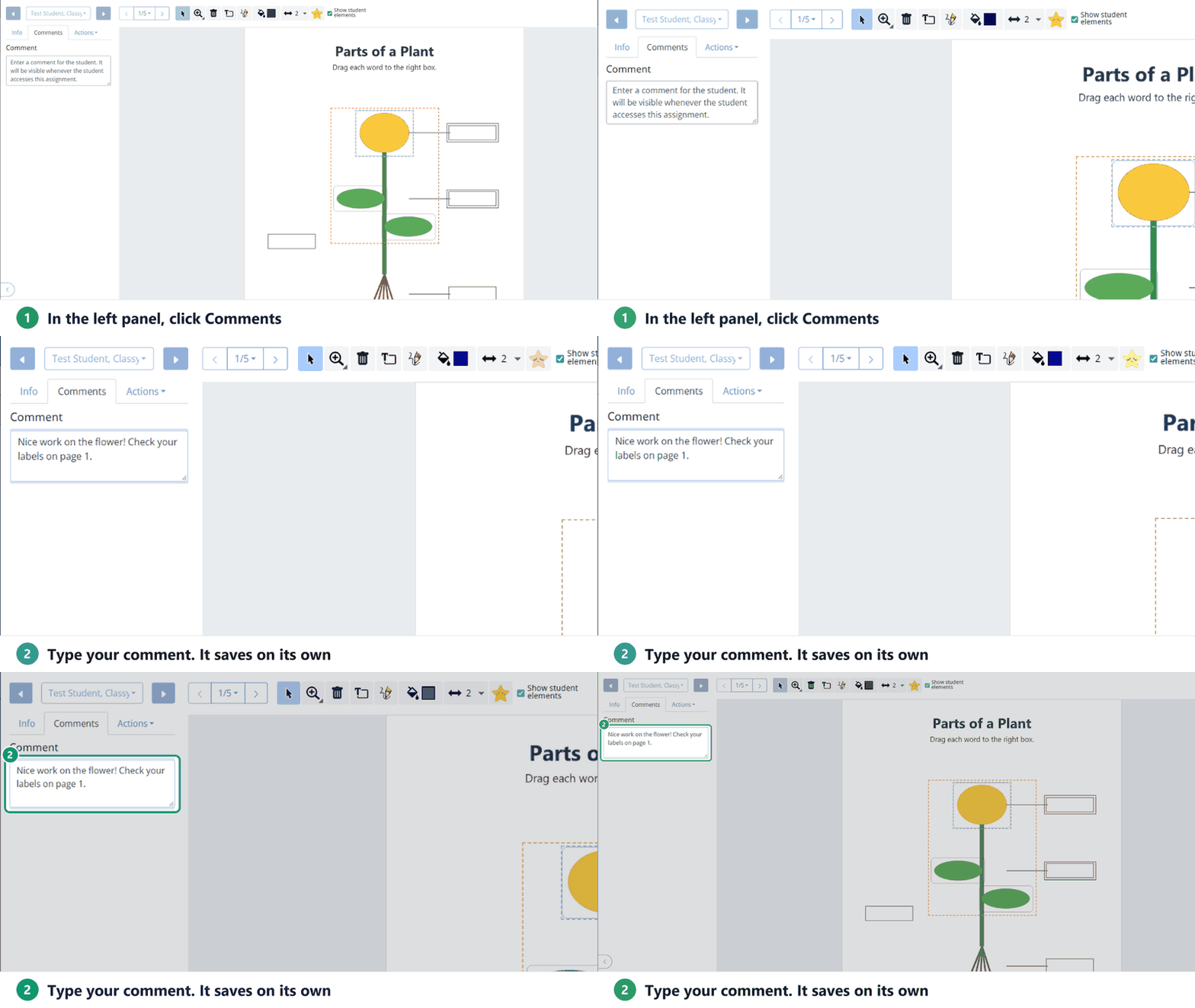
The student sees the comment whenever they open the Assignment.
Notes, drawings and stickers on the page
Use the teacher toolbar across the top:
- Add Text: drag a box on the page and type a note.
- Draw: write or draw freehand. Pick a Color and Line width first.
- Stickers (the star): add a check mark, letter grade, trophy and more.
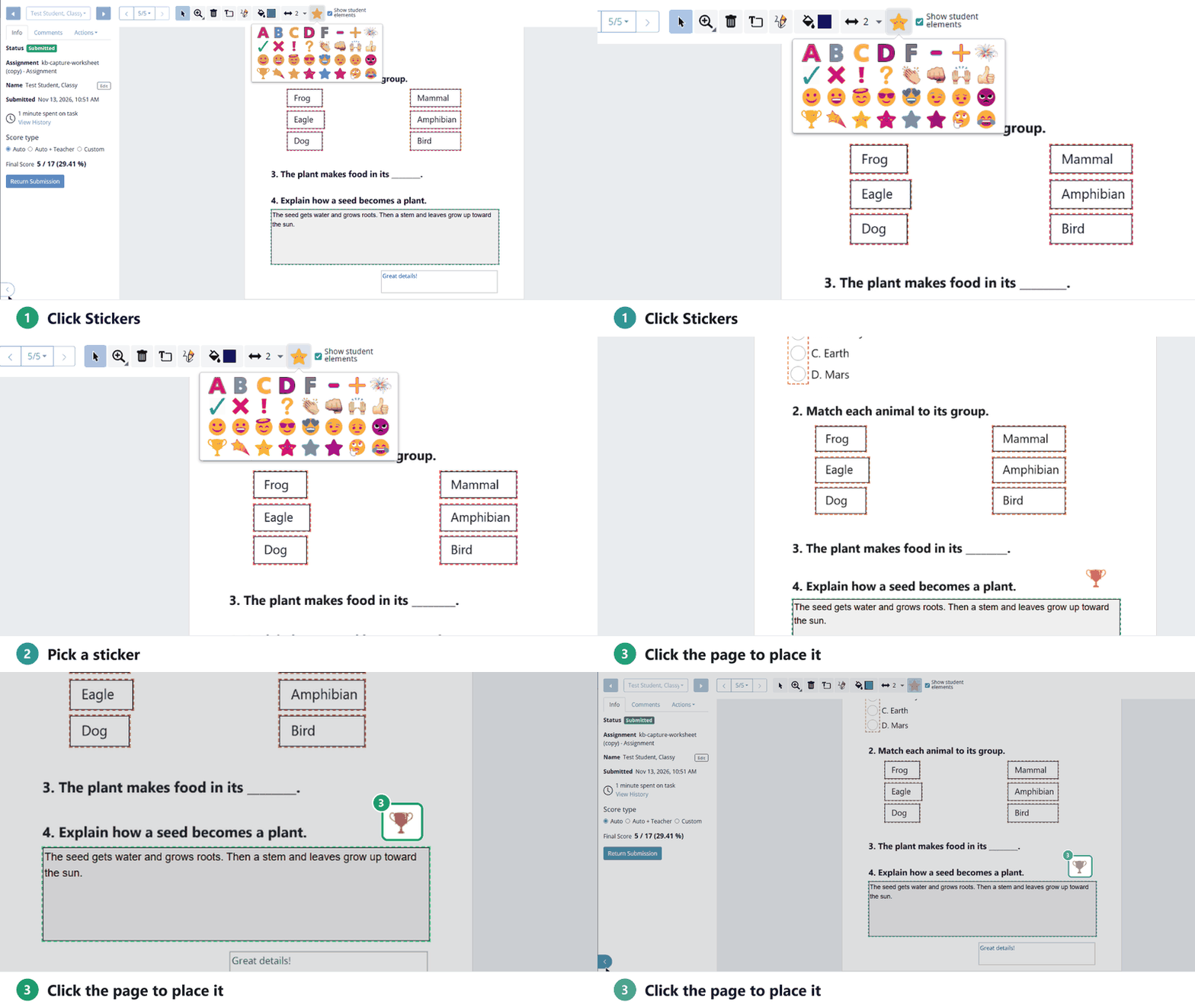
For every tool, see Submissions Screen: Teacher Toolbar. For writing on the page, see Write on a Student’s Assignment While Grading.
Are you new to Classwork.com? Welcome!
Click here to start your 30 day risk-free PRO trial today.
Was this article helpful?
That’s Great!
Thank you for your feedback
Sorry! We couldn't be helpful
Thank you for your feedback
Feedback sent
We appreciate your effort and will try to fix the article