|
|
How Do I Assign My Activity to Multiple Classes? |
How Do I Assign My Activity to Multiple Classes?
Applies to: Flex Editor & Slide Editor
If you use Classes, you can give one Activity to several classes in one go. Classwork.com makes a separate Assignment for each class, so you can follow each class’s work on its own.
Haven’t set up Classes yet? See Sync or Add New Classes.
Assign to several classes
- On the Activity’s page, click New Assignment.
- Name the Assignment, choose Classwork.com, Canvas or Schoology, and click Next.
- Under Select Classes, check each class that should get it.
- For each class, choose All Students or Select Students. With Select Students, check the students who get it; the class then shows how many you picked.
- Click Next, choose the settings, and click Save.
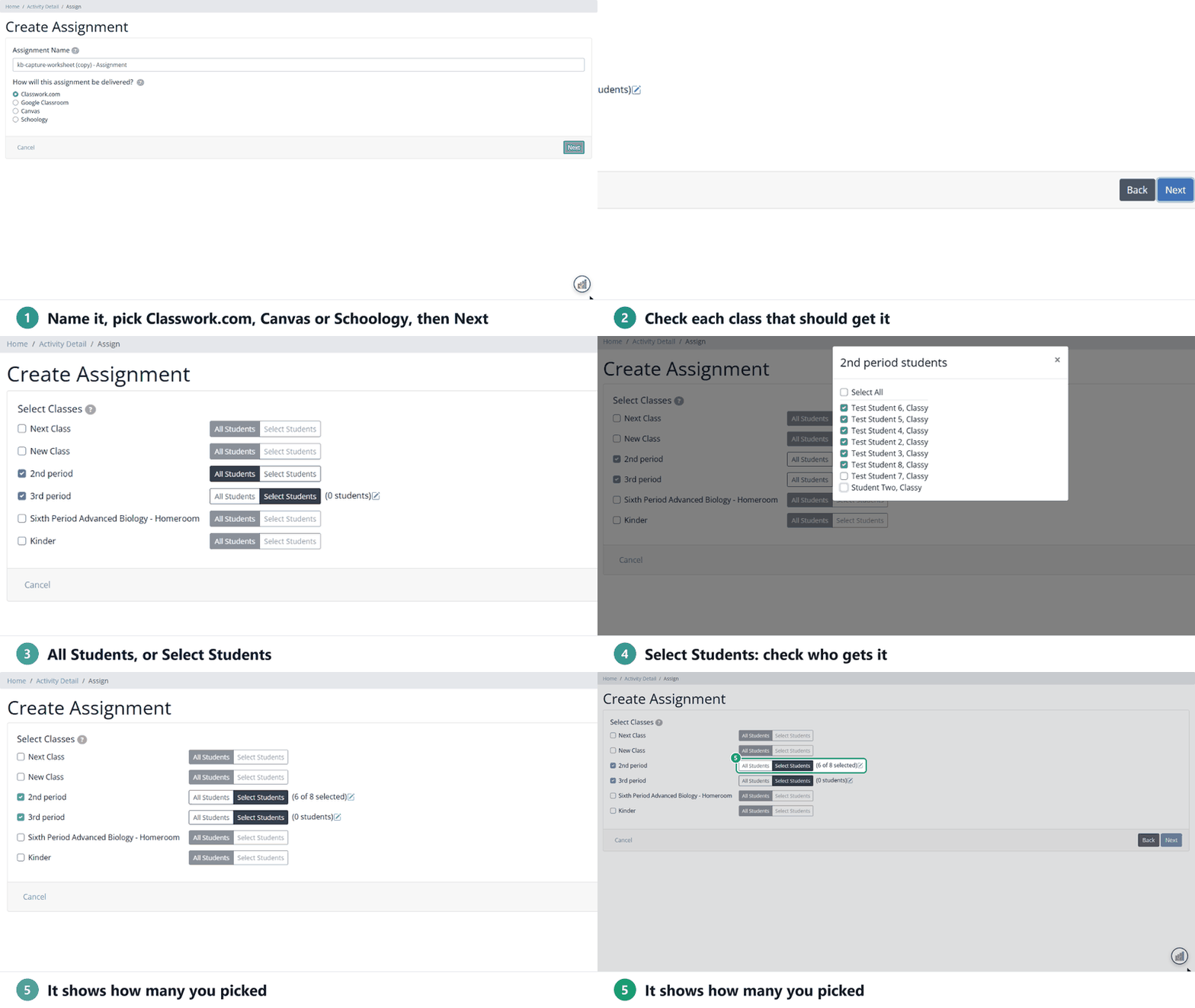
- All Students includes students who join the class later.
- Select Students only includes the students you checked.
- A class with no students yet shows (0 students).
What happens next
Each class gets its own Assignment, listed on the Activity’s page. Open one to see that class’s work, scores and settings. Every Assignment has the same settings to start; change one class’s with Edit Assignment.
For all the steps and settings, see How to Make Assignments for Your Students.
Are you new to Classwork.com? Welcome!
Click here to start your 30 day risk-free PRO trial today.
Was this article helpful?
That’s Great!
Thank you for your feedback
Sorry! We couldn't be helpful
Thank you for your feedback
Feedback sent
We appreciate your effort and will try to fix the article