|
|
How to make your activity auto-scored/auto-graded |
How to Make Your Activity Auto-Scored (Auto-Graded)
Classwork.com scores a question for you when it knows the correct answer. Give every question a correct answer as you build it, and students’ work is scored the moment they submit.
Open Answer questions are the exception: you score them yourself, or let AI score them first with AI Scoring for Open Answer Questions (PRO).
Flex Editor
In Flex, each question has its own edit window, and that’s where you set its correct answer. Here’s how it works for a Short Answer question:
- Click + Add, and on the Add Item tab click Short Answer. The Edit Short Answer window opens.
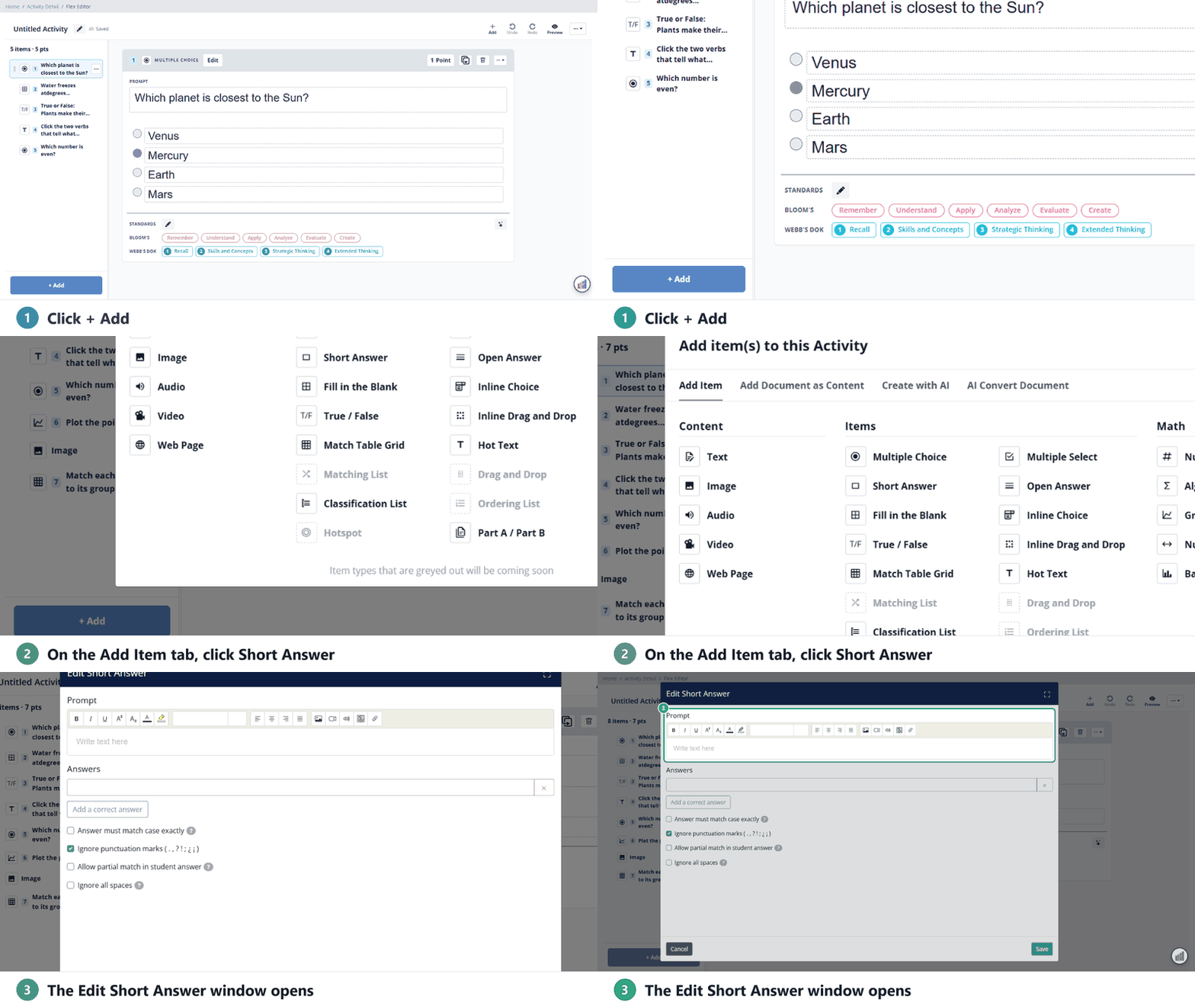
- Type the question in Prompt.
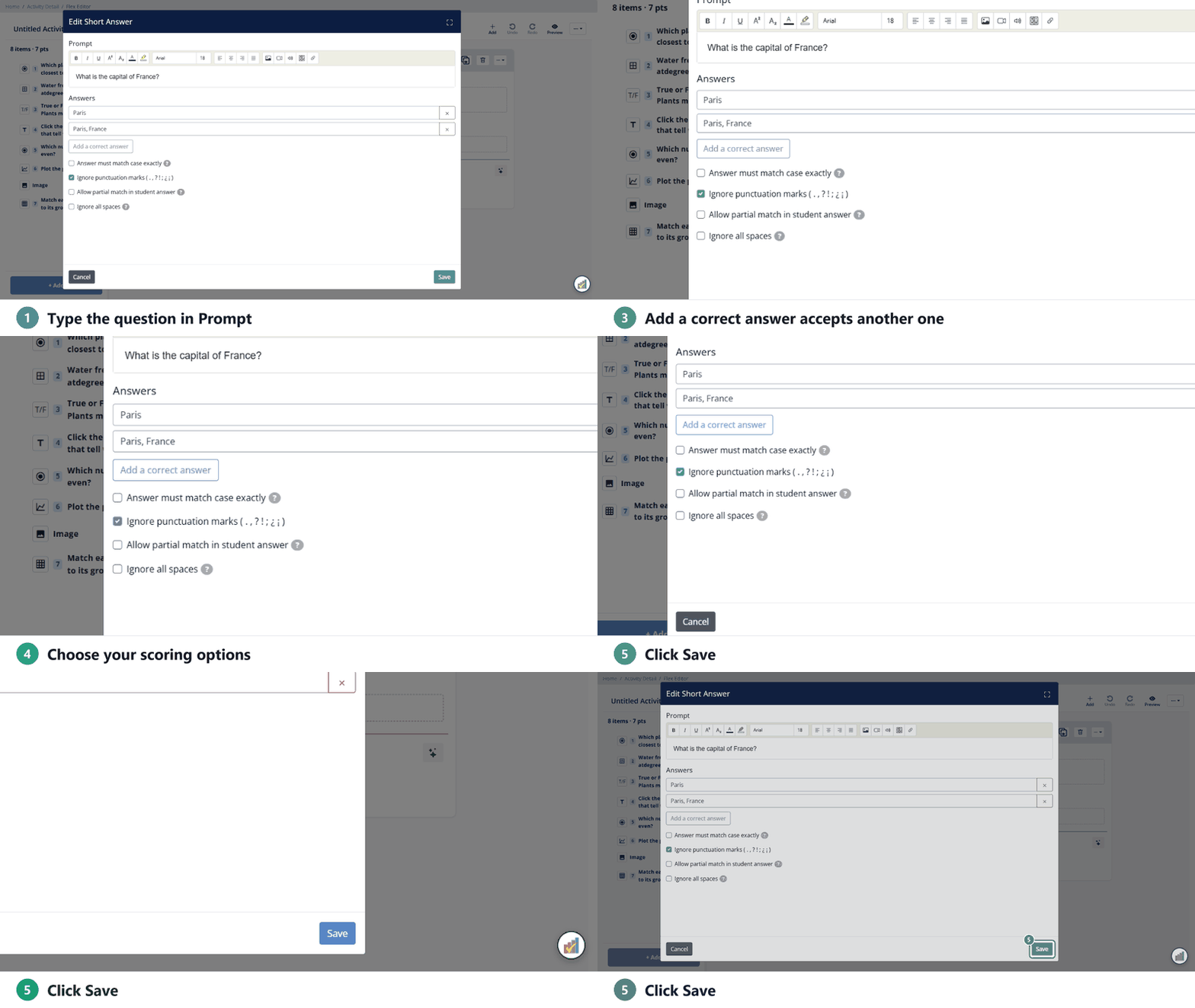
- Type the correct answer under Answers. To accept more than one answer, click Add a correct answer.
- Under How should answers be matched?, pick Exact, Case & punctuation, Typos or Same meaning (AI checks answers in other words; see Short Answer), then click Save.
Slide Editor
Multiple Choice, Checkbox / Multiselect and True/False: after you draw the answer area on the slide, click the circle or box next to the correct answer (or answers). That’s it.
Every other question type (Short Answer, Dropdown, Number, Fraction and the rest) has an edit window where you type the correct answers. For example, Short Answer:
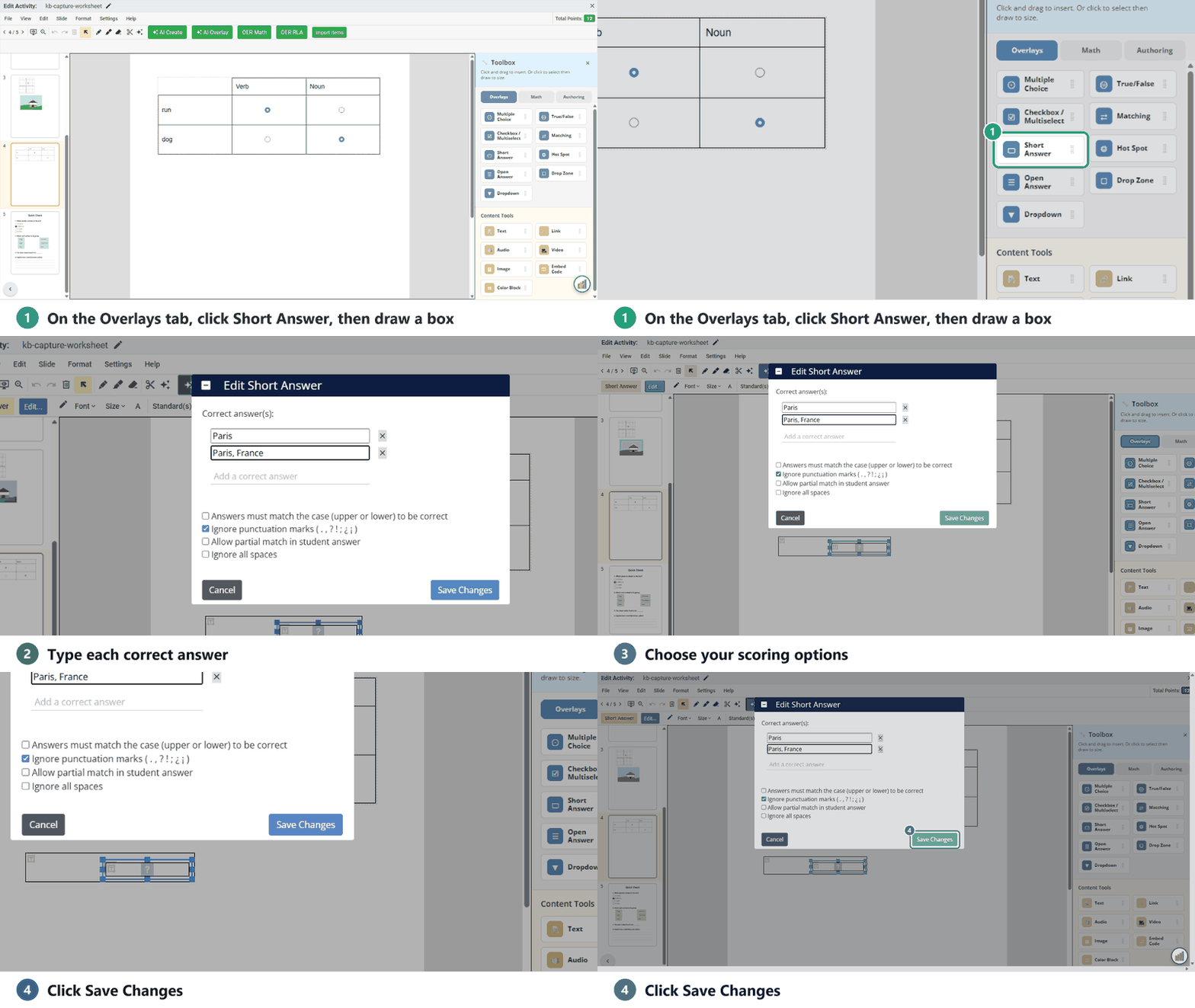
- In the Tool Box on the right, on the Overlays tab, click Short Answer, then draw a box on the slide.
- In the Edit Short Answer window, type each correct answer.
- Choose your scoring options (match case, ignore punctuation, allow a partial match, ignore all spaces).
- Click Save Changes.
A red ! on a question means it isn’t finished yet, for example it has no correct answer. Fix those before you assign.
Changing answers after you assign
You can still fix a correct answer after students start. Edit the Activity and it opens in Answer Key Mode, where you can change correct answers and points. Scores update for work already submitted. See Edit Activity Content (Pencil Icon).
Was this article helpful?
That’s Great!
Thank you for your feedback
Sorry! We couldn't be helpful
Thank you for your feedback
Feedback sent
We appreciate your effort and will try to fix the article