|
|
Edit Activity Content (Pencil Icon) - Assignment Detail Screen |
Edit Activity Content (Pencil Icon) - Assignment Detail Screen
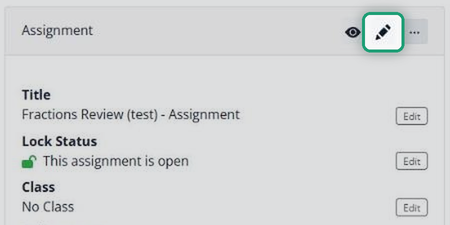
The pencil icon at the top of the left panel on the Assignment Detail screen opens the Activity in its editor (the Flex Editor or the Slide Editor) so you can fix questions and answers.
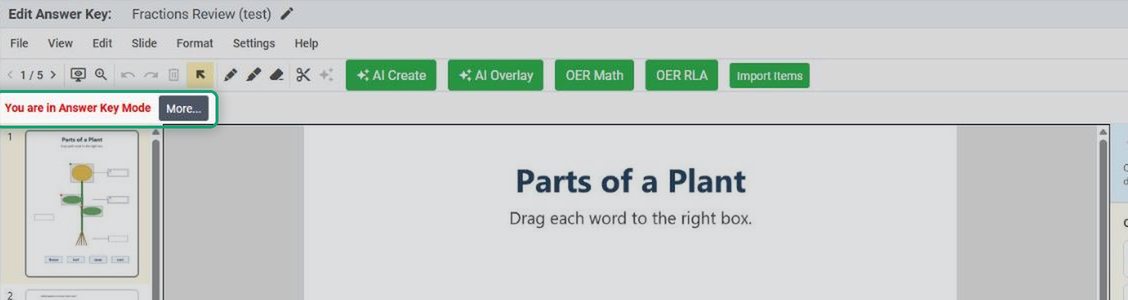
It opens in Answer Key Mode
Because students already have this Activity, the editor opens in Answer Key Mode, which protects their work. You’ll see You are in Answer Key Mode at the top; click More... for a summary of the rules. They’re the same in both editors.
You can
- Change correct answers and point values.
- Fix answer choices and typos.
- Move or resize items and adjust scoring settings.
- Add teacher content, such as text, images, audio or video.
You can’t
- Add new questions or delete questions.
- Change the number of answer choices in a question.
- Restructure the Activity (for example, rearrange slides).
When you change answers or points, every submission is rescored automatically. Scores in Google Classroom, Canvas or Schoology update when you return the work, or when you use Rescore Assignment.
To change the Assignment’s settings (dates, student tools and so on) instead, use Edit Assignment in the three-dot menu.
Need bigger changes?
Make a copy of the Activity and edit the copy freely. Existing student work stays as it is.
- Go to the Activity Detail screen (click Activity Detail at the top of the page, or the Activity’s name on the Activities page).
- Click the three-dot menu in the left panel and choose Make a Copy.
- Edit the copy, then assign it.
Was this article helpful?
That’s Great!
Thank you for your feedback
Sorry! We couldn't be helpful
Thank you for your feedback
Feedback sent
We appreciate your effort and will try to fix the article