|
|
Using the Short Answer Question Type |
Short Answer
Applies to: Flex Editor & Slide Editor
A Short Answer question gives students a small text box for a one- or two-word answer, and Classwork.com scores it for you. For sentences or paragraphs, use Open Answer instead.
Flex Editor
- Click + Add, and on the Add Item tab click Short Answer. The Edit Short Answer window opens.
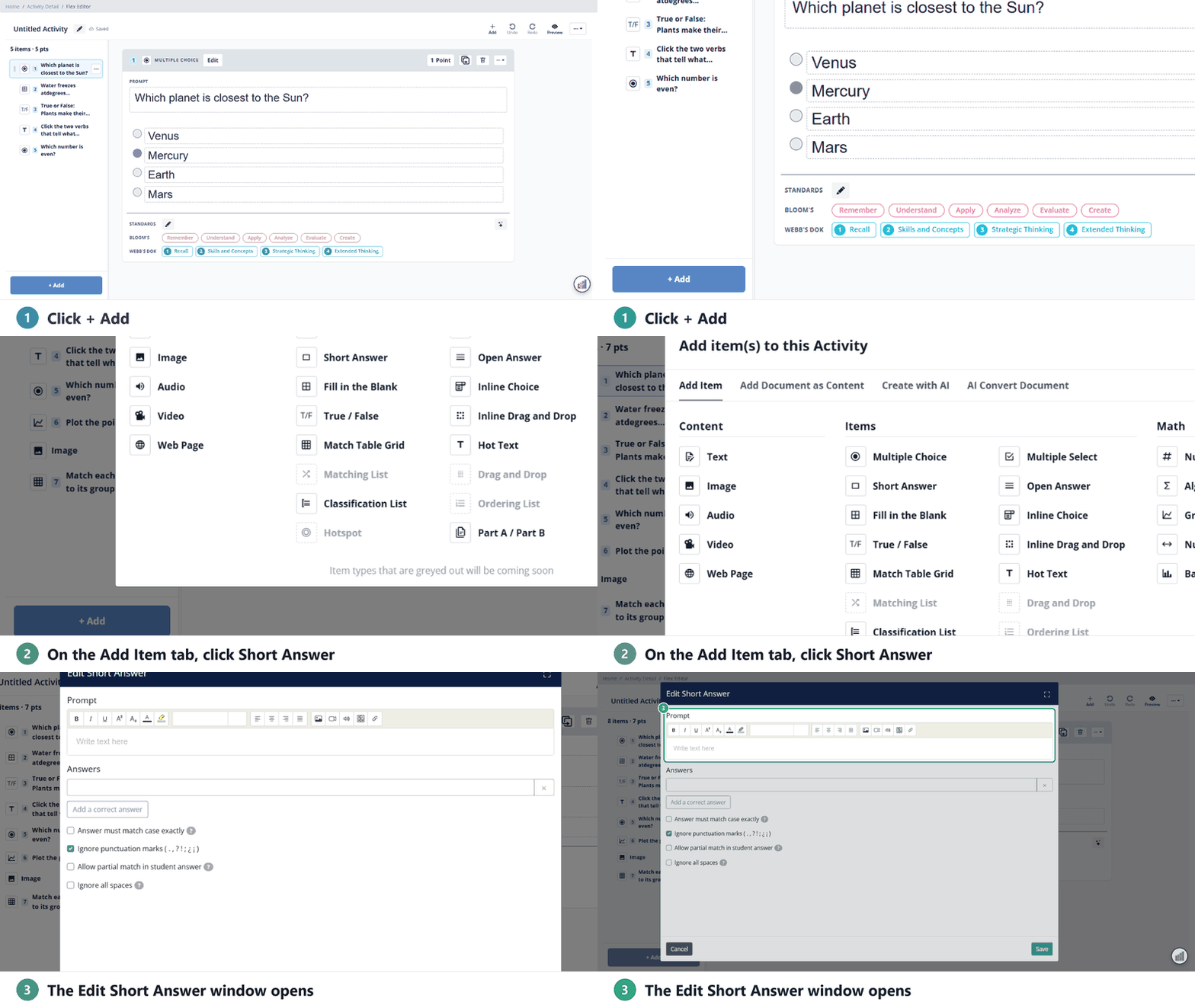
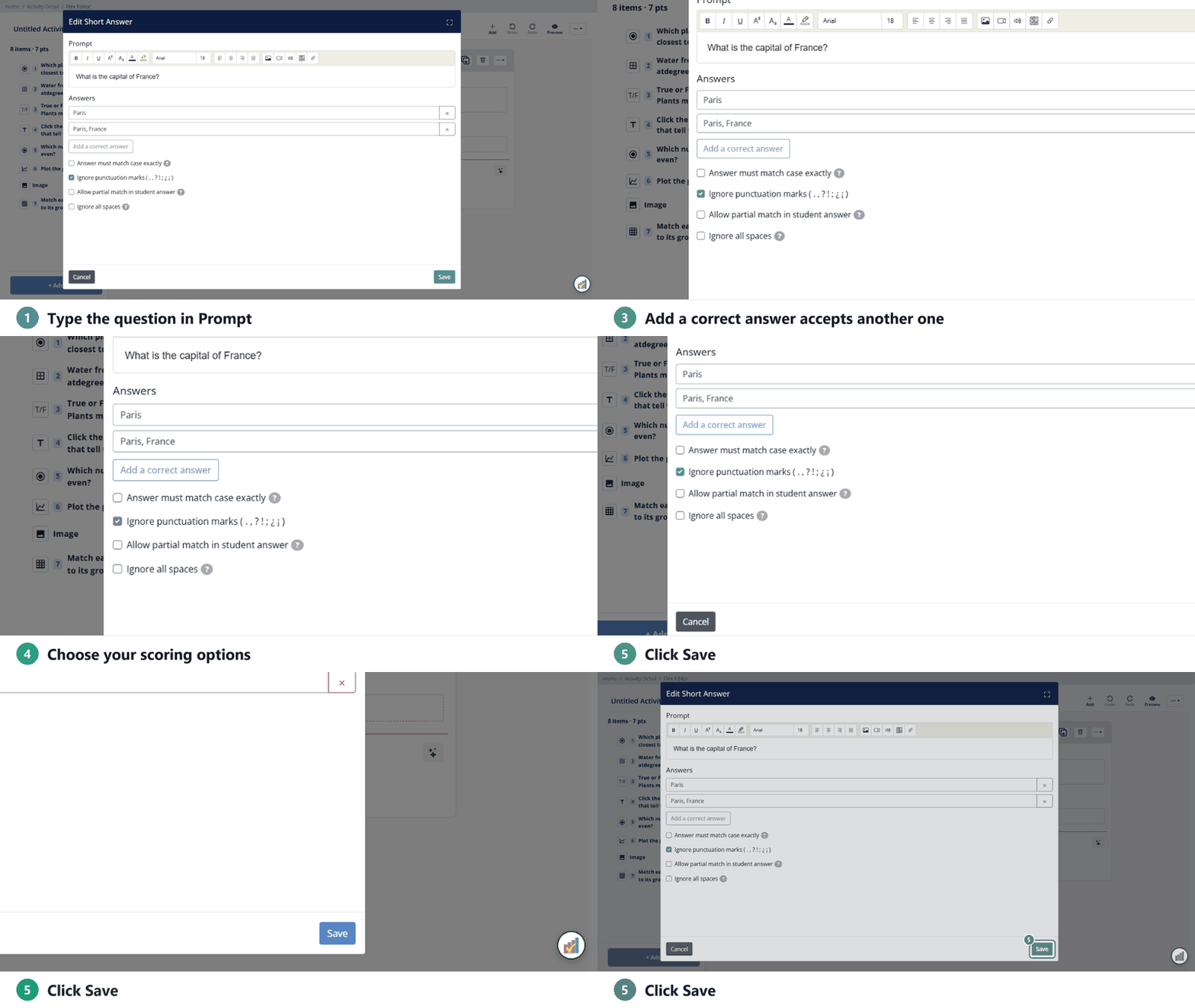
- Type the question in Prompt.
- Type the correct answer under Answers. To accept more than one answer, click Add a correct answer. Click × to remove one.
- Choose your scoring options (below), then click Save.
Slide Editor
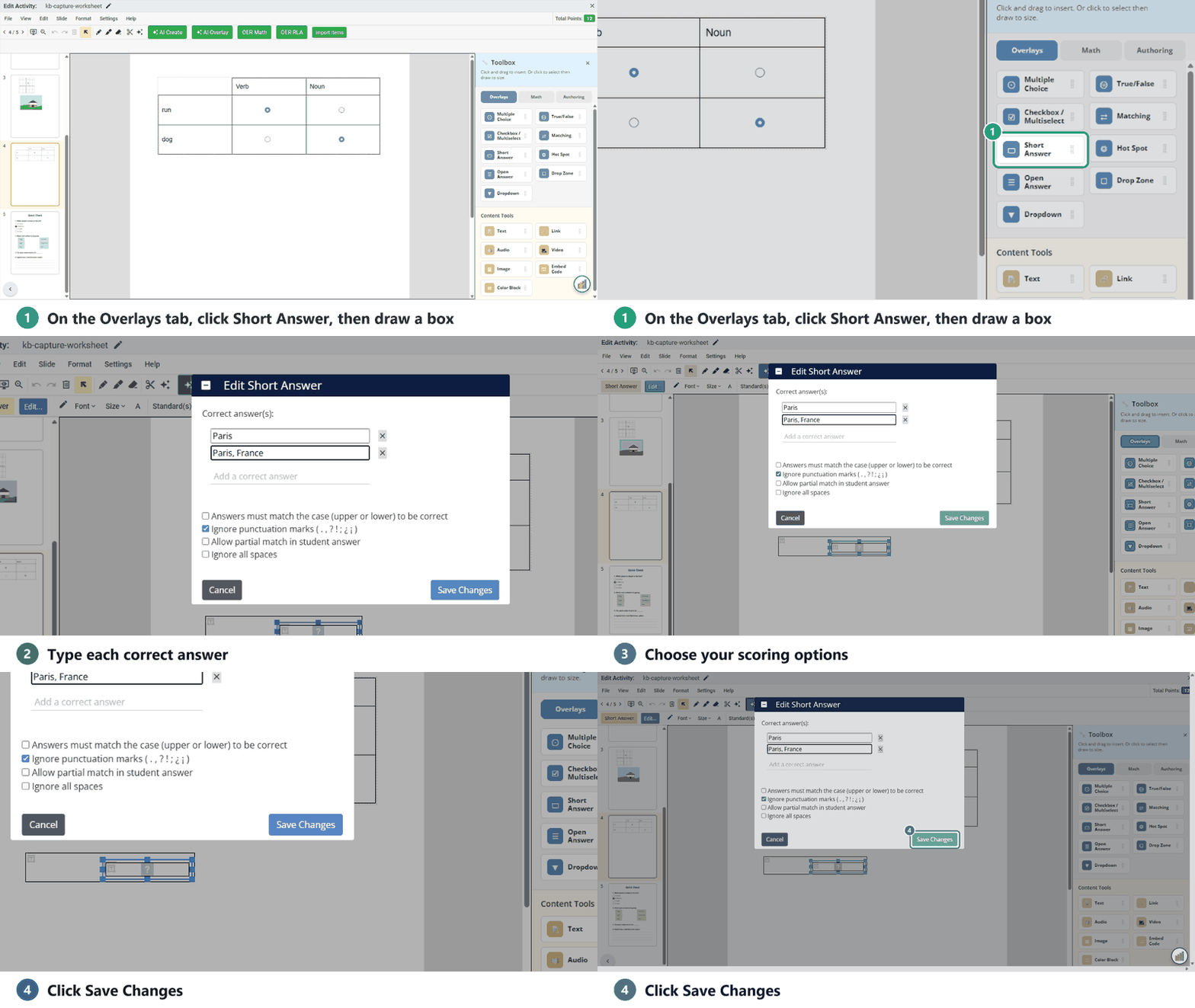
- In the Tool Box on the right, on the Overlays tab, click Short Answer.
- Click and drag to draw the box. The Edit Short Answer window opens. (To change it later, select the box and click Edit... in the toolbar.)
- Type a correct answer. Click Add a correct answer for more. Choose your scoring options, and click Save Changes.
Line up several boxes
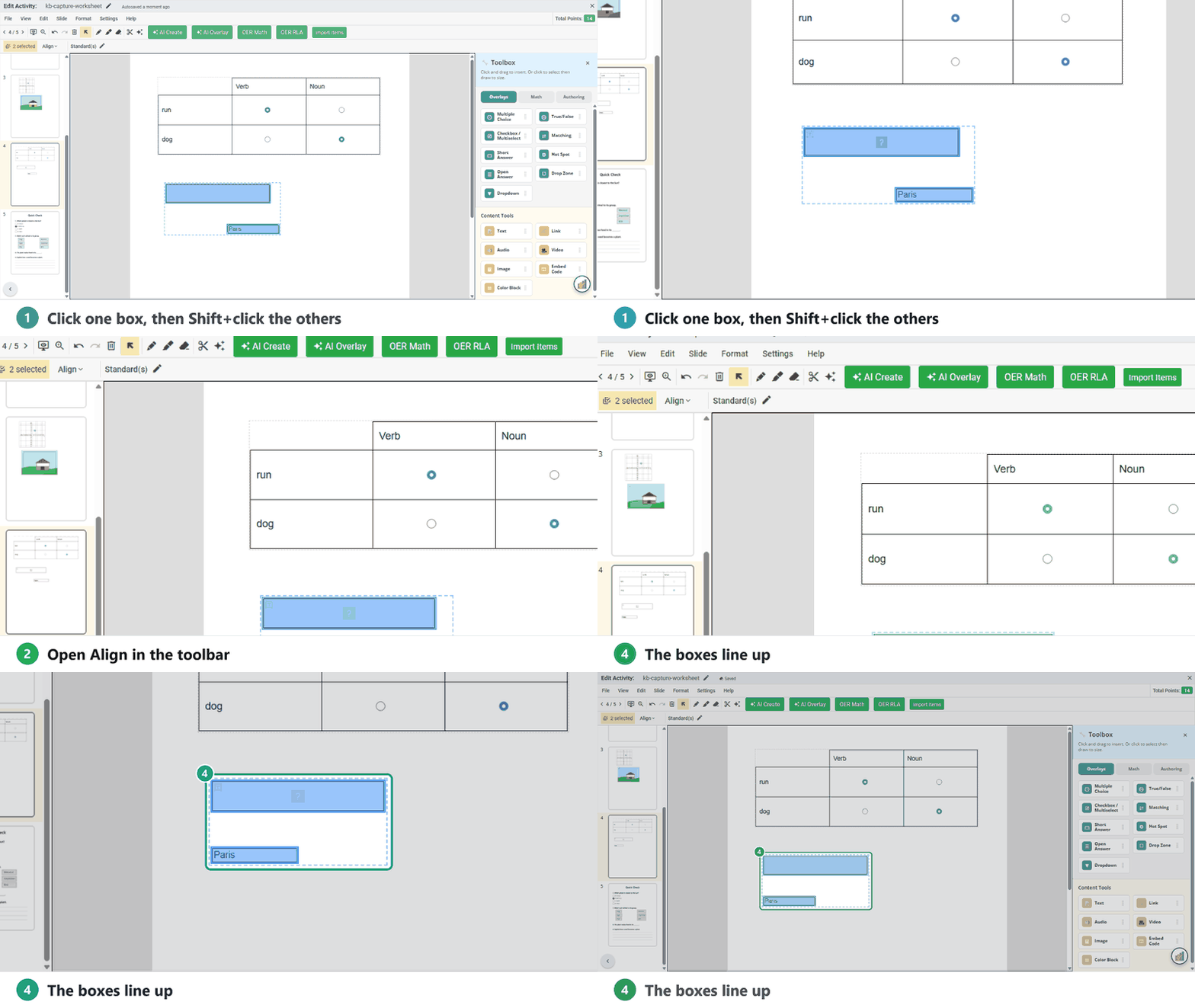
Click the first box, hold Shift and click the others. Then open Align in the toolbar and pick an option, like Left, Top, Space Vertically or Same Size as Largest.
Scoring options (both editors)
- Answer must match case exactly (in the Slide Editor: Answers must match the case (upper or lower) to be correct): capital letters count. “paris” is wrong if the answer is “Paris”.
- Ignore punctuation marks: on by default, so “Paris.” still counts.
- Allow partial match in student answer: the answer counts if it contains your answer. For example, “Yellowstone National Park” counts for “Yellowstone”.
- Ignore all spaces: spaces don’t matter, so “3 . 5” counts for “3.5”.
Are you new to Classwork.com? Welcome!
Click here to start your 30 day risk-free PRO trial today.
Was this article helpful?
That’s Great!
Thank you for your feedback
Sorry! We couldn't be helpful
Thank you for your feedback
Feedback sent
We appreciate your effort and will try to fix the article