|
|
Using the Multiple Choice Question Type |
Multiple Choice
A Multiple Choice question lets students pick one answer, and Classwork.com scores it for you. Need students to pick more than one? Use Multiselect (Flex) or Checkbox / Multiselect (Slide).
Flex Editor
Add the question
- Click + Add.
- On the Add Item tab, click Multiple Choice.
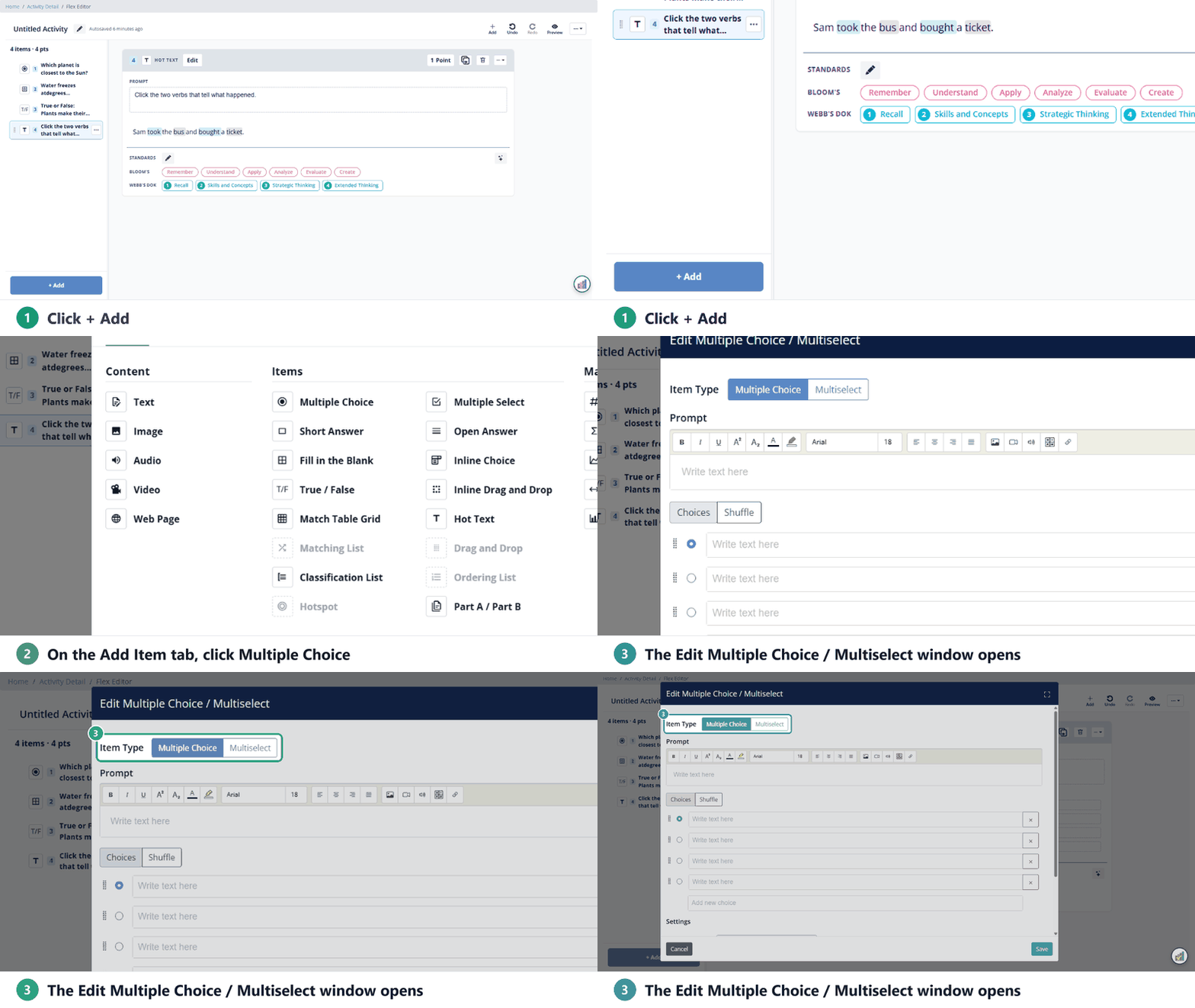
The window has an Item Type switch at the top. Leave it on Multiple Choice, or switch to Multiselect to let students pick more than one answer.
Write the question and set the answer
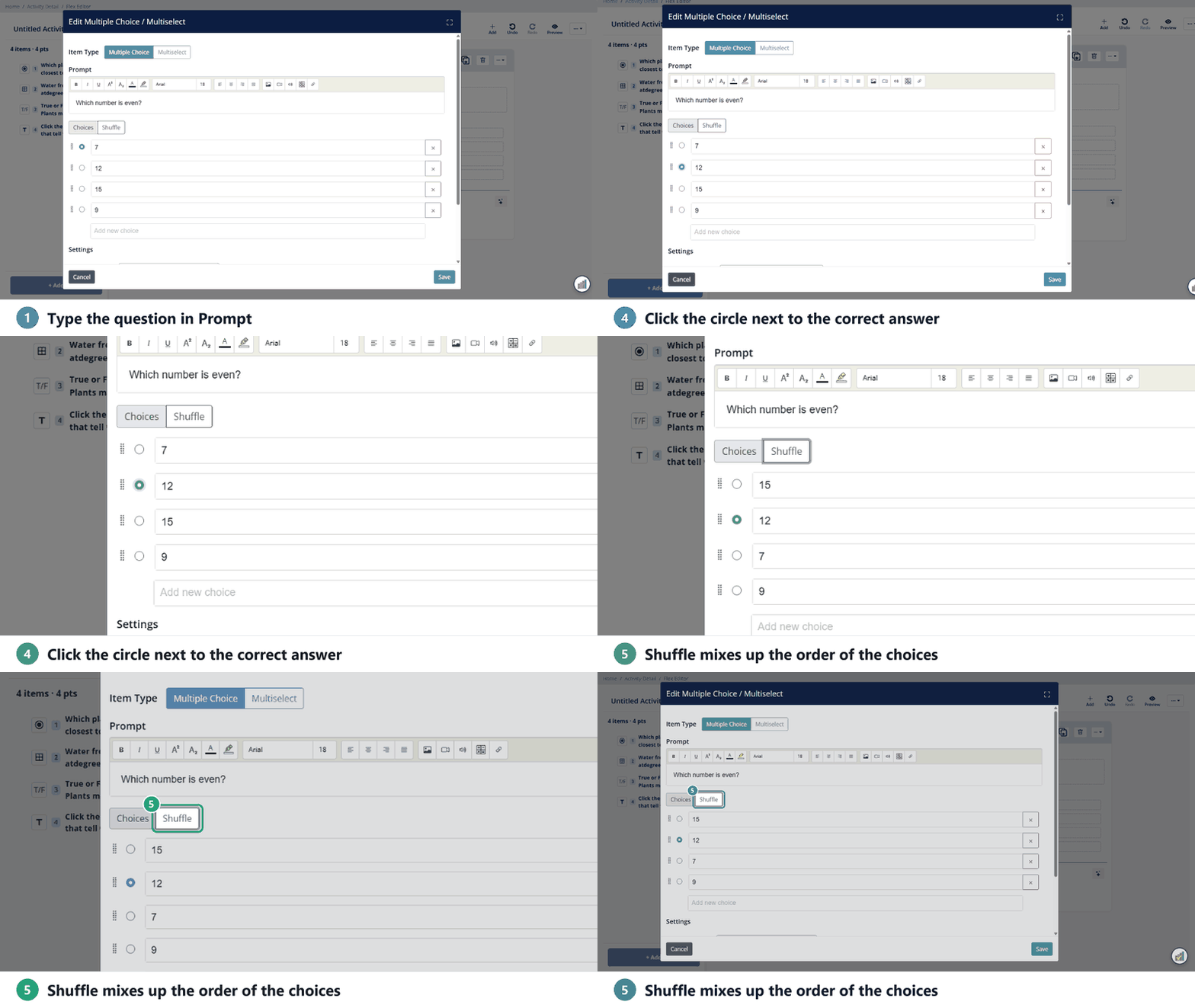
- Type the question in Prompt.
- Type each answer in a choice box. Click Add new choice for more, or the red × to remove one.
- Click the circle next to the correct answer.
- Click Shuffle to mix up the order of the choices. Each click shuffles them again.
Settings
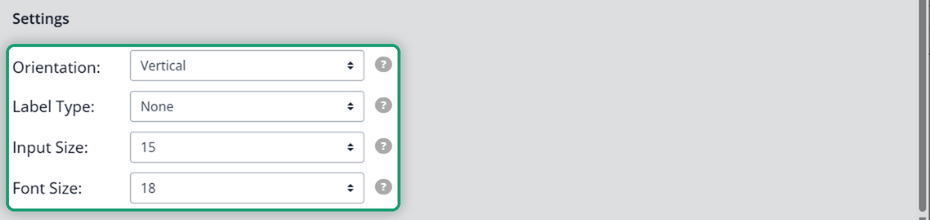
Under Settings, choose:
- Orientation: vertical or horizontal.
- Label Type: letters or numbers on the choices.
- Input Size and Font Size.
Then click Save.
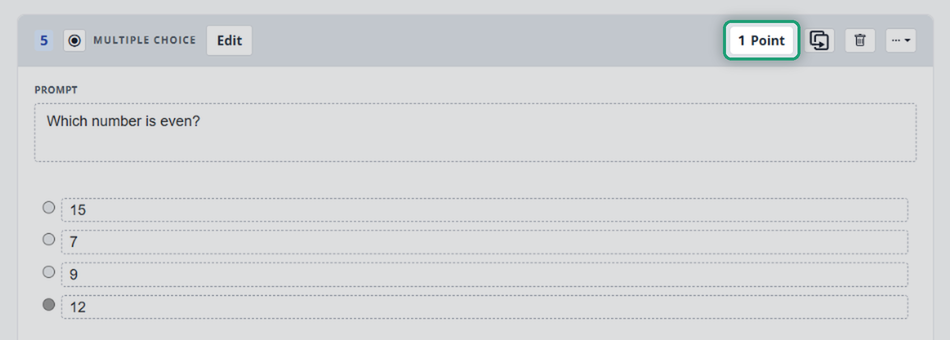
The question starts at 1 Point. Click the points button on the item to change it.
Slide Editor
Add the bubbles
- In the Tool Box on the right, on the Overlays tab, click Multiple Choice.
- Click and drag on the page to draw the box. The answer bubbles appear inside it.
- Line the bubbles up with your answer choices. Resize the box, or drag single bubbles.
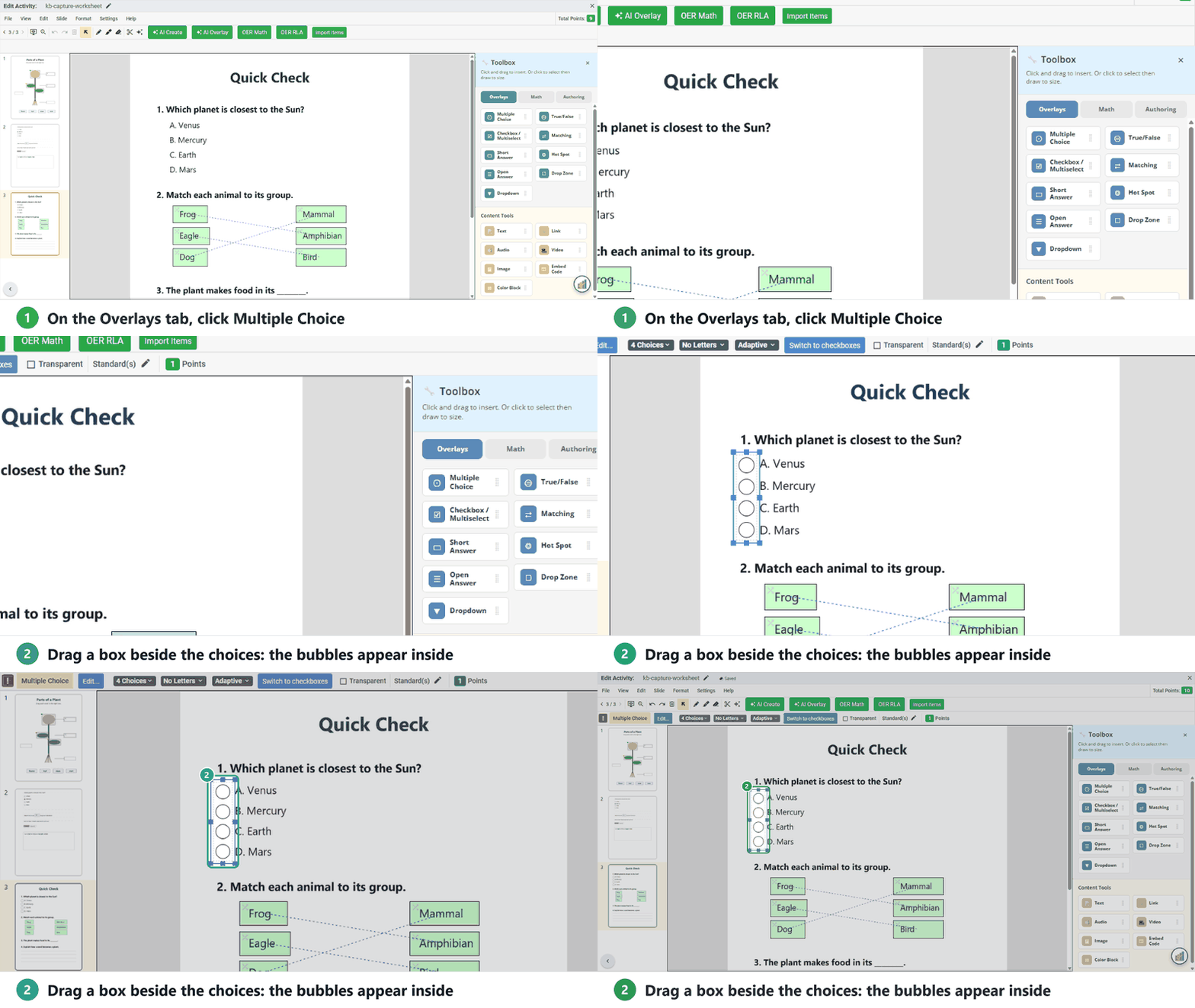
Draw the box tall for bubbles in a column, or wide for bubbles in a row.
Putting bubbles over a PDF that already has lettered choices? Cover the old letters with a Color Block.
Want a Multiple Choice question with its own prompt, like in Flex? Use Multiple Choice / Multiselect on the Tool Box Authoring tab instead.
Settings
Select the Multiple Choice box to see its settings in the toolbar, or click Edit for more.
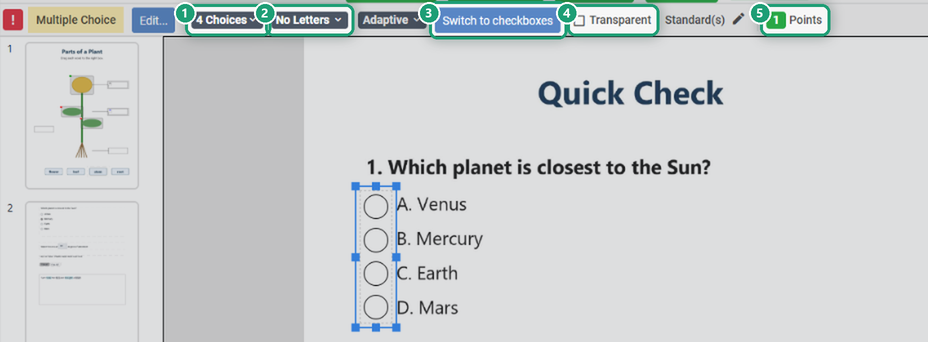
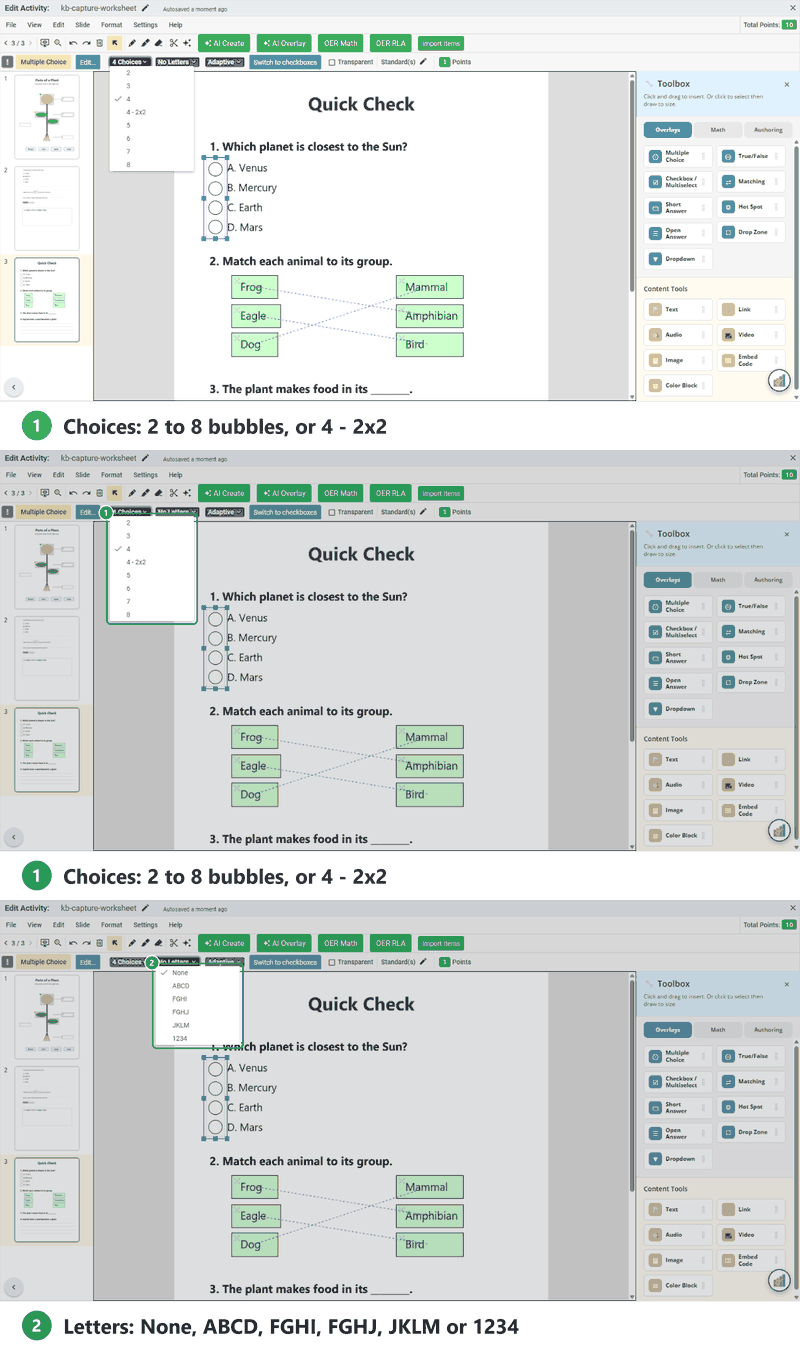
- Choices: how many bubbles. All layouts are vertical except 4 - 2x2; resize the box to switch between vertical and horizontal.
- Letters: add letters or numbers to the bubbles.
- Adaptive: the bubble size.
- Switch to checkboxes: turn the bubbles into checkboxes so students can pick more than one.
- Transparent: let the page show through the bubbles.
- Points: 1 by default. Click the green number to change it; enter 0 to leave it unscored.
Set the correct answer
Click the bubble for the correct answer. It turns gray, and the red ! in the toolbar goes away.
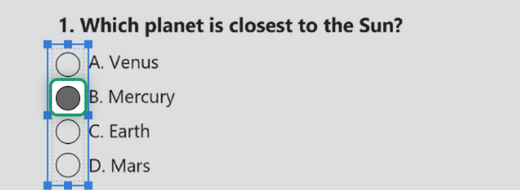
Tip: students can pick only one bubble, but you can accept more than one answer. Hold Shift and click the other correct bubbles.
Was this article helpful?
That’s Great!
Thank you for your feedback
Sorry! We couldn't be helpful
Thank you for your feedback
Feedback sent
We appreciate your effort and will try to fix the article