|
|
Using the Classification List Question Type |
Using the Classification List Question Type
Classification List has students sort choices into labeled columns, like Mammals and Birds, or Fact and Opinion. Classwork.com scores it for you.
To have students drag words into the blanks of a sentence, use Inline Drag and Drop. For labeling a picture or page in the Slide Editor, use Drag and Drop.
Add the Question
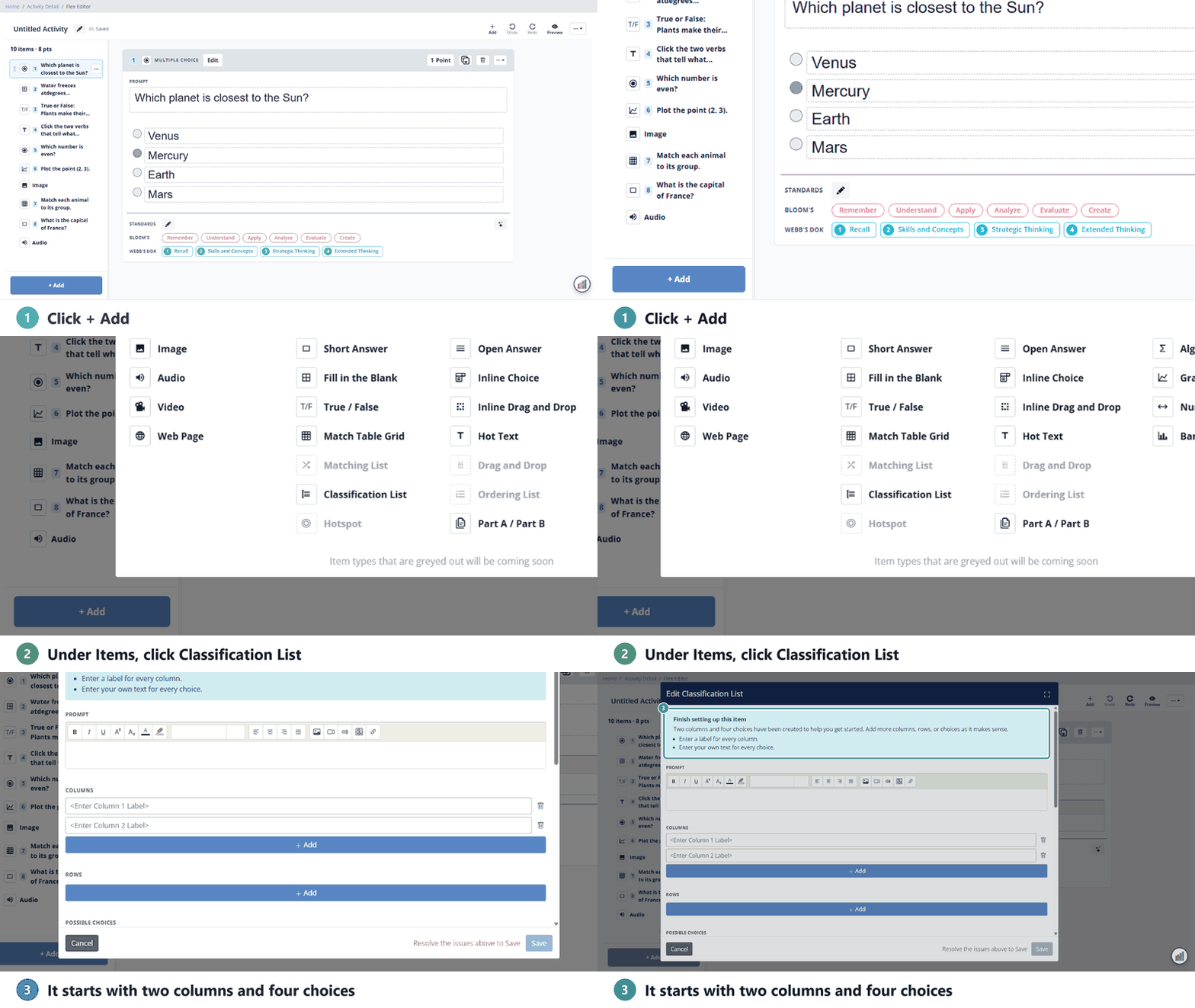
In the Flex Editor, click + Add, then on the Add Item tab, click Classification List. The Edit Classification List window opens with two columns and four choices to get you started.
Build It
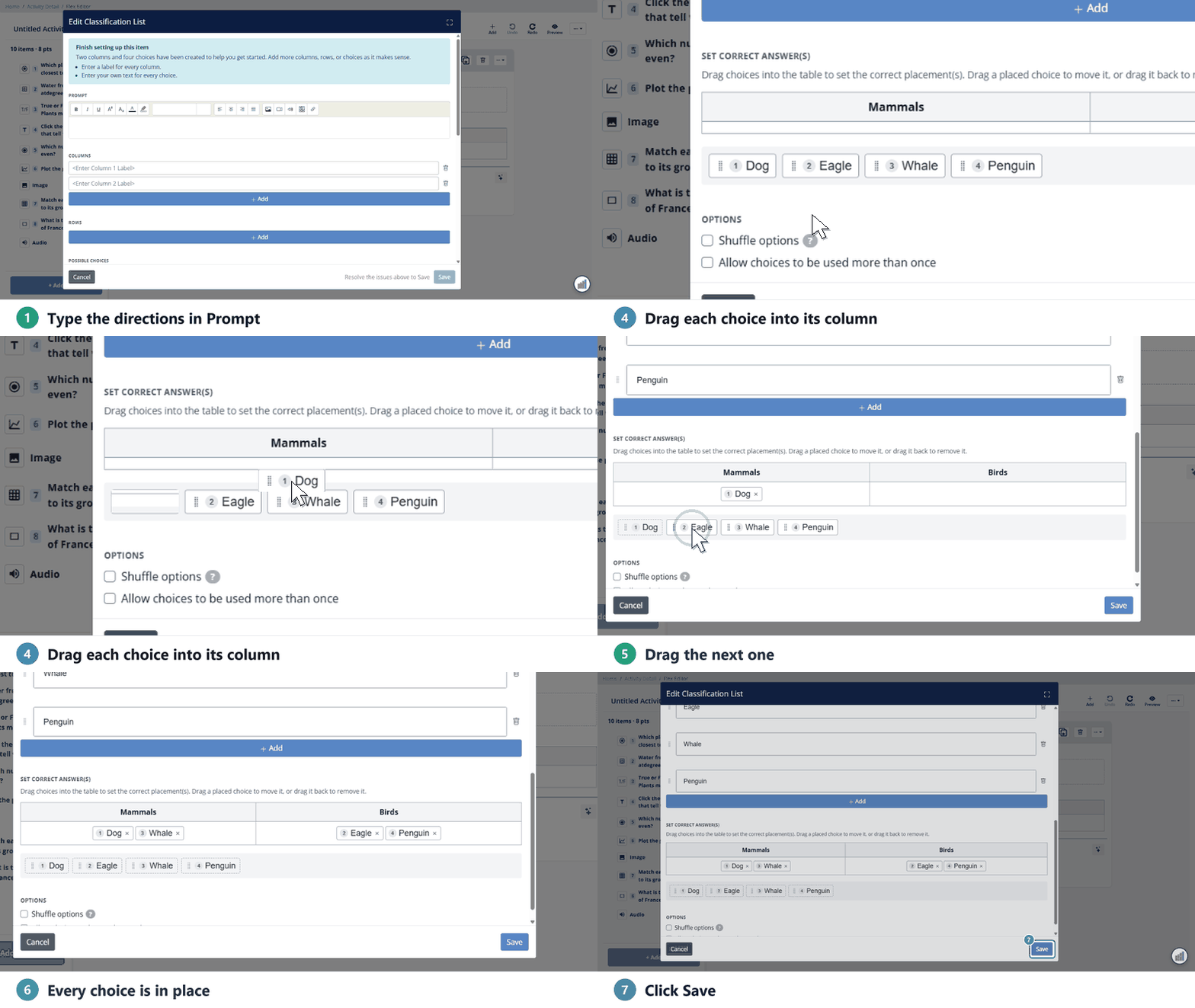
- Prompt: Type the directions, such as “Sort each animal into the correct group.” If you leave it blank, students see “Drag each choice to where it belongs.”
- Columns: Type a label for each column. Click + Add for another column, or the trash icon to remove one.
- Rows (optional): Click + Add under Rows to split the table into rows.
- Possible Choices: Replace Choice A, Choice B and so on with your own text. Click + Add for more choices. Each choice can include formatting, images, audio or math.
- Set Correct Answer(s): Drag each choice into the column where it belongs. To move a choice, drag it to another column. To take it out, drag it back.
- Click Save.
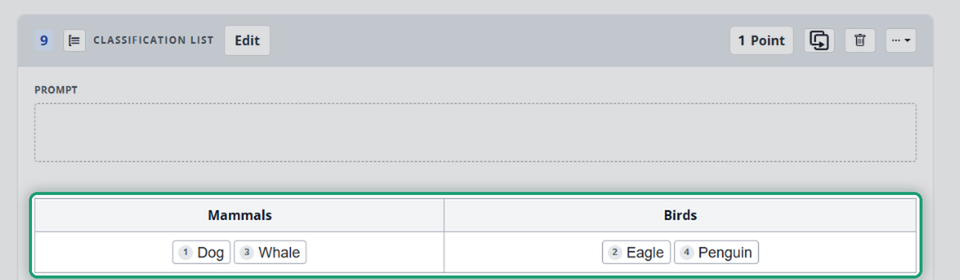
The item shows your table with the answers in place.
If Save is greyed out with “Resolve the issues above to Save,” check that every column has a label.
If you leave Prompt blank, the item list on the left flags it: “This Classification List does not have a prompt.” It still works, and students see the default directions.
Options
- Shuffle options: Shows the choices to students in a different order.
- Allow choices to be used more than once: Lets one choice go in more than one column. Without it, each choice can be placed once.
Points
The whole question has one point value (1 point to start). Students earn it only when every choice is in the right column. To change it, click the points button at the top of the item.
What Students See
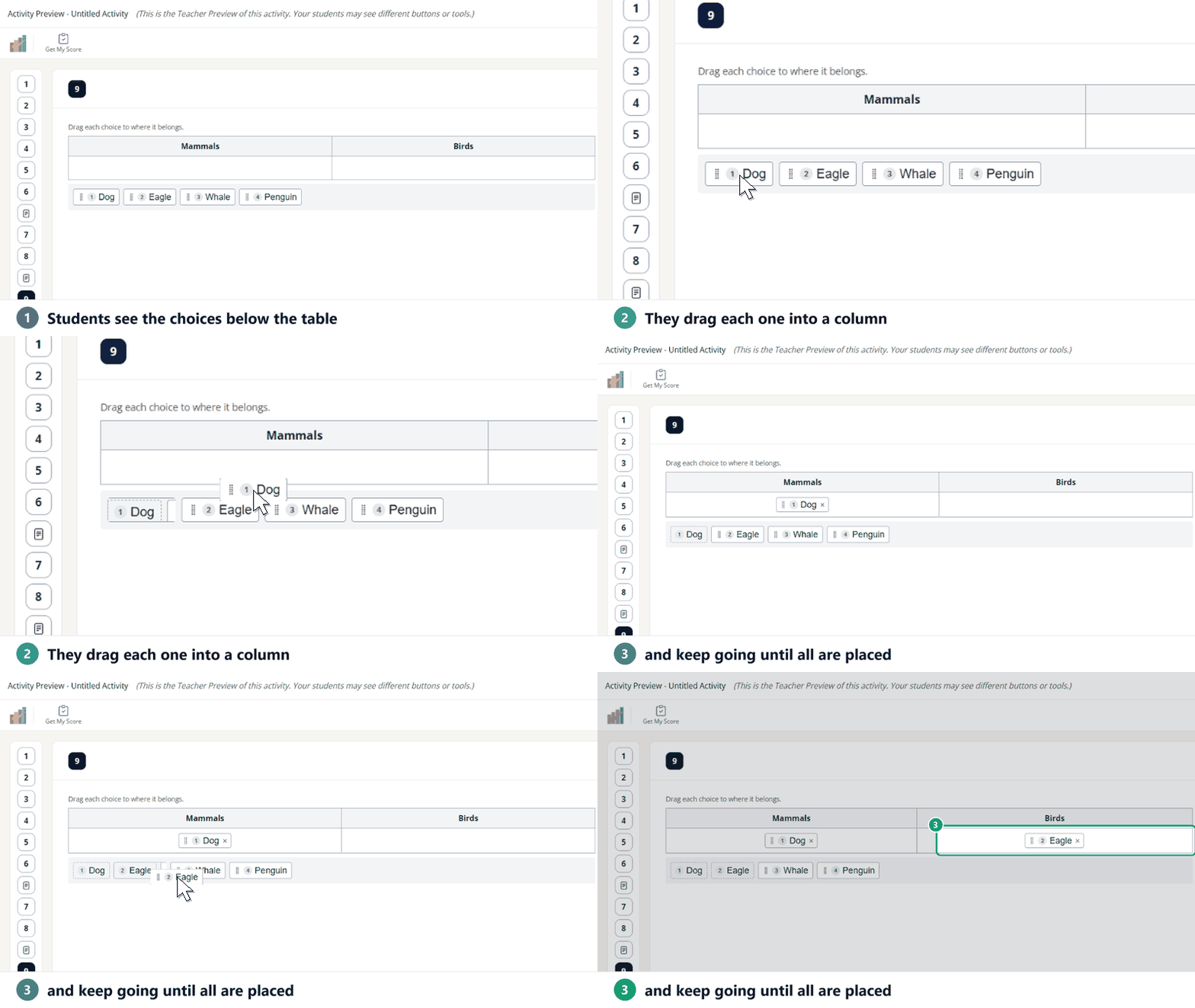
Students drag each choice from the bank below the table into a column.
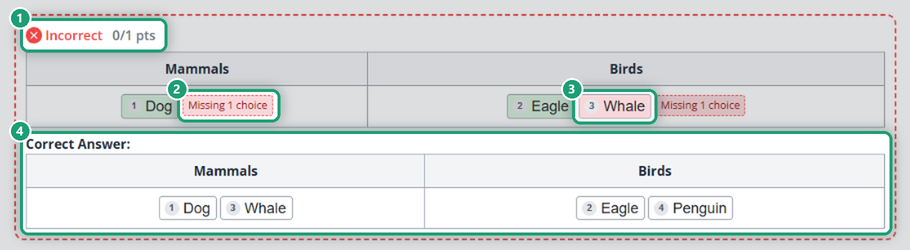
In the scored view, each placed choice shows whether it’s right (green) or wrong (red), missing choices are flagged (for example, Missing 1 choice), and the correct answer appears below.
Was this article helpful?
That’s Great!
Thank you for your feedback
Sorry! We couldn't be helpful
Thank you for your feedback
Feedback sent
We appreciate your effort and will try to fix the article