|
|
Academic Integrity |
Academic Integrity
Academic Integrity settings help you keep assignments honest. You can control whether students copy and paste text, record when students leave the assignment, and automatically lock a student out if they leave too often or stay away too long. A locked student stays locked until you unlock them.
Find the Settings
Academic Integrity settings are on the last page of assignment settings, the final step of making an assignment. Scroll to the Academic Integrity section.
Allow or Prevent Copy and Paste
Next to Student can copy and paste text, choose Allow or Prevent.

Record Students Leaving the Assignment
Next to Students leaving the assignment, choose what Classwork should do when a student leaves the assignment page:
- Off: Nothing is recorded.
- Record only: Each time a student leaves the assignment, it’s recorded for you to review. Nothing is locked.
- Record and auto lock: Leaving is recorded, and the student is locked out of the assignment when they reach the limits you set.
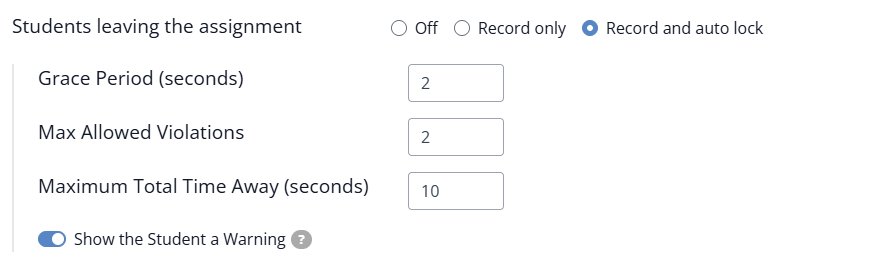
Classwork remembers your last choice and uses it as the default the next time you make an assignment.
The Settings
- Grace Period (seconds): How long a student can be away before it’s logged. This is the only setting shown when you choose Record only.
- Max Allowed Violations: The assignment locks when the student reaches this number of violations. A value of 0 locks the assignment on the first violation, a value of 1 locks the assignment on the second violation, ...
- Maximum Total Time Away (seconds): The assignment locks when the student’s cumulative total time away reaches this many seconds.
- Show the Student a Warning: When this is on, the student gets a warning each time they leave the assignment and return.
The last three settings appear when you choose Record and auto lock. Either limit can lock the assignment, whichever the student reaches first.
What Students See
If you turned on Show the Student a Warning, the student sees a warning each time they leave and come back: Heads up — you left this assignment page. Your teacher can see when this happens. Please stay here to complete your work.
Students are never told the grace period, the maximum number of violations, or the total time allowed. The warning only lets them know that leaving the assignment was noticed.
If the assignment locks, the student sees an Assignment Closed message: This assignment has been locked because you left the page. Please speak with your teacher. They can’t continue until you unlock it.
See Which Students Are Locked
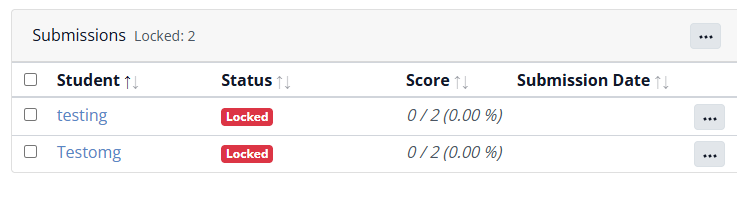
On the Assignment Detail screen, the Submissions list shows how many students are locked (for example, Locked: 2), and each locked student has a red Locked status.
Unlock an Assignment
To let a locked student back in:
- Click the student’s name in the Submissions list to open their work.
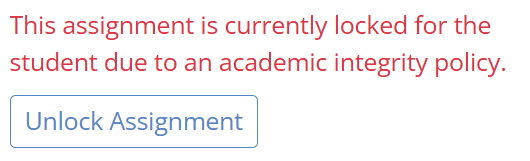
- On the Info tab, you’ll see the student’s status as Locked, along with a message that the assignment is locked due to an academic integrity policy.
- Click Unlock Assignment.
The student can continue right where they left off.
Review a Student’s Submission History
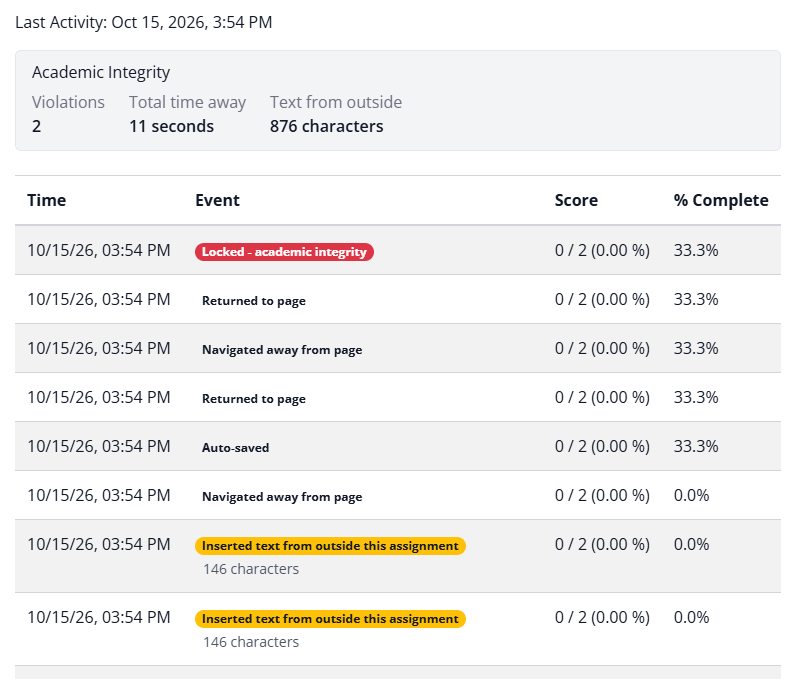
Whether you use Record only or Record and auto lock, you can see what happened in the student’s Submission History. Open the student’s work and click the View History link on the Info tab, under the time spent on task.
The Academic Integrity summary at the top shows:
- Violations: How many times the student left the assignment.
- Total time away: How long the student was away from the assignment altogether.
- Text from outside: How many characters of text the student pasted in.
Below the summary, a log lists each event with the time it happened, such as Navigated away from page and Returned to page, along with the student’s score and percent complete at that moment.
Was this article helpful?
That’s Great!
Thank you for your feedback
Sorry! We couldn't be helpful
Thank you for your feedback
Feedback sent
We appreciate your effort and will try to fix the article