|
|
Setting Up Your Lesson Logs |
Setting Up Your Lesson Logs
The Lesson Log is available only if your district has purchased the Texas OER Math or RLA Companion.
Before you can log lessons, connect each of your classes to the course you teach in it. It takes two parts: make sure your Classes exist, then add a log to each one.
Step 1: Make sure your Classes are set up
The Lesson Log stays empty until you have Classes, so this comes first. A Class with no students yet works fine.
- Your district rosters classes from its SIS: your classes may already be on your Classes page. Check there first.
- You use Google Classroom: sync it from your Classes page.
- Neither: create your Classes by hand.
For the full walkthrough, see Sync or Add New Classes (Set Up Classes and Students).
Step 2: Add a log to each class
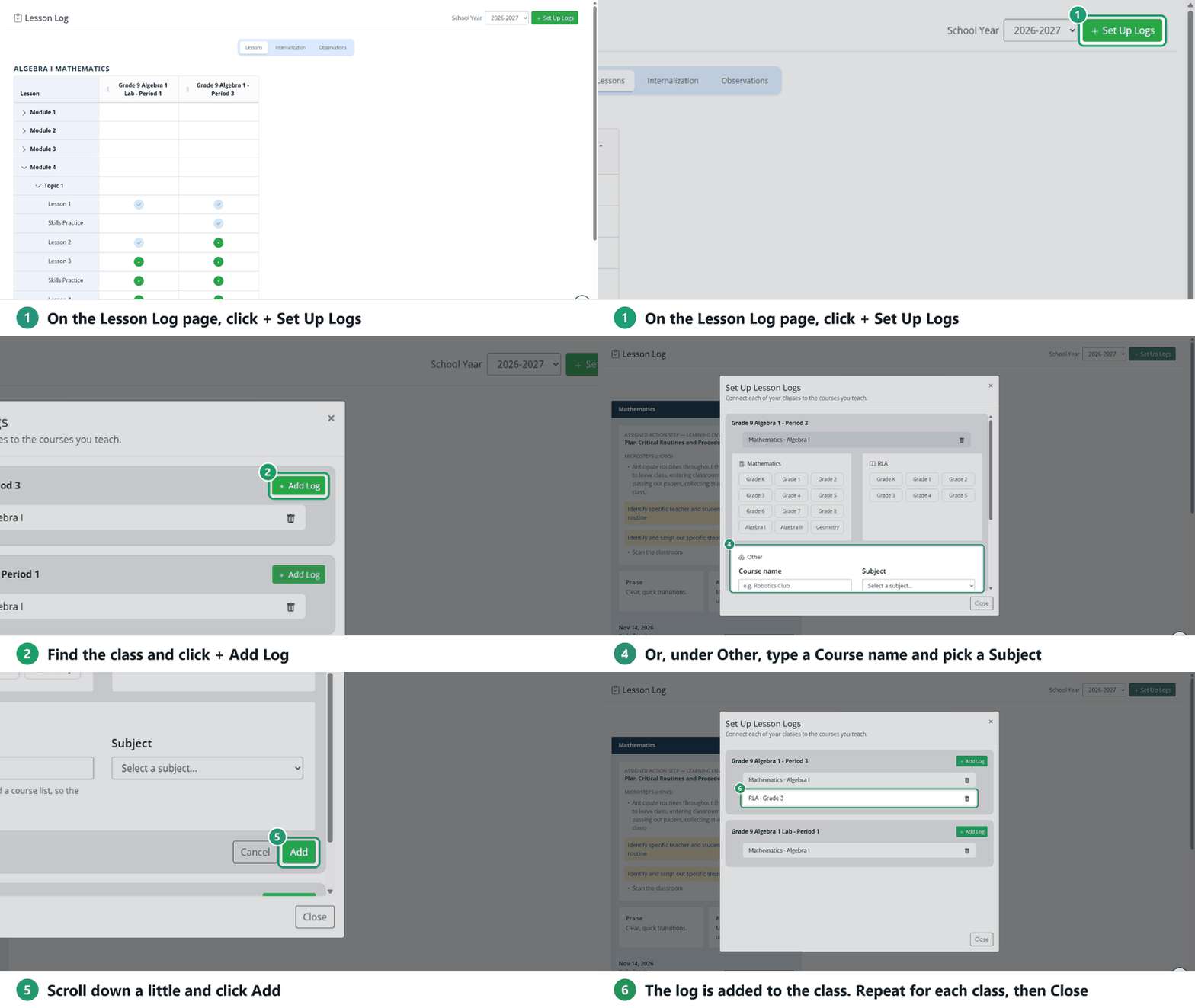
- On the Lesson Log page, click + Set Up Logs (top right). The Set Up Lesson Logs window lists each of your classes.
- Find the class and click + Add Log.
- Pick the course you teach in that class:
- Mathematics: Grade K through Grade 8, Algebra I, Algebra II or Geometry.
- RLA: Grade K through Grade 5.
- Other: type a Course name (for example, Robotics Club) and pick a Subject: Mathematics, Reading Language Arts, Spanish Language Arts, Science, Social Studies, Physical Education, Fine Arts or Other.
- Scroll down a little and click Add. It sits just below your choices, so it’s easy to miss, but the log isn’t saved until you click it.
- Repeat for every class you teach, then click Close.
Math and RLA logs come filled in with the Texas OER (Bluebonnet Learning) curriculum: Modules, Topics and Lessons for Math, and Units and Lessons for RLA. An Other course starts empty.
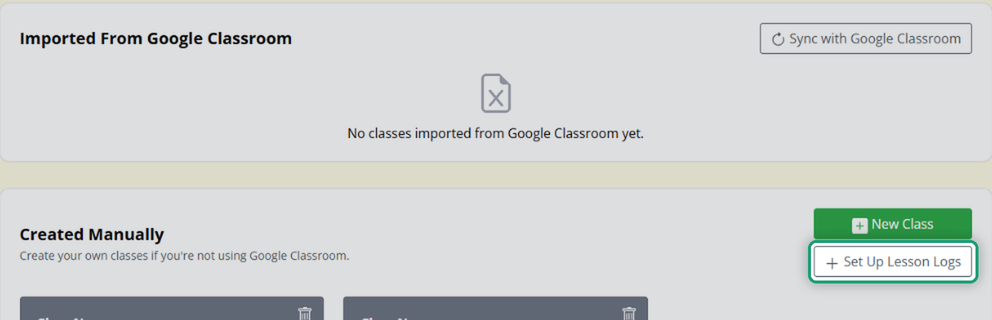
You can also open the same window from the Classes page: click the settings wheel next to Classes, then + Set Up Lesson Logs.
More than one course in a class
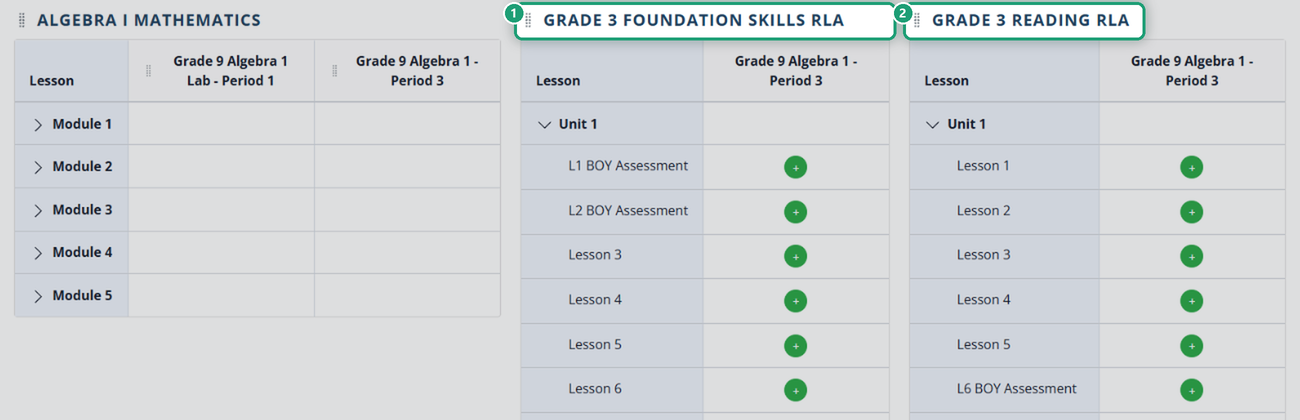
You can add more than one log to the same class. For a self-contained class, such as Kindergarten or an inclusion class, add both a Math and an RLA log.
RLA in Grades K–3: one RLA log gives you two sections on the Lessons tab, Reading and Foundation Skills, and you log both each day.
Remove a log
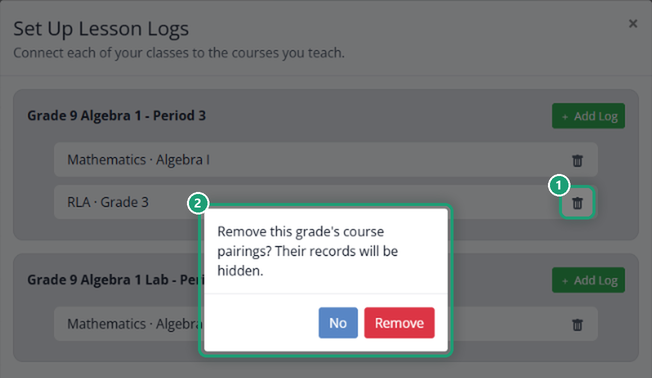
Open + Set Up Logs and click the trash can next to the log. Classwork asks Remove this grade’s course pairings? Their records will be hidden. Click Remove.
Was this article helpful?
That’s Great!
Thank you for your feedback
Sorry! We couldn't be helpful
Thank you for your feedback
Feedback sent
We appreciate your effort and will try to fix the article