|
|
How To Use the Texas OER RLA Question Bank |
How To Use the Texas OER RLA Question Bank
The OER RLA Item Bank is available only if your district has purchased the Texas OER RLA Companion.
The OER RLA Item Bank holds ready-made, auto-scored questions aligned to the Texas OER (Bluebonnet Learning) RLA lessons in Grades 3 through 5. Pick the lessons you’re teaching, choose the questions, and add them to any activity in a few clicks. Each question comes tagged with its TEKS standard, Bloom’s level and Webb’s DOK.
Don’t see it? Your district’s Curriculum Manager decides whether teachers can use the bank. Until they release it in Item Bank Release Settings, only Curriculum Authors and Curriculum Managers have it, to build shared activities for the district.
Add questions in the Flex Editor
Choose your lessons
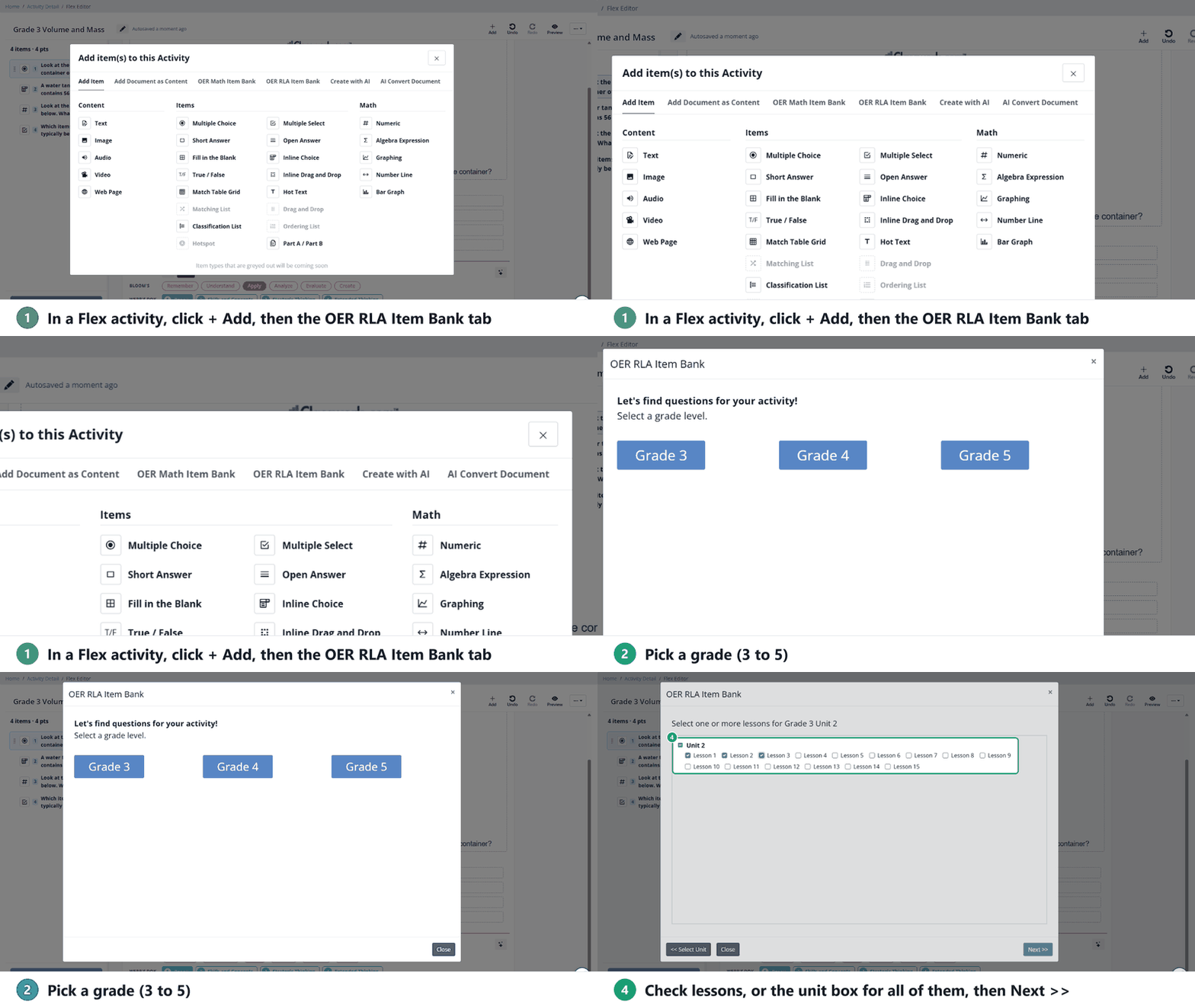
- In a Flex activity, click + Add, then the OER RLA Item Bank tab.
- Pick a grade. Next time, the bank starts on the last grade you chose; click << Select Grade to change it.
- Pick a unit. Units that are greyed out don’t have questions yet.
- Check the lessons you want questions from. Check the unit box to select all its lessons at once.
- Click Next >>.
Pick your questions
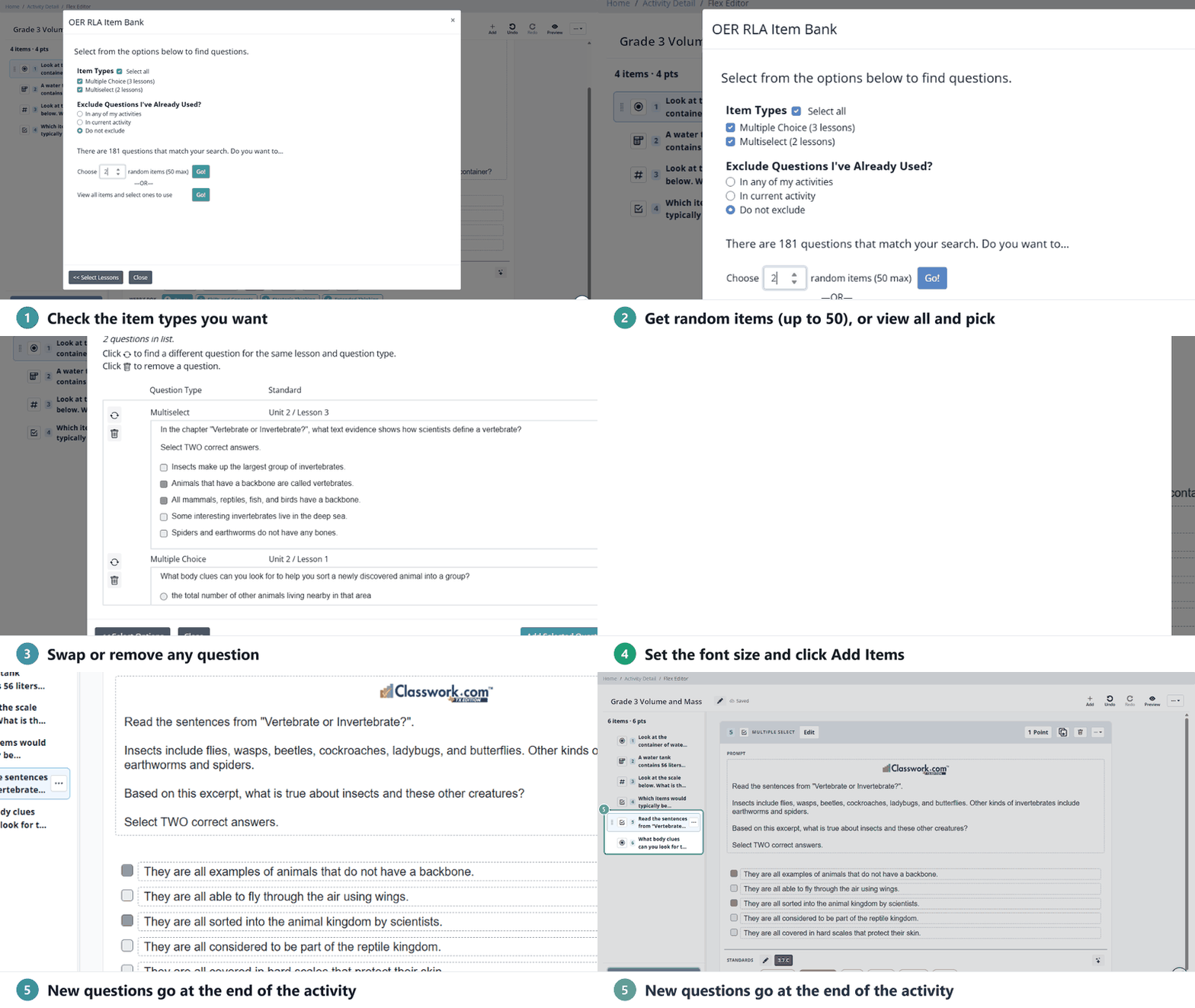
- Under Item Types, check the question types you want, or Select all. The number next to each type is how many of the lessons you picked have that type (for example, Multiple Choice and Multiselect).
- Under Exclude Questions I’ve Already Used?, choose In any of my activities to see only questions you haven’t used before, In current activity to skip ones already in this activity, or Do not exclude.
- The bank tells you how many questions match. Then either:
- enter how many random items you want (up to 50) and click Go!, or
- click Go! next to View all items and select ones to use.
- Review the questions:
- Random items: click the swap icon to get a different question for the same lesson and question type, or the trash can to remove one.
- View all: check the questions you want. Use the page numbers at the bottom to see more.
- Click Add Selected Questions >>.
- Pick a Font Size and click Add Items.
Each question is added as its own item, at the end of the activity. Edit, reorder or delete them like any other item.
Every question keeps its tags, so you can see the standard, Bloom’s level and DOK under each item.
Add questions in the Slide Editor
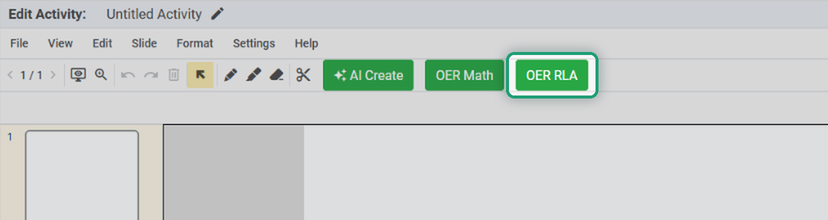
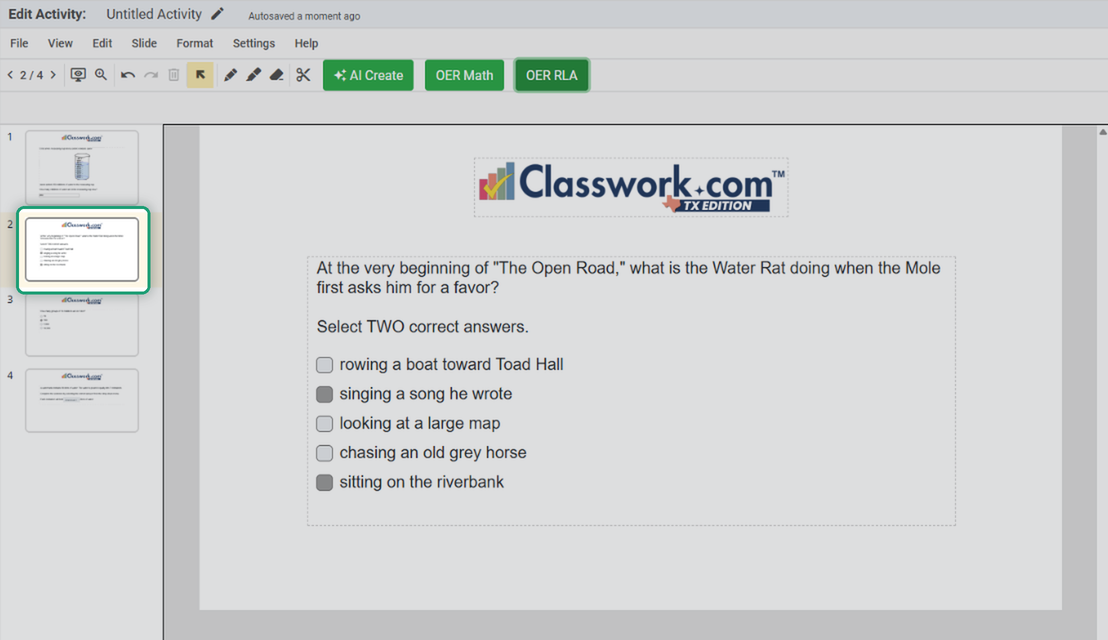
- In a Slide activity, click the green OER RLAbutton on the toolbar.
- Work through the same steps as in Flex: grade, unit, lessons, item types, then random items or view all.
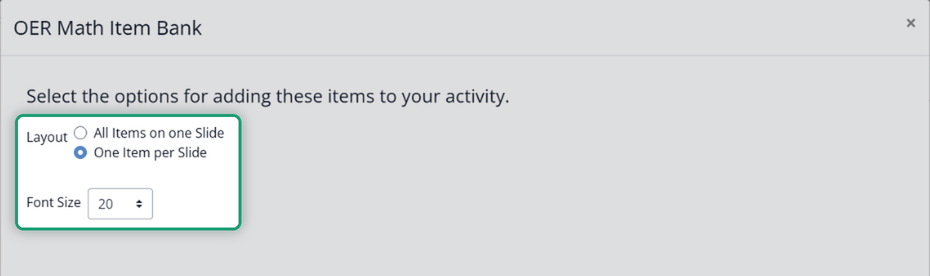
- On the last step, choose a Layout: One Item per Slide or All Items on one Slide. Pick a Font Size and click Add Items.
In a new, blank activity, the questions replace the empty slide. In an activity that already has slides, they’re added right after the slide you’re on.
Preview and assign
Click Preview to see the activity the way students will. When it looks right, assign it. The questions score automatically, and your reports show how students did on each lesson’s standards.
Was this article helpful?
That’s Great!
Thank you for your feedback
Sorry! We couldn't be helpful
Thank you for your feedback
Feedback sent
We appreciate your effort and will try to fix the article