|
|
AI Scoring for Open Answer Questions |
AI Scoring for Open Answer Questions
AI Scoring is a PRO feature for the Open Answer question type. When enabled, AI evaluates each student's written response against the criteria you define, then returns results and actionable feedback for your review. You stay in control: the AI does the first pass, and you review before anything is final.
Enable AI Scoring
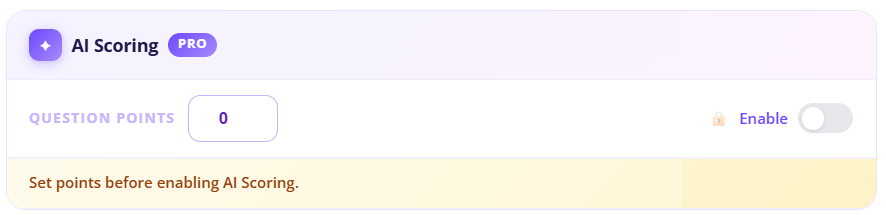
Open the Open Answer question in the editor and scroll to the AI Scoring section at the bottom. Flip the Enabled toggle to turn it on.
The question must have a point value before AI Scoring can be enabled. Set your Question Points first, then enable the toggle.
Set the Academic Context
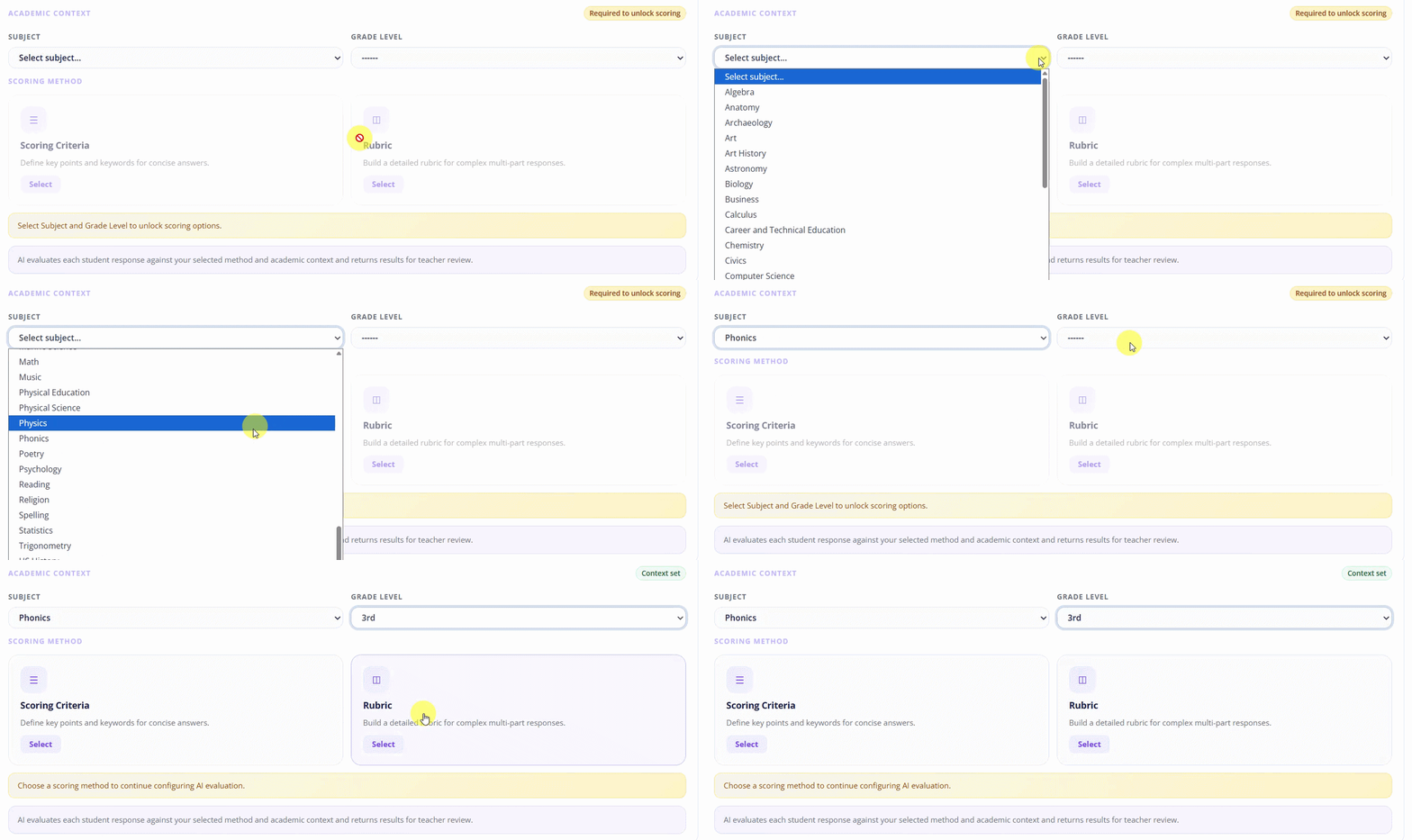
Give the AI context for how to grade by choosing two dropdowns:
- Subject: Choose from the list of subjects. If yours is not listed, choose Other / Custom Subject at the bottom and type it in.
- Grade Level: Choose the grade. This also includes a custom option if you need it.
Choose a Scoring Method
Next, pick how the AI should score. You have two methods:
- Scoring Criteria: Define key points and attributes for more concise answers. The AI distributes the item's total points across your attributes.
- Rubric: Build a detailed rubric for complex, multi-part responses, where you set the points yourself.
Scoring Criteria Method
The Scoring Criteria method has two required fields and two optional ones.
Required
- Writing Prompt: The question students are answering. This is the anchor the AI grades against, together with your scoring attributes, model answer, and notes. Use the math button for equations.
- Scoring Attributes: Each attribute is one aspect of the answer that the AI scores on its own, for example "Scientific Accuracy" or "Use of Evidence." Together, your attributes add up to the item's total points. Type an attribute and press Enter to add it, or choose from the suggestions. (If you want to set the points per attribute yourself, switch to the Rubric method.)
What makes a good attribute? Name an aspect to judge, not the answer itself. Facts the answer must include belong in the Writing Prompt, and a sample strong answer belongs in the Model Answer.
Optional
- Model Answer: Write the answer a strong student would give. The AI uses it as a reference, so different wording that is equally valid still earns full credit.
- Additional Notes: Add grading priorities, accommodations, or extra context. Equations are supported here too.
The AI will evaluate each response against your writing prompt and selected attributes, then return actionable feedback for teacher review. When you are done, click Save.
Rubric Method
With the Rubric method, the Writing Prompt is still required, while the Model Answer and Additional Notes remain optional. Once you have entered the Writing Prompt, click Continue to Rubric to build it.
You can build your rubric four ways:
- Start from scratch: Build a new rubric by hand.
- Browse: Reuse a rubric you created previously.
- Generate with AI: Have Classwork draft a rubric for you.
- Upload: Upload a single PDF or DOCX file. Classwork extracts the rubric, keeps its own points, and saves it to your library.
Build a Rubric from Scratch
First, give the rubric a name. Then create each Criterion:
- Name the criterion.
- Name each rating level. By default you start with Excellent and Proficient. Add as many levels as you need. The next additions default to Developing and Beginning, and any beyond that start blank for you to name.
- Assign a point value to each rating level.
- Describe what performance looks like at each rating level within that criterion.
Repeat for every criterion you need. The more detail you provide, the more accurate the AI scoring will be.
When you are finished, click Save to Library.
How AI Scoring Works
Once your question is assigned, the AI evaluates each student response against your selected method and academic context, then returns results and feedback for teacher review. The AI handles the first pass so you can review, adjust, and finalize with far less time spent grading open responses.
Was this article helpful?
That’s Great!
Thank you for your feedback
Sorry! We couldn't be helpful
Thank you for your feedback
Feedback sent
We appreciate your effort and will try to fix the article