|
|
Texas OER Pacing Report for Admins |
Texas OER Pacing Report for Admins
The Texas OER Pacing Report is available only if your school or district has purchased the Texas OER Math or RLA Companion.
The Texas OER Pacing Report for Admins shows how far each school, grade and teacher has moved through the Texas OER curriculum, compared with where they’re expected to be. Start with your district or campus, then open a school, a grade and a teacher’s classes to see who needs support to stay on track.
This report covers your campus or district. Teachers see their own classes in the Texas OER Pacing Report.
Open the Report
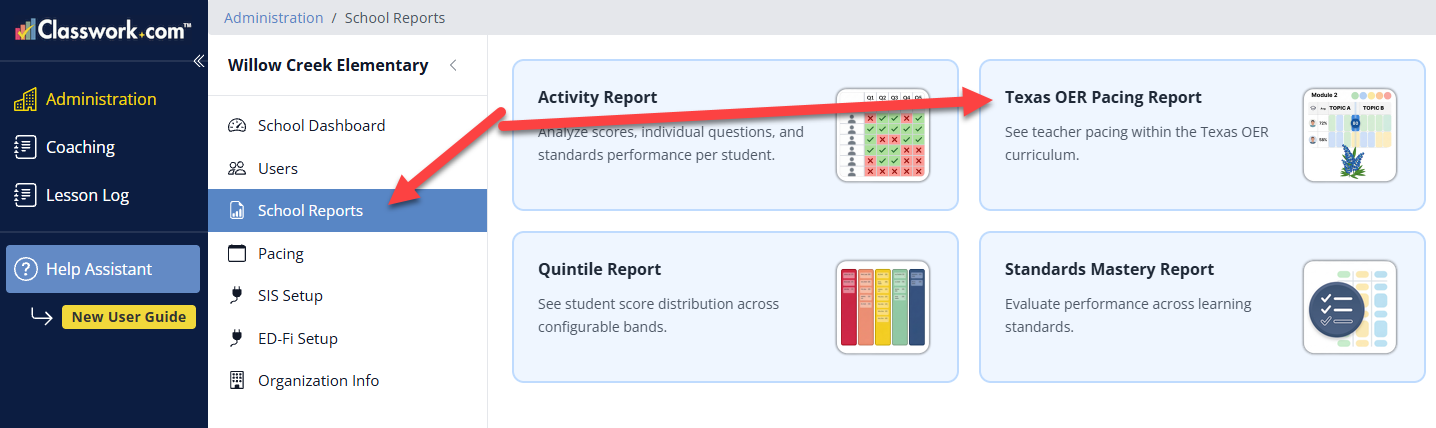
- Click Administration in the left menu.
- Click District Reports (District Admins) or School Reports (School Admins).
- Click Texas OER Pacing Report.
- Under Texas OER Curriculum, click Texas OER Mathematics or Texas OER RLA, then pick the School Year. The report loads once both are set.
You need the District Admin or School Admin role. District Admins see every school in the district; School Admins see their own campus. Give each admin one of the two roles, not both.
How Pacing Is Tracked
Pacing comes from the Texas OER work students complete: Texas OER workbook activity pages, questions from the aligned item banks, and teachers’ Lesson Logs. The more of these your teachers use, the more accurate the report is.
Every school, teacher and class gets a pacing status compared with the Expected Pace:
- Ahead: Beyond the Expected Pace.
- On Pace: At the Expected Pace.
- Near: Slightly behind the Expected Pace.
- Behind: Below the Expected Pace.
- Not Completed: No Texas OER work yet.
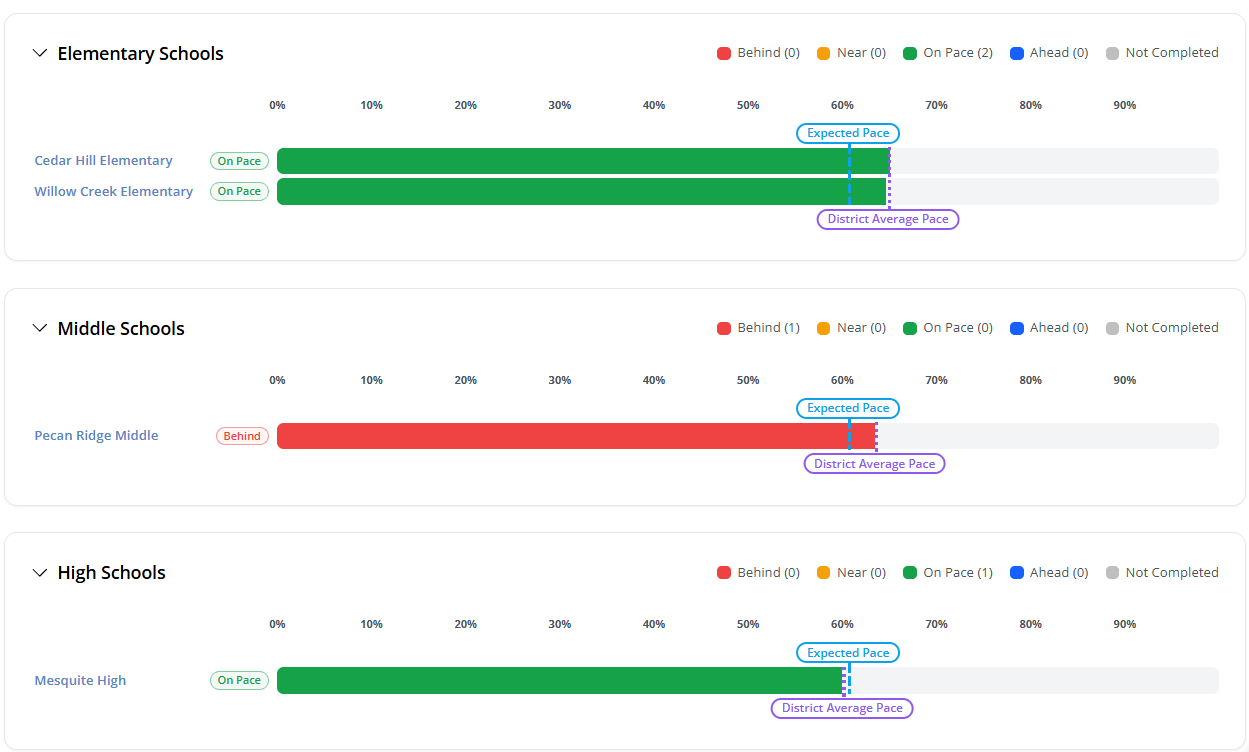
Two markers appear on the bars: Expected Pace (where everyone should be by now) and District Average Pace (where the district actually is).

District View
District Admins start here. Use Schools under Report Options to narrow the report to certain schools.
Schools are grouped by level, such as Elementary Schools, Middle Schools and High Schools. Each group shows how many schools are in each pacing status. Each school has its status and a bar showing what percentage of the curriculum it has completed. Click a school’s name to open it.
School View
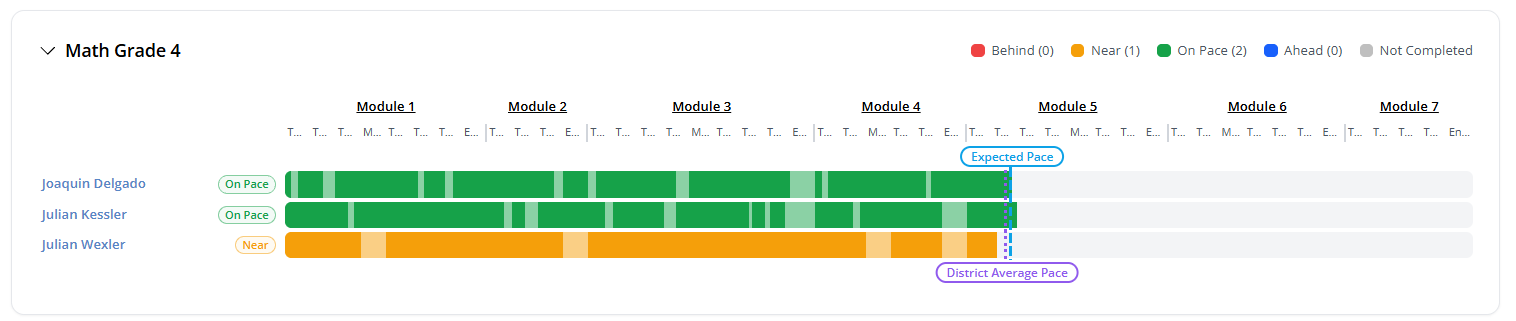
School Admins start here, and District Admins get here by clicking a school’s name. Each grade or course has its own section (for example, Math Grade 3) with a count of teachers in each pacing status.
The curriculum runs left to right across the top, by module and topic for Math (including the mid- and end-of-module tests). Each teacher has a pacing status and a bar along that sequence. Click a module name to zoom in on its lessons and see which ones each teacher has progress on; click ← All Modules to zoom back out.
A Teacher’s Classes
Click a teacher’s name to open their classes. Each class has a Class Progress row and a row for each student, the same view the teacher sees in their own report. Click AI Insights on a class for a short list of patterns in its pacing. See the Texas OER Pacing Report article for how to read it.
Click Back to go up one level: from a teacher to their school, and from a school to the district.
Putting It All Together
Compare schools and grades with the Expected Pace in the district view, open a school to find the teachers who are behind, then open their classes to see which students need a push. Encourage teachers to use the workbook pages, item banks and Lesson Logs so the report stays accurate.
Was this article helpful?
That’s Great!
Thank you for your feedback
Sorry! We couldn't be helpful
Thank you for your feedback
Feedback sent
We appreciate your effort and will try to fix the article