|
|
Standards Mastery Report for Admins |
Standards Mastery Report for Admins
The Standards Mastery Report for Admins shows how well students across your district or campus are doing on each standard. Instead of sorting students, it sorts the standards themselves into five score bands (quintiles), so you can see which standards are strong and which need attention. Compare schools and teachers standard by standard, then open any teacher’s own report.
This report covers your campus or district. Teachers see their own classes in the Standards Mastery Report.
The report only counts questions that are tagged to standards. Activities without standards tags don’t show up here.
Open the Report
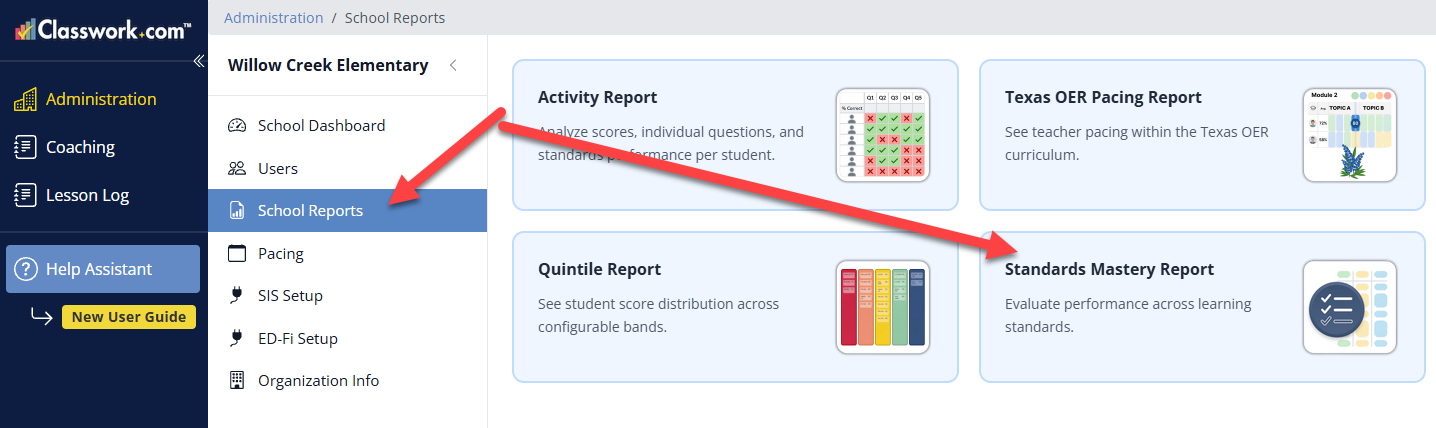
- Click Administration in the left menu.
- Click District Reports (District Admins) or School Reports (School Admins).
- Click Standards Mastery Report.
You need the District Admin or School Admin role. District Admins see every school in the district; School Admins see their own campus. Give each admin one of the two roles, not both.
Set Your Report Options
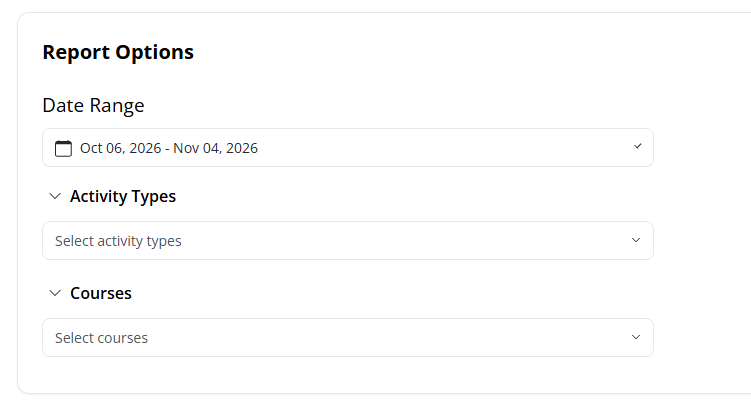
- Date Range: The report starts with the last 30 days. Click the date to pick your school year (from your school calendar) or choose Custom date range.
- Schools (District Admins): Narrow the report to certain schools, listed by level.
- Activity Types: Include only certain kinds of work, such as assessments. This option appears if your district’s Curriculum Manager has set up activity types.
- Courses: Include only certain courses.
Pick a Subject
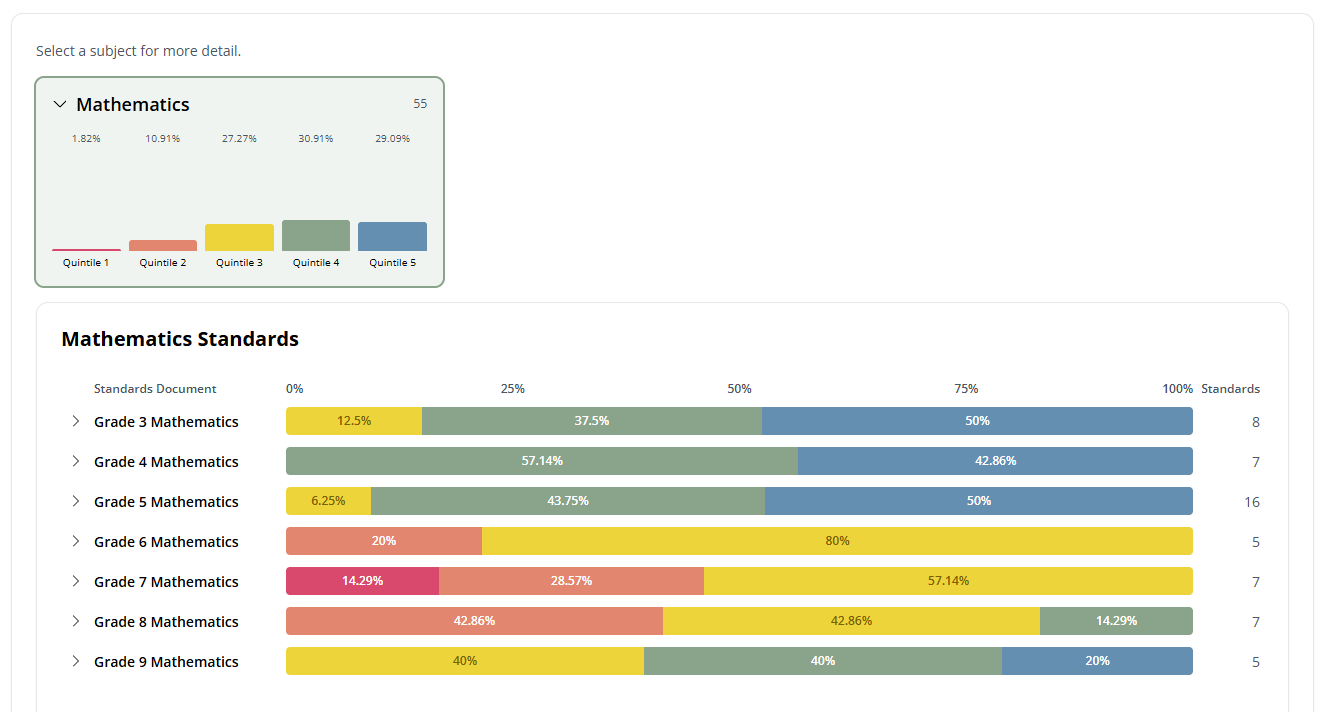
The report opens with a card for each subject that has data, such as Mathematics. The card shows how many standards are included and a small chart of how they fall across the five bands.
Click a subject card to open its Standards list. Each standards document (for example, Grade 5 Mathematics) has a bar showing the share of its standards in each band, and the number of standards it includes. Click the arrow beside a standards document to open it.
Compare Schools or Teachers
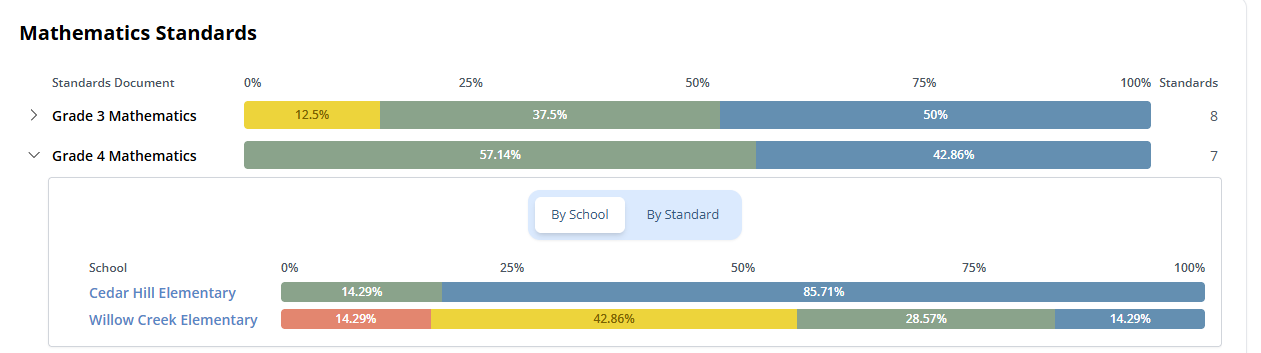
An open standards document has two tabs. The first one depends on your view:
- By School (district view): each school has a bar showing how its standards fall across the bands. Click a school’s name to open that campus.
- By Teacher (campus view): a table with a row for each teacher who taught the course. You’ll see their Average Score and their score on every standard, with each cell colored by band.
In the By Teacher table, standards are grouped by reporting category (for example, Number and operations). Each category header shows the category’s average. Click a category header to collapse it, or use Collapse all, and scroll sideways to see more standards. Click a teacher’s name to open that teacher’s own Standards Mastery Report.
By Standard
The By Standard tab combines everyone’s results for the course. Each standard is placed in a band based on the average score of all students who answered questions tagged to it:
- Quintile 1: 0–19%
- Quintile 2: 20–39%
- Quintile 3: 40–59%
- Quintile 4: 60–79%
- Quintile 5: 80–100%
Each column lists its standards with the standard code, the average score and a short preview of the standard. A column with none reads No standards. Hover over a standard to see its full text and reporting category; the other standards in that category stay highlighted, so you can see how the whole category is doing.
Campus and Teacher Views
School Admins start at their campus. District Admins open a campus by clicking a school’s name in By School. A campus has the same subject cards and standards list, with By Teacher in place of By School.
A teacher’s report is the same one the teacher sees, already set to that standards document. See the Standards Mastery Report article for how to read it.
Click Back at the top of the report to go up one level: from a teacher to their campus, and from a campus to the district.
AI Insights
On a campus or teacher view, click AI Insights for a short list of patterns in the standards you’re looking at, based on your current Report Options.
Putting It All Together
Use By School or By Teacher to see where results differ, and By Standard to find the standards that need reteaching. Then open a teacher’s report to plan support with them.
Was this article helpful?
That’s Great!
Thank you for your feedback
Sorry! We couldn't be helpful
Thank you for your feedback
Feedback sent
We appreciate your effort and will try to fix the article