|
|
Activity Report |
Activity Report
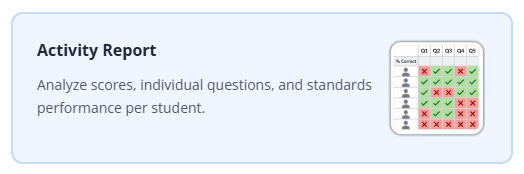
The Activity Report turns a completed assignment into a clear picture of how your students performed. You can review results three ways—By Student, By Question, and By Standard—and filter the data down to the standards, question types, or rigor levels you care about.
This report covers your own classes. Administrators can view activity across their campus or district—see Activity Report for Admins.
Open the Activity Report
From the Classes page, open the Reports tab and select Activity Report.
Set Your Report Options
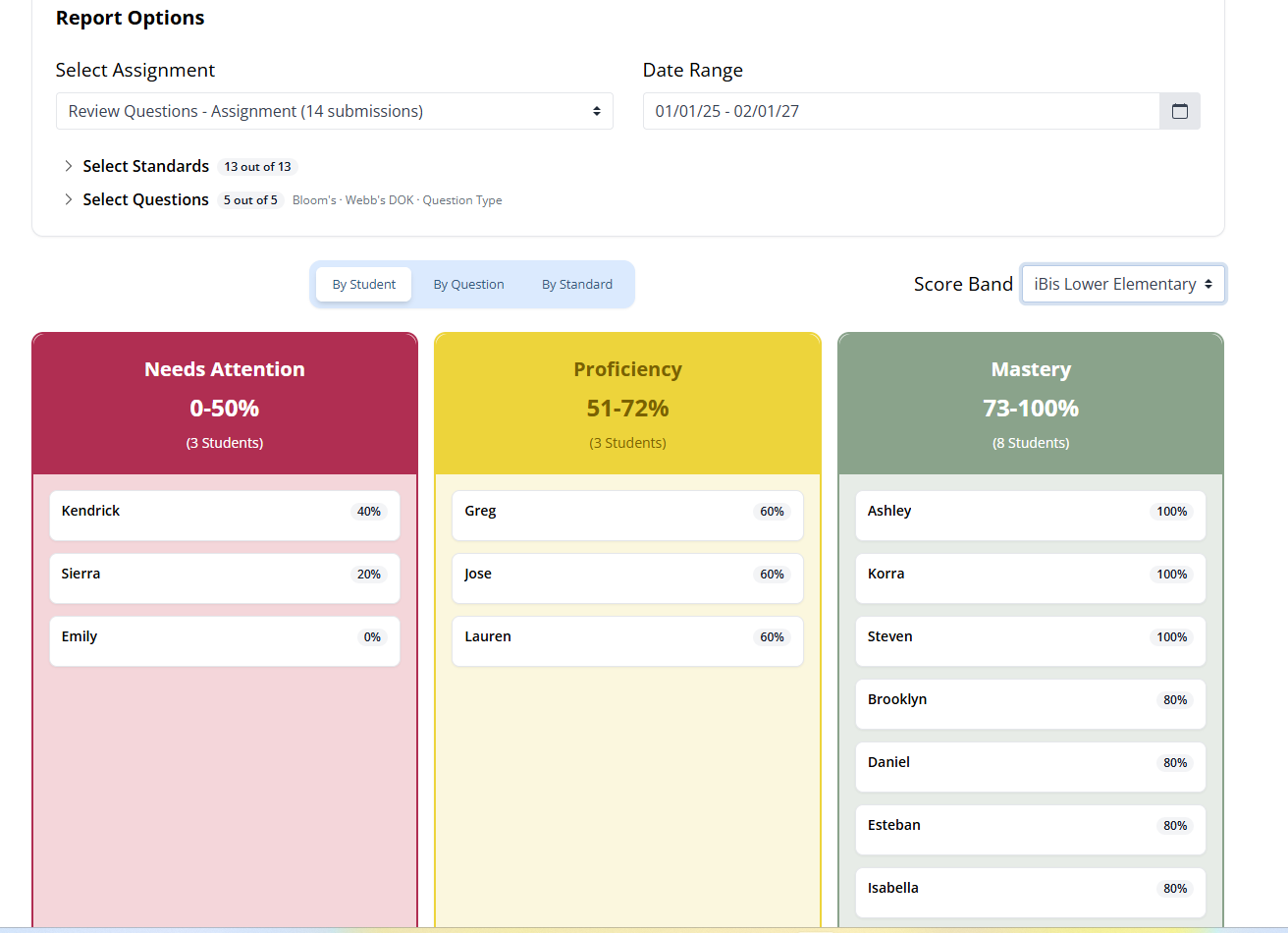
Start by choosing what data you want to see. Two dropdowns appear at the top of the report:
- Select Assignment: Lists every activity assigned to your selected class(es) within the chosen date range. Pick the assignment you want to review.
- Date Range: Optional. Click once on the calendar to set the start date, then click again to set the end date. If you don’t set one, the report uses the date range selected at the top of the Classes page.
Once you choose an assignment, the report appears below and two more filters are added directly beneath the first two dropdowns:
- Select Standards: Filter the data by the standards tagged to the questions in the assignment.
- Select Questions: Filter the data by Bloom’s Taxonomy, Webb’s DOK, and question type (Multiple Choice, Multi-Select, and so on).
Choose How to View the Data
Use the By Student, By Question, and By Standard tabs above the report to switch views.
Throughout the report, scores are color-coded into score bands. By default these are the same five bands used in the Gradebook:
- Blue: 80–100%
- Green: 60–79%
- Yellow: 40–59%
- Orange: 20–39%
- Red: 0–19%
Schools and districts on a Site license (or higher) can set up their own custom score band groups. If more than one band group has been configured, a Score Band dropdown appears on the report so you can switch between them.
By Student
The By Student view groups every student into a score band based on their overall score on the assignment, so you can see at a glance who has reached mastery and who needs attention.
By Question
The By Question view is an interactive table. The columns are Student, Score, and one column per question showing the points that student earned on it. Every column header is sortable, and each cell is colored by its score band.
Filter by Average Question Score
Above the table is an Average Question Score range slider with two handles. Drag the low handle up from 0% and the high handle down from 100% to show only the questions whose average score falls within that range—an easy way to surface the questions your class struggled with most.
Display Settings
Click the settings wheel next to the Student Performance by Question title to:
- Sort the questions by question number or by score.
- Toggle whether Standards, Bloom’s, and DOK are shown with each question.
Question Details & Discrimination Index
Hover over a question number to see which question item type was used.
Next to each question’s average score is a caret (▾). Click it to expand the question’s discrimination index—a measure of how well the question separates higher- and lower-scoring students—along with a breakdown of the actual student responses. For example:
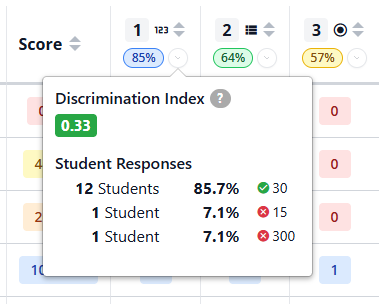
This makes it easy to spot common wrong answers and misconceptions at a glance.
By Standard
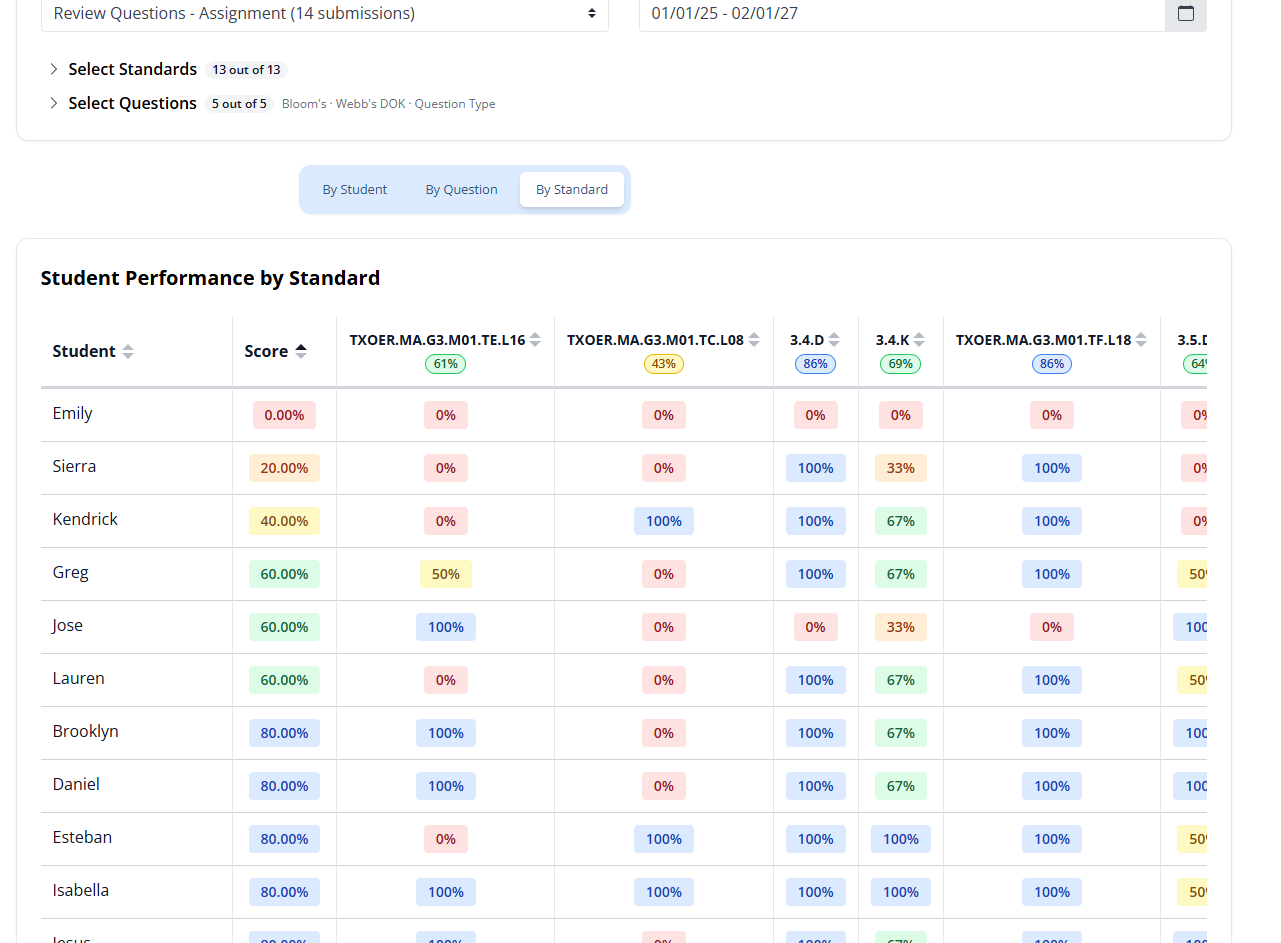
The By Standard view is an interactive table with sortable column headers for Student, Score, and one column per standard assessed in the assignment. Each cell shows how that student performed on the questions tagged to that standard, color-coded by score band—giving you a quick read on standards mastery across your class.
Putting It All Together
Between the three views and the standards, question, and rigor filters, the Activity Report lets you move from a class-wide overview down to a single question or standard in just a few clicks—so you can quickly see what your students have mastered and where to focus next.
Was this article helpful?
That’s Great!
Thank you for your feedback
Sorry! We couldn't be helpful
Thank you for your feedback
Feedback sent
We appreciate your effort and will try to fix the article