Gamify Assignments with Time Limits and “Check My Answers”

Classwork.com includes two powerful assignment settings that help teachers increase focus, persistence, and engagement without adding grading work. Used independently or together, these tools let you control pacing while encouraging students to learn from their mistakes in real time.


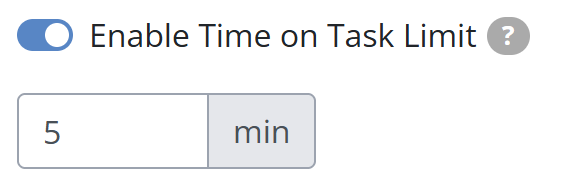
Option 1: Set a Time Limit on an Assignment (Time on Task)

Adding a time limit turns any activity into a focused, high energy challenge.

What a Time Limit Does

  • The timer starts the moment a student opens the assignment
  • The timer continues to run even if the student leaves the page or saves work for later
  • The remaining time is displayed in the top right corner of the student’s screen
  • When less than one minute remains, the timer turns red
  • When time reaches zero, the assignment is automatically submitted as is

Important Notes

  • Students can still review their work after automatic submission
  • Reopening or resetting a student’s submission will restart the timer for that student
  • Time limits are set per assignment, not per activity

When to Use a Time Limit

  • Bell ringers and warm ups
  • Escape room or challenge style activities
  • Review games within a class period
  • Assessing fluency or automaticity

Option 2: Allow Students to Check Answers Before Submission

The “Check My Answers” setting allows students to get immediate feedback before they submit their work.

Available Settings

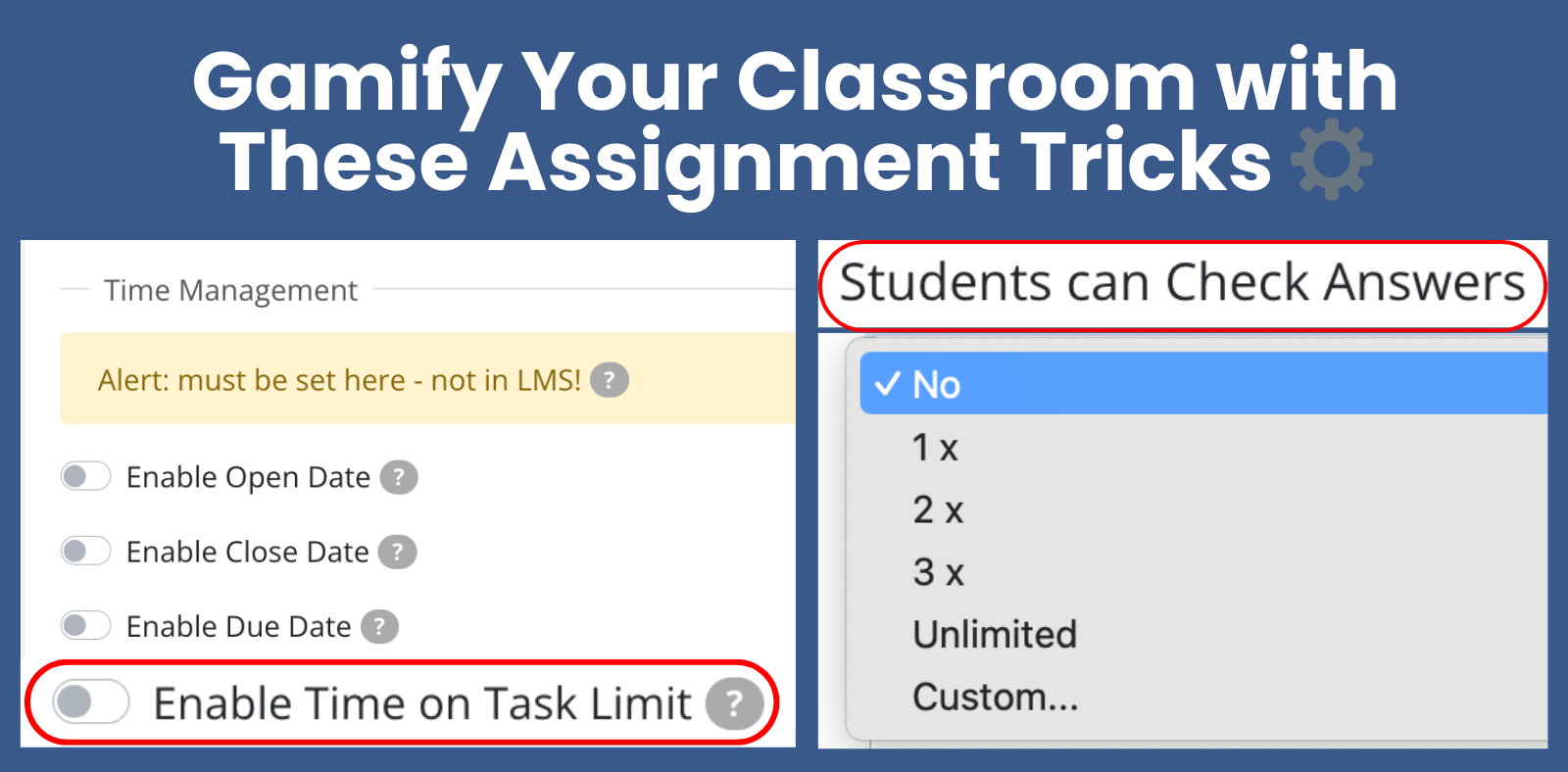
You can choose how many times students are allowed to check their answers:

  • No checks allowed
  • 1 to 3 checks
  • Unlimited checks
  • Custom number of checks

This setting applies to the entire assignment.

Student Experience: How “Check My Answers” Works

When enabled, students will see a Check My Answers button while working on the assignment.


What Happens When a Student Checks Answers

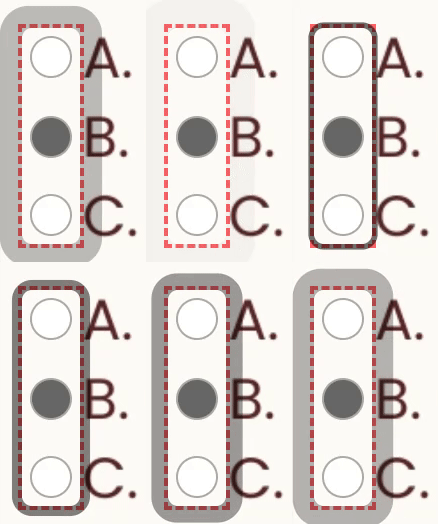
After clicking Check My Answers, each auto-scored question is outlined with a color indicator:

  • Green outline: The question is answered correctly
  • Red outline: The question is answered incorrectly
  • Orange outline: The question has not been attempted yet


This feedback appears directly on the activity and helps students quickly identify which questions need attention.

What Students Can Do After Checking Answers

Students remain in full control of their work after checking answers.

  • Existing answers remain selected
  • Students may change any answer at any time
  • Unattempted questions remain unanswered until the student responds
  • No answers are revealed


There is no automatic reset and no requirement to clear responses before continuing.


Students may continue working and, if allowed, check their answers again until they:

  • Reach the allowed number of checks, or
  • Submit the assignment

Using Both Features Together: The Ultimate Challenge


You can enable both a time limit and answer checking on the same assignment.


This creates a balance between urgency and persistence:

  • Students work against the clock
  • They receive immediate feedback
  • They must manage time while deciding when to check answers and revise


This setup works especially well for:

  • Escape room activities
  • Skill practice challenges
  • Review before assessments
  • Small group competitions

Teacher Benefits

  • No manual grading for auto scored questions
  • Increased student engagement and accountability
  • Flexible control over pacing and feedback
  • Clear visibility into student attempts and final responses


Was this article helpful?

That’s Great!

Thank you for your feedback

Sorry! We couldn't be helpful

Thank you for your feedback

Let us know how can we improve this article!

Select at least one of the reasons
CAPTCHA verification is required.

Feedback sent

We appreciate your effort and will try to fix the article