|
|
How Do I Add a Student to an Already Assigned Assignment? |
How Do I Add a Student to an Already Assigned Assignment?
How a new student can access an assignment depends on how the assignment was originally shared.
If the Assignment Was Shared with a Link
If the assignment was shared using a Classwork share link, you do not need to add the student again.
Simply give the new student the original assignment link. Anyone with the link can access the assignment.
If the Assignment Was Shared Through Google Classroom
If you selected All Students when creating the assignment in Google Classroom, any students who join that Google Classroom course later will automatically have access to the assignment.
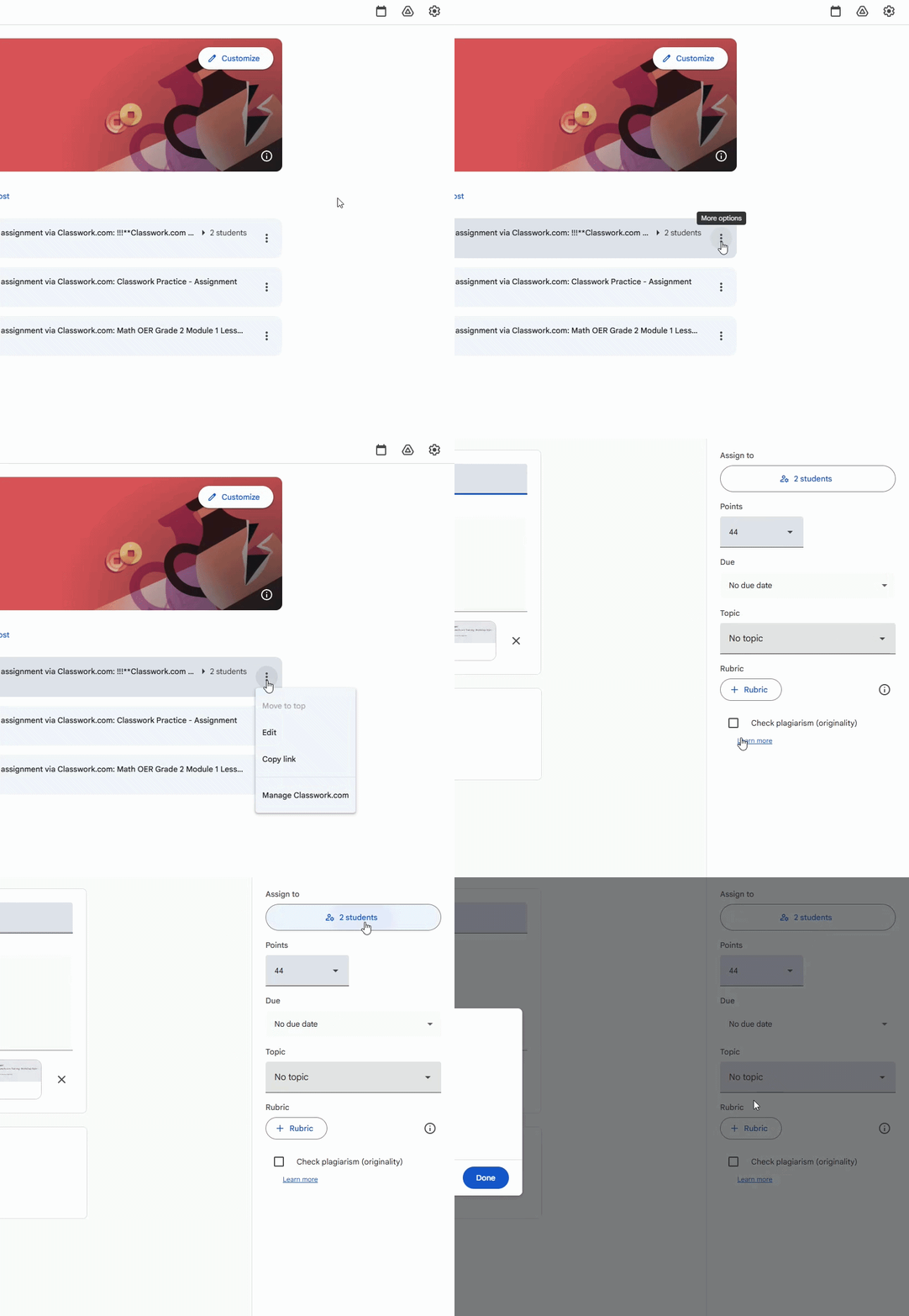
If you selected specific students, you will need to update the assignment in Google Classroom:
- Open the assignment in Google Classroom.
- Click Edit.
- Add the newly enrolled student to the recipient list.
- Update or re-post the assignment.
If the Assignment Was Shared Through Canvas or Schoology
When assignments are delivered through another LMS such as Canvas or Schoology, new students must be added within the LMS.
Once the student is enrolled in the course, the assignment link will be available to them inside the LMS.
- Students are not manually added to individual assignments inside Classwork.
Important Note
Classwork does not currently include a feature that allows teachers to directly add a student to an assignment after it has been shared.
Assignment access is controlled by:
- The delivery method used (share link or LMS)
- The class roster inside Google Classroom, Canvas, or Schoology
Was this article helpful?
That’s Great!
Thank you for your feedback
Sorry! We couldn't be helpful
Thank you for your feedback
Feedback sent
We appreciate your effort and will try to fix the article