|
|
How to Remove the Border Around Teacher Text or Question Types |
Remove a Black Border
When you insert Teacher Text or certain question types, the content may appear inside a box with a black border. You can remove this border using the border formatting tools.
Remove the Border
- Select the Teacher Text or question type on your slide.
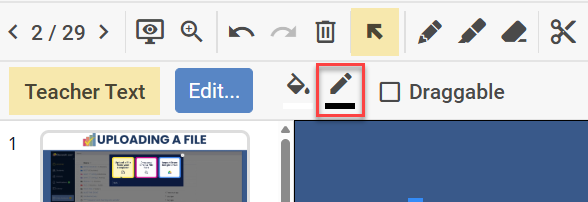
- In the top toolbar, click the Border color icon.
- Select No border from the options at the top of the menu.
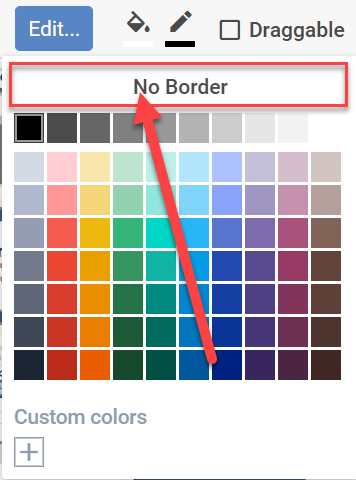
The black border will be removed.
About the Gray Dashed Outline
After removing the border, you will still see a gray dashed outline around the object while editing.
This outline only appears in the editor. Students will not see it.
To view the Activity as students will see it, click the Preview icon (eye) at the top of the screen.

Are you new to Classwork.com? Welcome!
Click here to start your 30 day risk-free PRO trial today.
Was this article helpful?
That’s Great!
Thank you for your feedback
Sorry! We couldn't be helpful
Thank you for your feedback
Feedback sent
We appreciate your effort and will try to fix the article