|
|
Using the Fill in the Blank Question Type |
Fill in the Blank Question Type
A Fill in the Blank question puts answer blanks inside a sentence or prompt. Students type each answer right in the sentence, and Classwork.com scores it for you. Blanks can take words or math.
Flex Editor
- Click + Add, and on the Add Item tab click Fill in the Blank.
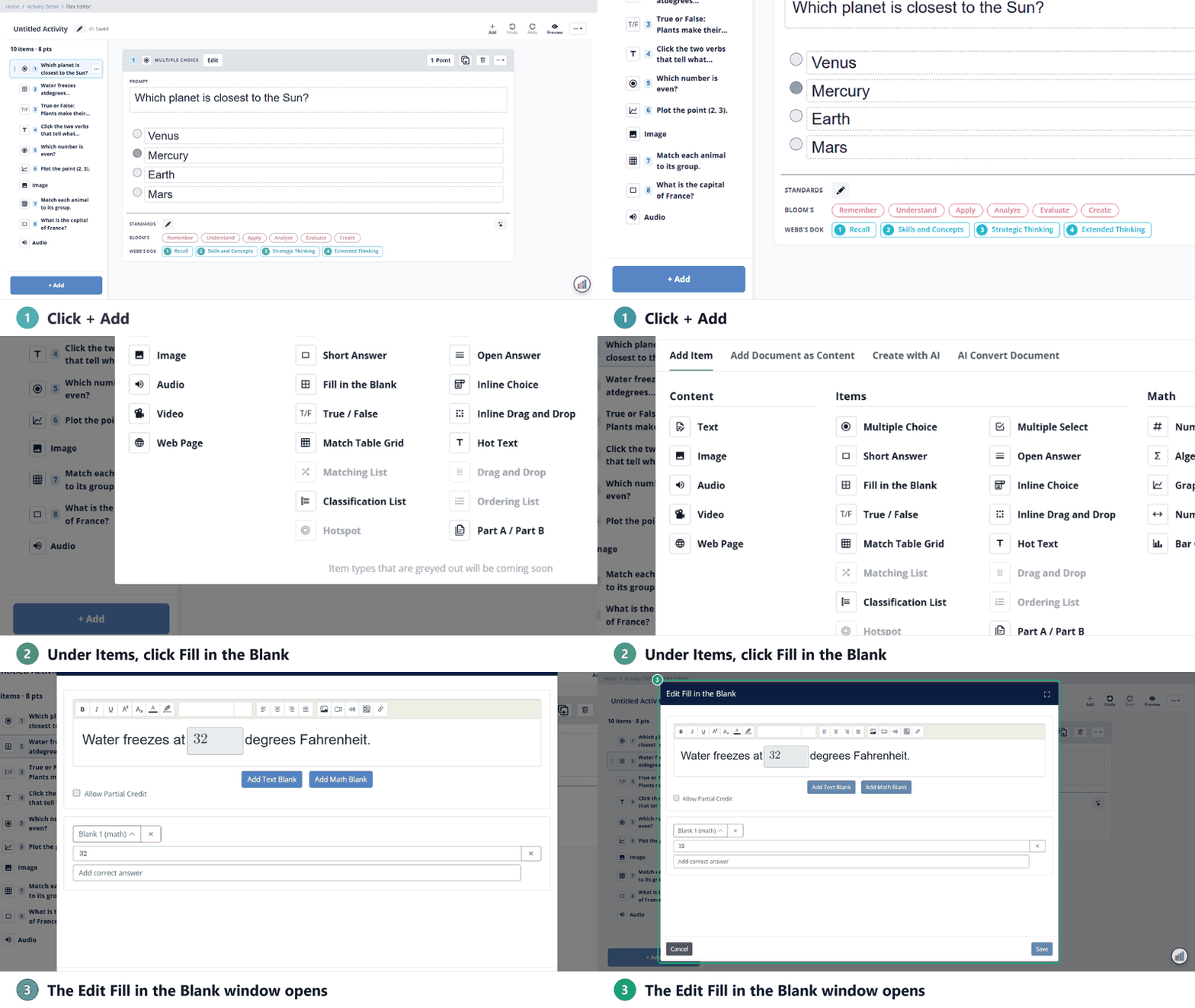
- In the Edit Fill in the Blank window, type your sentence. Put the cursor where a blank belongs and click Add Text Blank or Add Math Blank.
- Under the sentence, type the correct answer for each blank. To accept more than one answer, type it in Add correct answer.
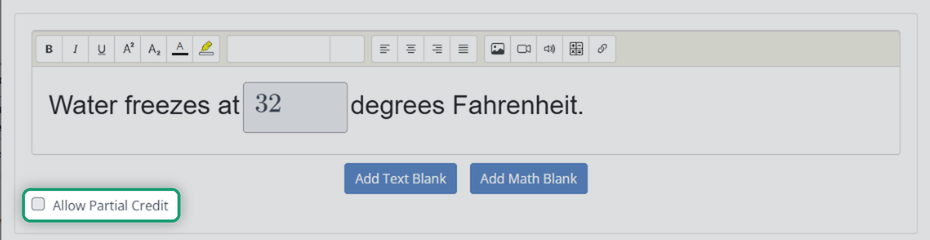
- With more than one blank, turn on Allow Partial Credit if you want to give points for each blank.
- Click Save.
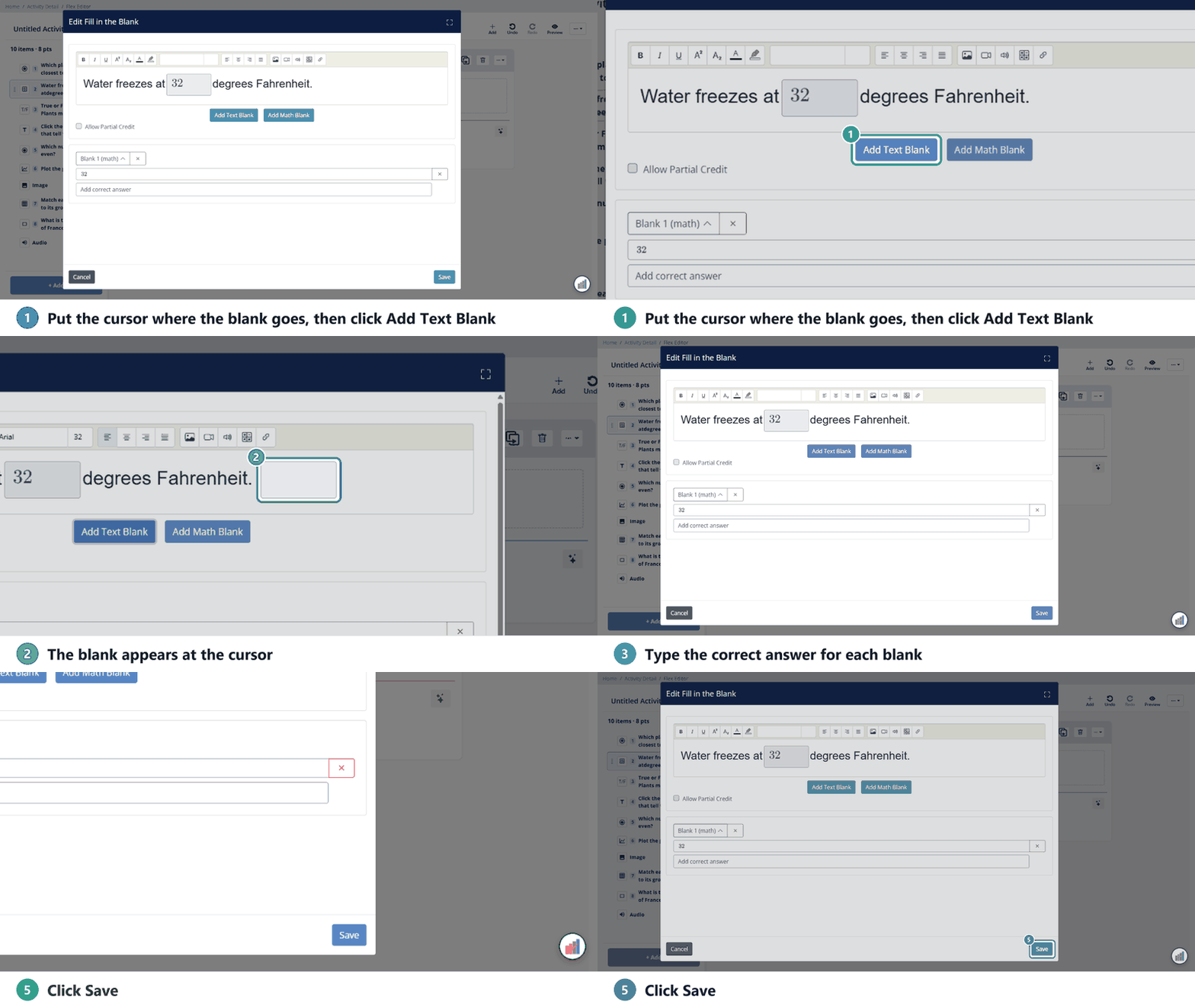
Every blank needs a correct answer before you can save. The window works the same way in both editors; the blank settings are below.
Slide Editor
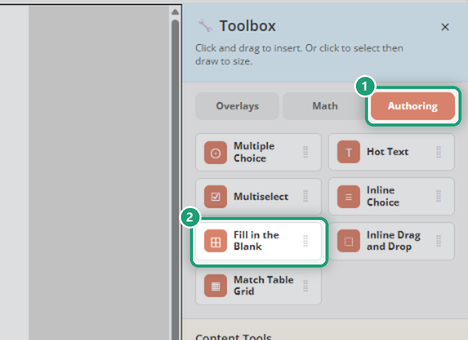
- In the Toolbox on the right, open the Authoring tab and click Fill in the Blank.
- Your cursor turns into crosshairs. Click once to place the question, or click and drag to size it. The Edit Fill in the Blank window opens.
- Type the sentence, add the blanks and their answers, and click Save, as in the Flex steps above.
Blanks and answers (both editors)
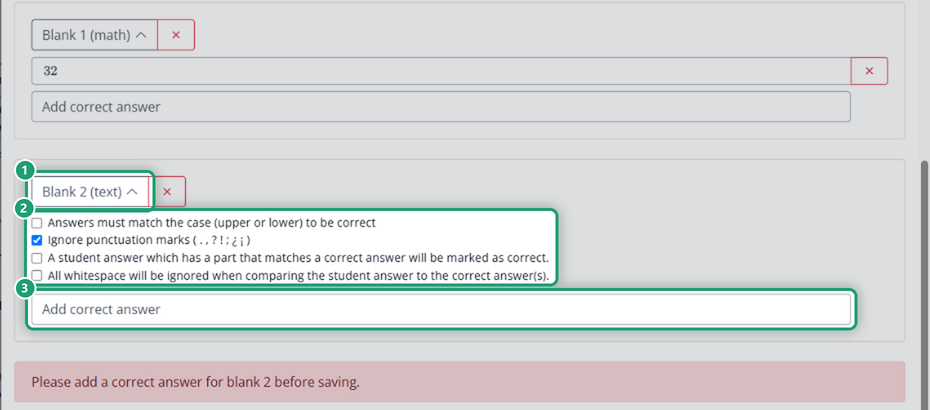
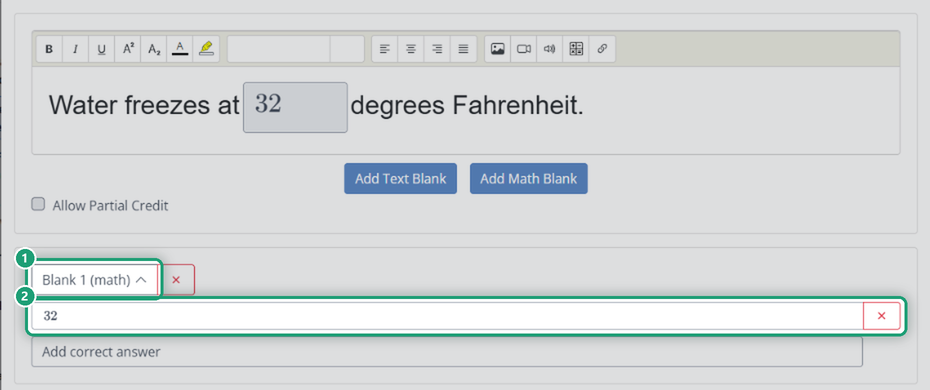
Each blank you add gets its own answer area under the sentence, named Blank 1 (text), Blank 2 (math) and so on. Click the caret next to a blank’s name to collapse or expand it, which helps when there are several. The red × next to the name deletes the blank.
Text blanks
Each text blank has its own matching settings:
- Answers must match the case (upper or lower) to be correct
- Ignore punctuation marks (. , ? ! ; ¿ ¡). This one is on to start.
- A student answer which has a part that matches a correct answer will be marked as correct
- All whitespace will be ignored when comparing the student answer to the correct answer(s)
Math blanks
A math blank’s correct answer can be a single number, an algebraic expression or a chemistry equation.
Partial credit
With Allow Partial Credit on, students earn points for each blank they get right. With it off, they must get every blank right to earn the points.
Was this article helpful?
That’s Great!
Thank you for your feedback
Sorry! We couldn't be helpful
Thank you for your feedback
Feedback sent
We appreciate your effort and will try to fix the article