|
|
How Do I Delete a Slide in My Activity? |
Delete a Slide or Item
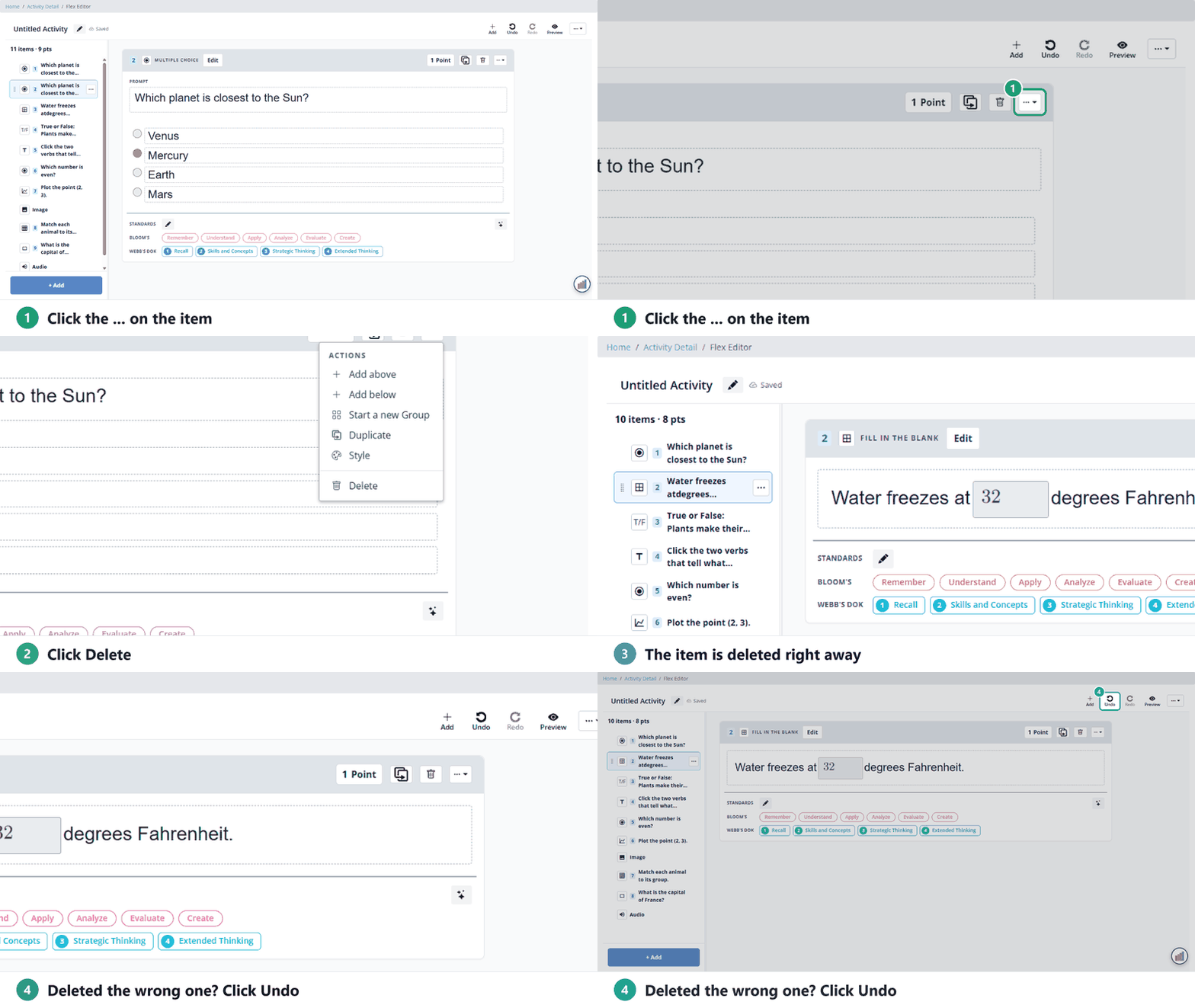
In the Slide Editor, click the slide in the filmstrip on the left, then choose Slide → Delete Slide. A Flex activity has items instead of slides: open the item’s … menu and click Delete.
If the Activity has already been assigned, it opens in Answer Key Mode, where you can’t delete questions. Make a copy and edit that instead.
Flex Editor: delete an item
- Find the item in the list on the left or in the Activity.
- Click the … at the top right of the item.
- Click Delete. (The trash icon next to it does the same.) It’s deleted right away, with no confirmation.
Delete several items at once
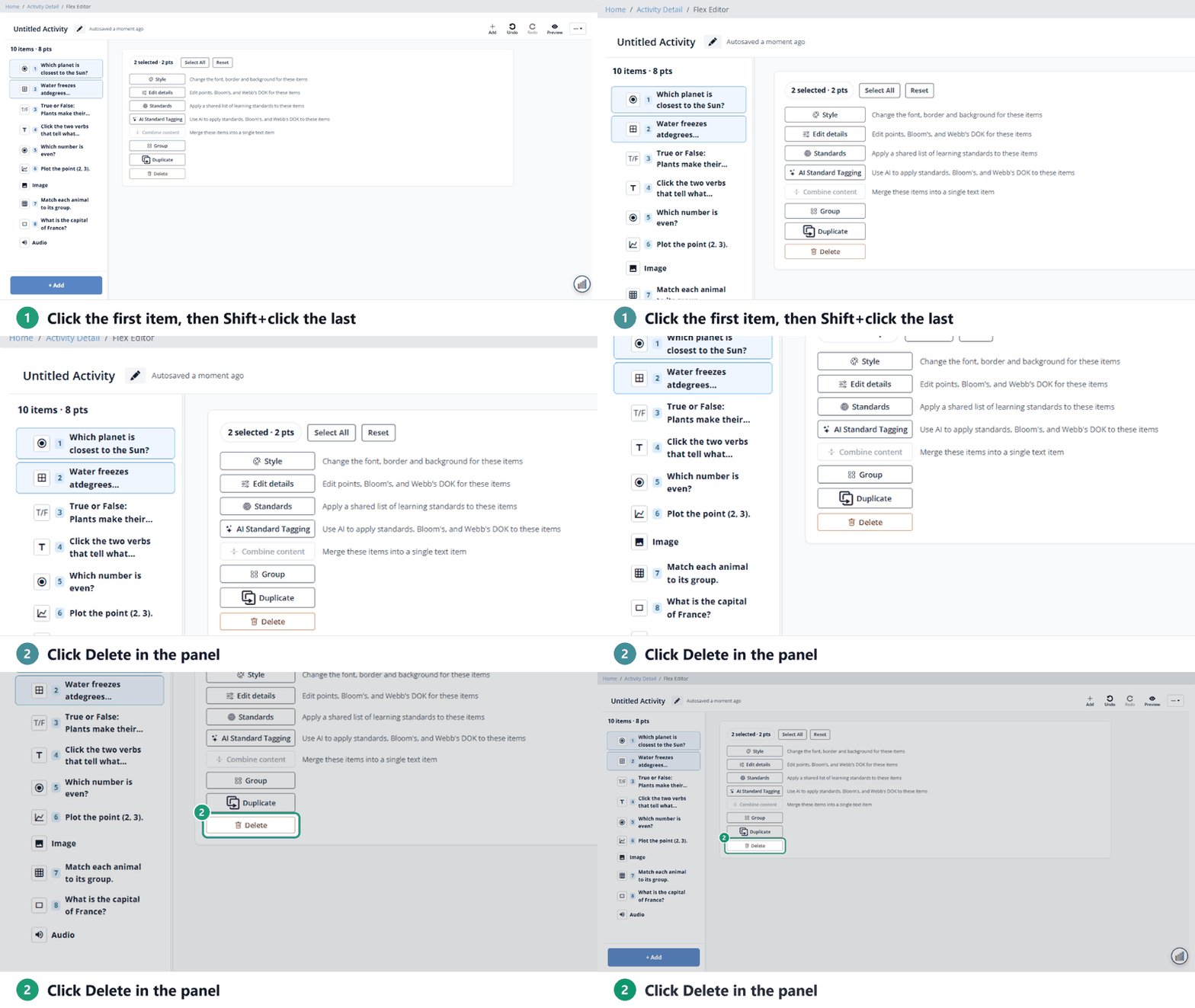
- In the item list on the left, click the first item, hold Shift and click the last one.
- In the panel that shows how many are selected, click Delete.
Deleted the wrong one? Click Undo at the top right.
Slide Editor: delete a slide
- Click the slide in the filmstrip on the left. (No filmstrip? Choose View → Show Filmstrip.)
- Open the Slide menu.
- Click Delete Slide. It’s deleted right away, with no confirmation.
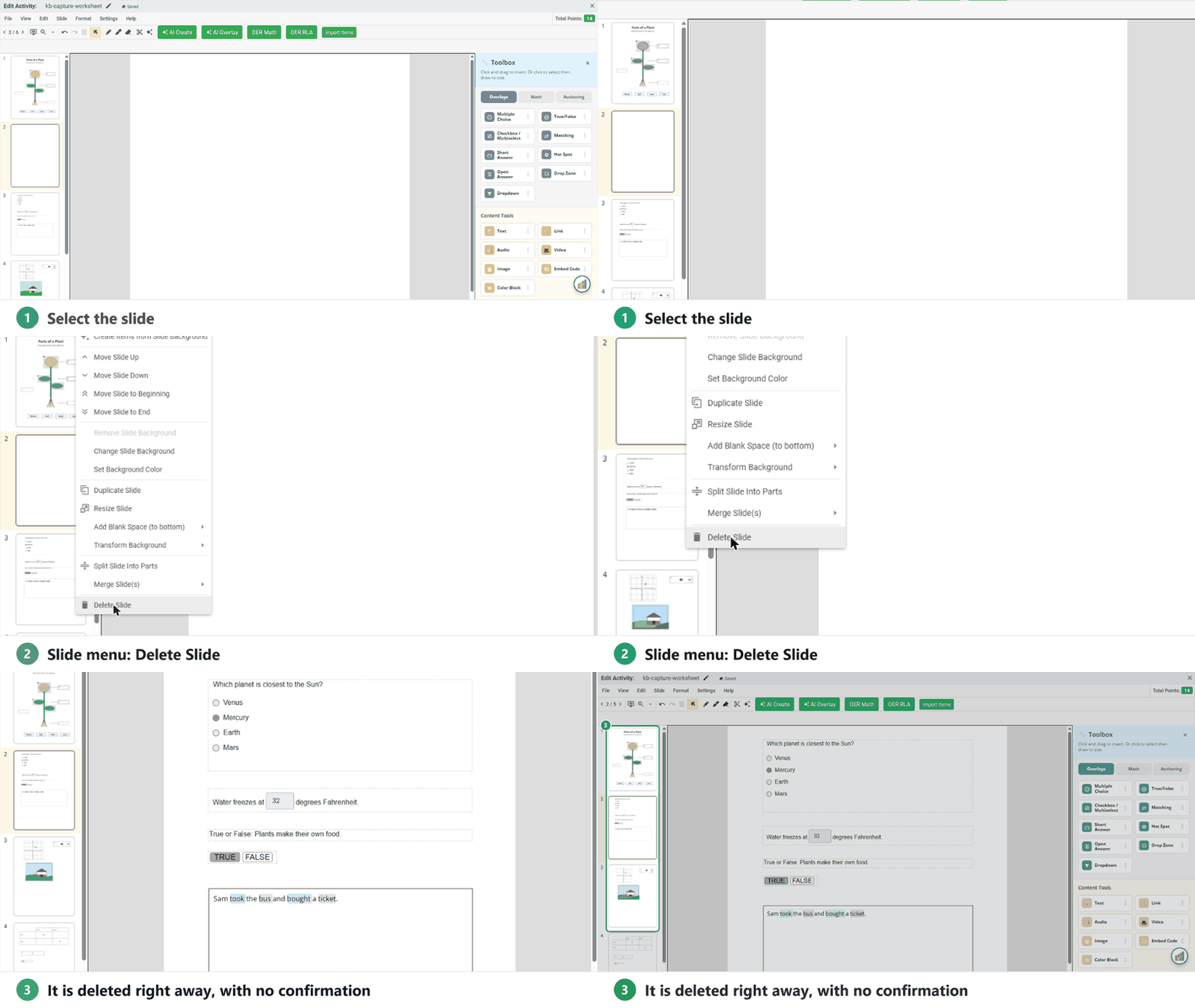
Careful: the trash icon in the toolbar deletes the item you selected on the slide, not the slide itself.
Undo a deletion
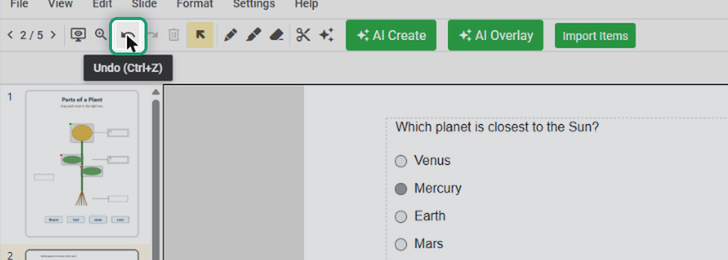
Click Undo in the toolbar, choose Edit → Undo, or press Ctrl + Z (Cmd + Z on a Mac). A deleted slide comes back with everything on it.
Was this article helpful?
That’s Great!
Thank you for your feedback
Sorry! We couldn't be helpful
Thank you for your feedback
Feedback sent
We appreciate your effort and will try to fix the article