|
|
Gradebook Tab - Classes Page |
Gradebook Tab - Classes Page
The Gradebook tab gives you a class-by-class view of student performance across assignments within a selected date range. It lists all students, their average scores, and each student’s score or status for every assignment in that range. You can also click directly into any assignment or student to review work in more detail.
How to Get to the Gradebook Tab
- Open the Classes page from the left navigation panel.

- Select a class from your list of classes.
- If you want to view all classes together, click All Classes (top right).
- If no classes have been set up, the page will still load but will display all assignments and students together.
Date Range Selector
In the top-left corner of the Classes page, you will see a date selector.

- It defaults to today through the previous two weeks. You can adjust this to any date range you need.
- The date range you choose is saved and applied automatically the next time you return to the Classes page.
- Update the date range when you want to see newer assignments or recent student work.
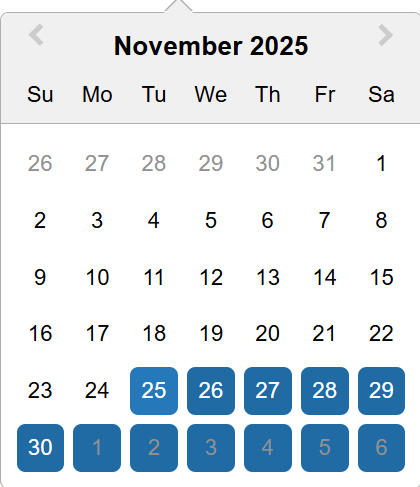
To select a new date range:
- Click the date range box to open the calendar.
- Use the arrows next to the month and year to move between months.
- Click once to select your start date.
- Navigate to your end date and click again to set it.
Navigate to the Gradebook Tab
The Gradebook tab is the third tab on the Classes page. When selected, it displays student performance for the class (or all classes) using the active date range.
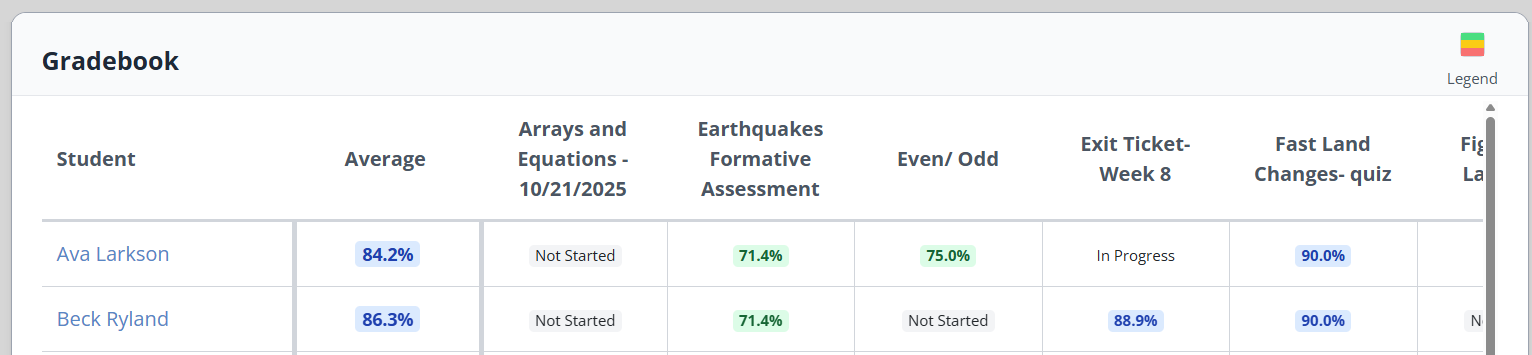
The Gradebook includes:
- A list of student names in alphabetical order
- Each student’s average score for all assignments in the date range
- A column for every assignment in that date range, showing each student’s score or status
Understanding Student Statuses
Each assignment column displays a student’s progress:
- Not Started: The student has not logged in or opened the assignment.
- In Progress: The student opened the assignment but has not submitted a completed attempt.
- Late: A late tag appears if the submission was completed after the assignment due date.
Scores are color-coded to help you quickly spot performance patterns.
Gradebook Color Legend
Classwork.com uses a quintile-style color system for score visibility. The color key appears on the upper right of the screen, but here are the score ranges explicitly:
Blue: 80–100 percent Green: 60–79 percent Yellow: 40–59 percent Orange: 20–39 percent Red: 0–19 percent |
|

Open Assignment Detail
Every assignment name in the Gradebook is clickable.
Selecting an assignment opens the Assignment Detail screen, filtered to the class you are viewing. This helps you review student progress, scores, and submission data for that specific assignment.
Open Student Detail
Every student name in the Gradebook is clickable.
Selecting a student opens the Student Detail screen, which shows all of that student’s work across all dates, including work outside the date range currently applied to the Gradebook.
Tips for Using the Gradebook
- If you do not see recent assignments in the Gradebook, check your date range.
- If your view seems incomplete, confirm you are not still using a previous date range.
- Use All Classes when you want to track progress across multiple sections or groups.
Was this article helpful?
That’s Great!
Thank you for your feedback
Sorry! We couldn't be helpful
Thank you for your feedback
Feedback sent
We appreciate your effort and will try to fix the article