|
|
Manage Review Teams – Administration Page |
Create and Manage Review Teams
This article applies to District Administrators only.
District Administrators create and manage Review Teams so teachers can submit curriculum materials to the appropriate group of reviewers during the Submit for Approval process.
Access Requirements
District Administrator Access: The Administration page is only visible to users who have been assigned the District Administrator role.
If you need District Administrator access, your district must contact Classwork.com to have it enabled.
Curriculum Reviewer Role Requirement
To review submitted curriculum materials, a user must:
- Be assigned the Curriculum Reviewer role in their user profile.
- Be added to at least one Review Team.
If a user has the Curriculum Reviewer role but is not assigned to a Review Team, no submissions will appear for review.
Open the Teams Page
- Sign in with a District Administrator account.
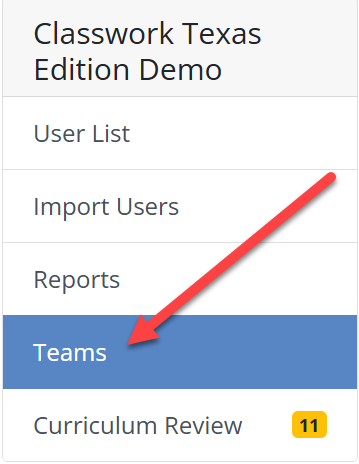
- Click Administration in the left navigation menu.

- Select Teams from the left-hand menu.
If no teams exist, the list will be empty.
Create a New Team
- Click the green Add Team button.

- Enter a clear, descriptive Team Name (for example, Elementary Math Review).

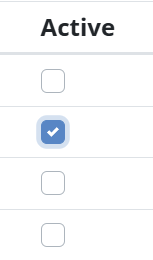
- Select team members using the Active checkboxes.
- Click Create to save.
The new team appears immediately in the Teams list and becomes available in the Review Team dropdown during submission.
View or Edit Existing Teams
To update a team:
- Click the team name.
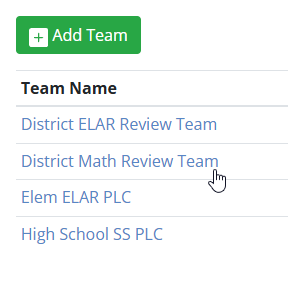
- Toggle the Active checkbox next to user names to add or remove members.
- Click Update to save changes.

Tips for Organizing Teams
Use Clear Names: Include grade level, subject, or program (for example, HS English Review Team).
Maintain Membership: Team membership determines who receives notifications and can approve materials.
Review Regularly: Update teams as staffing changes to keep the approval workflow smooth.
Was this article helpful?
That’s Great!
Thank you for your feedback
Sorry! We couldn't be helpful
Thank you for your feedback
Feedback sent
We appreciate your effort and will try to fix the article