|
|
The Embed Code tool |
The "Embed Code" tool allows you to include activities from different websites into your Classwork activity. Many educational websites allow you to use their materials in a tool like Classwork. They often provide a "Share" or "Embed" button that will generate a snippet of HTML code that you can copy and paste into Classwork's "Embed Code" tool. The embedded page will appear in your Classwork activity.
To use the "Embed Code" tool, you'll outline a rectangle where the activity will appear. Then you'll paste in the code for the activity.
- Click and drag anywhere on your Classwork activity to define the area where you want the activity to be displayed.
- Select "Embed Code" from the "Content Tools" column.
- Paste the code given to you by the website into the "Embed Code' field.
- Choose whether you want the activity to appear Inline or Floating:
- Inline: the activity will appear within the rectangle you outlined.
- Floating: a button will appear in the rectangle and students must click the button to view the embedded activity. The activity will open to the side of the Classwork materials. Students will be able to navigate through the Classwork activity while the embedded activity remains on the side.
- If you choose "Floating" you will also have to enter a label for the button.
- Click the eye icon to Preview your activity (this is always a good practice, but especially with "Embed Code" since you want to make sure the HTML snippet is correct.
- If you see an URL in your rectangle, rather than the website content, then you've copied the wrong thing into the Embed Code object in Classwork. Typically, what you're embedding should begin with an "<iframe>" HTML tag. See if the website provides an "embed" button (which often looks like "</>"). If not, you might try the instructions for "Any website" below.
Every website will work a little differently. Here are instructions for embedding materials from some of well-known sites. If you'd like us to add one of your favorites, just send an email to support@classwork.com and we'll look into it!
Science Simulations
There's nothing like hands-on simulations to help demonstrate important science concepts, and the folks at the University of Colorado have been making high-quality, instructionally valuable simulations for years. To include a simulation from those tools in a TeacherMade activity, visit the page for the simulation, then click the "</>" icon underneath the simulation's title:
Click "Copy to clipboard" from the dialog box, then paste that into your Embed Code object in Classwork.
These popular science simulations often begin with a small menu that allows students to choose between pages. If you only want to include a single page, just add "?pages=1" to the end (changing 1 to the page number you want students to see). The final result will look something like this:
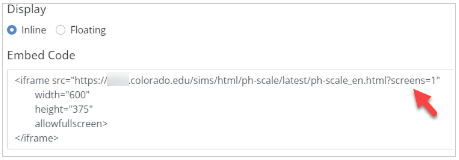
These science simulations are copyright, University of Colorado Boulder, licensed under CC-BY-4.0. As such, they request you include the following attribution, which you can do as a Teacher Text box: (Simulation Name) by PhET Interactive Simulations, University of Colorado Boulder, licensed under CC-BY-4.0 (https://phet.colorado.edu)."
Classwork.com makes no claim to any content, tools or property of any of these copyright holders, and strongly encourages you to properly attribute these valuable tools in your materials!
Desmos
Desmos provides amazing math tools, including graphing calculators. You can create graphs and share them with your students by embedding them into Classwork.
To embed a Desmos resource, open the graph, then click the "Share" button in the upper right. When the drop down appears, click the "Embed" button.
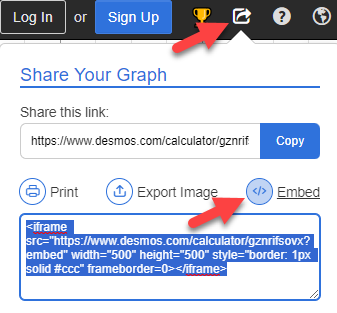
Hit Ctrl-C to copy the "<iframe>" tag then paste it into your "Embed Code" object in Classwork. Don't hit the "Copy" button next to the URL or you'll only get the URL, not the full "<iframe>" tag.
Desmos is copyright, Desmos Studio PBC.
Classwork.com makes no claim to any content, tools or property of any of these copyright holders, and strongly encourages you to properly attribute both of these valuable tools in your materials!
Another Calculator
It's easy to embed a TI-84 graphing calculator simulation, and you can even make it float next to your activity, so students can access it at will.
Add an "Embed Code" object to your activity, and enter this code:
<iframe src="https://ti84calc.com/ti84calc" width="400px" height="600px" frameborder="0" allow="fullscreen"></iframe>
Check "Floating" in the display option, and set the Button Label to "Calculator."
When your students click this button, they will see a fully functional TI-84 CE Graphing Calculator!
Any Web Page
You can embed just about any web page into your Classwork activity. You'll need to copy the URL (e.g. https://www.google.com) and paste it into the following text where it currently reads "URL." Then change the "width" and "height" values to accommodate the web page's contents. Be sure to use Classwork's Preview feature to make sure everything displays correctly!
Other Tools
Here are some more references to embeddable tools!
? Math & Scientific Tools
These are the "heavy hitters" for STEM that allow you to embed full interactive calculators or simulations.
Desmos: Allows you to embed the Graphing, Scientific, and Four-Function calculators, as well as specific "Classroom Activities."
GeoGebra: You can embed their "Applets" (interactive worksheets) and their graphing/3D calculators using iFrame codes.
PhET Interactive Simulations: Most of their HTML5 simulations (science and math) have an "Embed" button that provides an iFrame code.
Mathigon (Polypad): This is one of the most powerful digital manipulative sites; you can embed the entire "Polypad" canvas or specific saved boards.
Wolfram Alpha: Offers "Widgets" that can be built and embedded to perform specific calculations (like a derivative calculator).
? Digital Manipulatives
These provide the "hands-on" experience virtually and are specifically designed to be placed inside other sites.
- Didax: They provide a dedicated PDF list of iFrame codes for their most popular tools like Unifix Cubes, Ten Frames, and Base Ten Blocks.
- Toy Theater: While they don't always have a "copy code" button, their tools are designed to be easily iFramed into classroom sites.
- The Math Learning Center: Their web apps (Fractions, Money Pieces, Number Line) allow you to share a "link" or a "code" to embed the state of your current work.
?️ Interactive Presentation & Lessons
These tools allow you to embed the entire student experience.
- Nearpod: You can embed a student-paced lesson so they don't need to enter a join code on a separate site.
- Canva: Under the "Share" and "More" menu, you can get an HTML embed code for any design or presentation.
- Genially: Almost everything created here (interactive images, escape rooms) is designed to be embedded.
- Google Slides / Docs / Sheets: Using "File > Publish to the web," you can get an iFrame code for any Google file.
- Adobe Express: Allows for embedding of published "Web Pages" or projects.
? Formative Assessment & Discussion
- Padlet: Provides a beautiful embed code for their digital bulletin boards.
- Flip (formerly Flipgrid): Allows you to embed "Topics" directly into your LMS.
- Quizlet: You can embed specific study sets in "Match" or "Flashcard" mode.
- Wordwall: Offers embed codes for all their gamified templates (Random Wheel, Whack-a-mole, etc.).
- Edpuzzle: You can embed a video lesson so students can answer the embedded questions without leaving your page.
- Book Creator: Once a book is published online, it can be embedded as a "flippable" digital book.
? Media & Curation
- Wakelet: You can embed a "Collection" of resources as a grid or a list.
- SoundCloud / Spotify: Both allow you to embed players for specific podcasts or music tracks.
- YouTube / Vimeo: The standard for video embedding.
Was this article helpful?
That’s Great!
Thank you for your feedback
Sorry! We couldn't be helpful
Thank you for your feedback
Feedback sent
We appreciate your effort and will try to fix the article