|
|
Standards – Submission Review Screen |
The Standards tab gives you a performance breakdown based on standards you've tagged to questions in your activity. Use it to identify trends in student mastery and gaps in coverage — both at the class level and individual level.
Default View: By Item
This view shows how your class performed on each standard, broken down by the individual questions aligned to it.
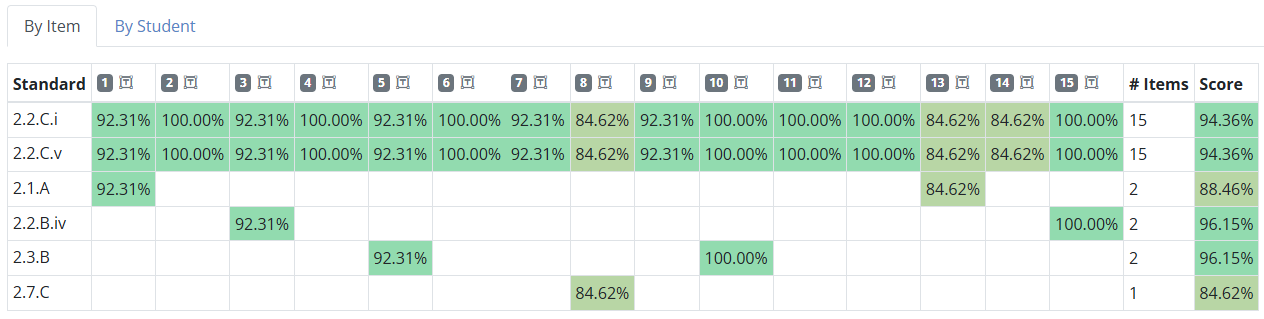
Table Layout
- Row Headers – Each row represents one standard used in the activity (e.g. 6.5A, 6.7B)
- Column Headers – Each column represents a question number from the activity
- Cells – Show how that standard performed on each question
- If the question is not tagged with that standard, the cell will be blank (white)
- If tagged, the cell will display the class average for that item, based on student performance
You may see many blank cells if most questions are only tagged with one or two standards. This is expected and simply reflects the alignment choices made during activity setup.
Alternate View: By Student
Click the By Student tab to flip the view — now each row represents a student, and each column shows performance by standard.
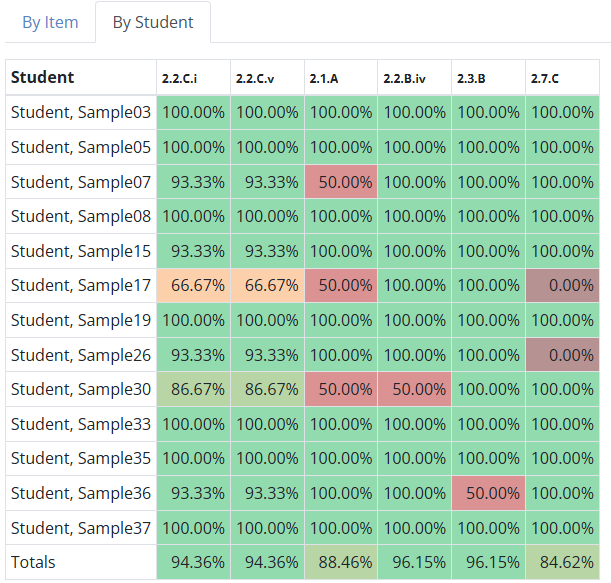
- Left Column – Student names
- Column Headers – Each unique standard used in the activity (e.g. TEKS or custom tags)
- Even if a standard appears multiple times in the activity, it will only appear once in this view
- Cells – Show the student’s average score across all questions aligned to that standard
Use this mode to:
- Identify which students are struggling with specific standards
- Track progress toward mastery across the class
- Target reteaching and small-group instruction
Was this article helpful?
That’s Great!
Thank you for your feedback
Sorry! We couldn't be helpful
Thank you for your feedback
Feedback sent
We appreciate your effort and will try to fix the article