|
|
Item Analysis – Submission Review Screen |
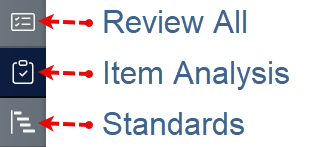
After assigning an activity, you can view student results from the Assignment Detail screen. Clicking on any submission takes you into the Submission Review Screen, where you'll find three powerful views on the left navigation menu.
The Item Analysis tab gives you a data-rich breakdown of how your class performed on each question. Use it to spot trends, identify misconceptions, and jump directly into student work for deeper review.
Default View: By Student
This tab displays individual student performance question-by-question.
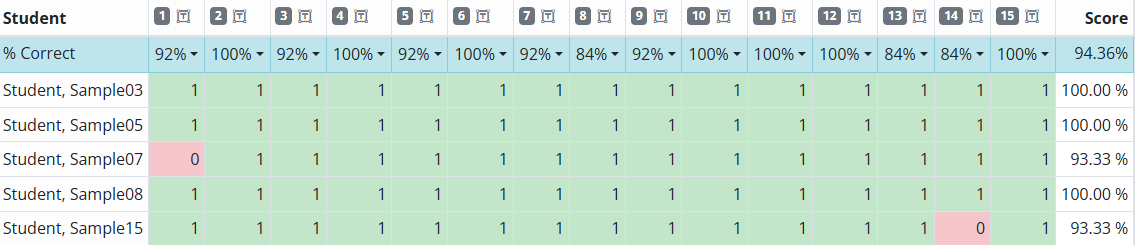
- Column Headers – Each column shows a question number and icon indicating its question type - Hovering the mouse over that question number will tell the question item type.
- Row 2 – Displays the class average for each question (includes zeros from students who haven't started)
- Rows 3+ – Each row represents a student, showing their response status for every item
- Green cell – Student earned partial or full credit (any points received)
- Red cell with a number – Student answered but received 0 points
- Red cell with a dash (–) – Student has not answered that question yet (even if they started the assignment)
Click to Dive Deeper
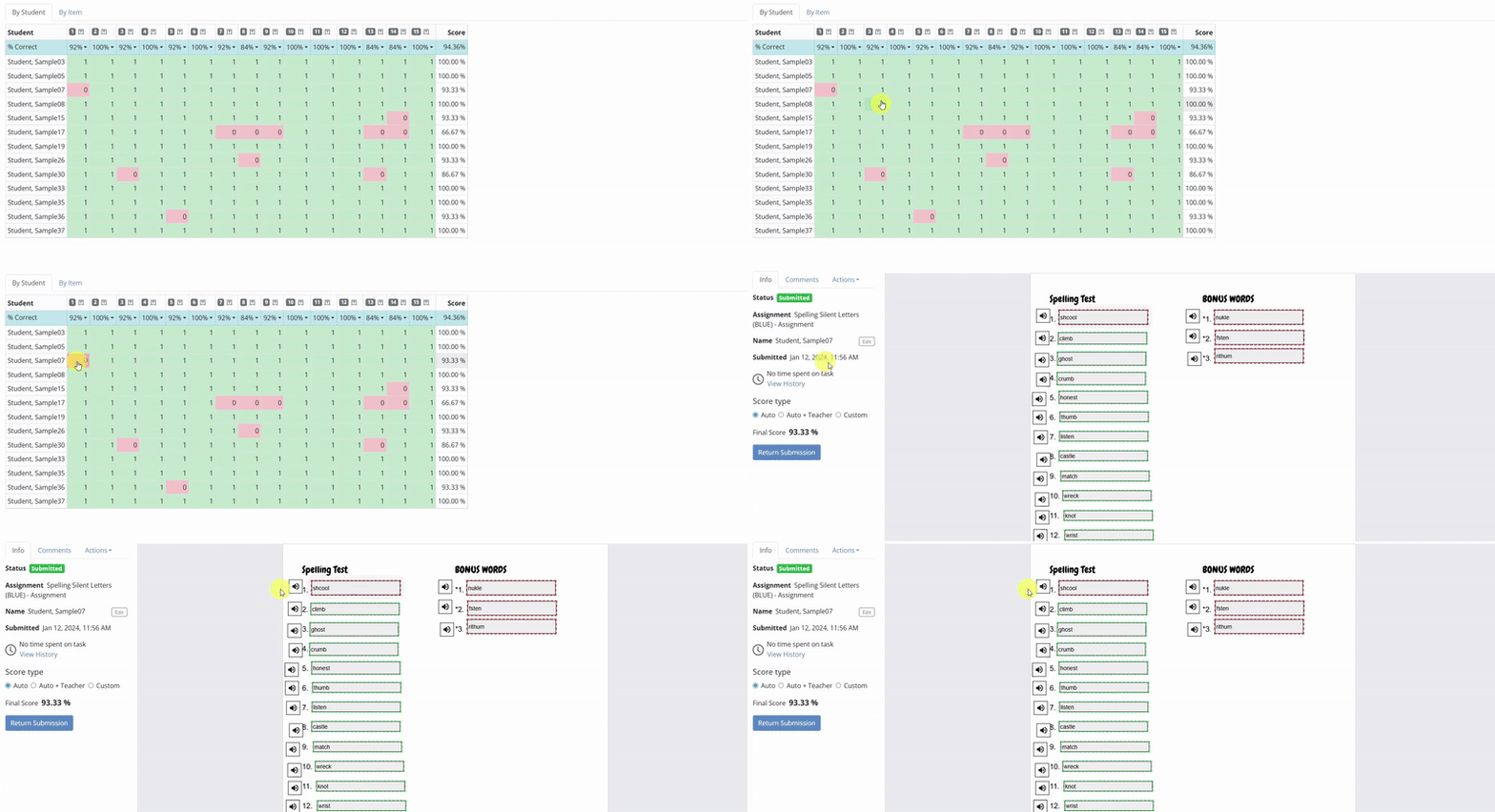
- Click a student's name to open their submission in the Review All tab
- Click a specific question cell to open the student's submission and scroll directly to that question, which will highlight:
✅ Green glow for correct answers
❌ Red glow for incorrect answers
✏️ Purple glow for ungraded open-response questions
Second Tab: By Item
Switch to the By Item tab to view a table where each row represents one question from the activity. This view helps you analyze question-level performance and quality at a glance.
Table Columns
Each row includes the following columns:
- Item – The question number (e.g. Q3, Q5)
- Question Type – Icon indicating whether it’s multiple choice, open response, etc.
- Points – Maximum possible points for the item
- % Correct – Classwide percentage of students who answered correctly
- Discrimination Index – A performance indicator showing how well the item distinguishes between high- and low-performing students
Student Response Breakdown
Click on any row to expand a Student Responses dropdown. This shows how students answered that particular question including how many chose each answer choice and whether it was correct.
Example:
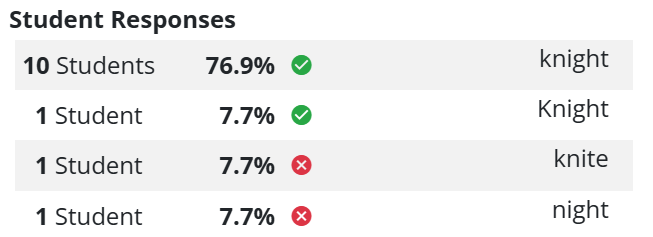
Use this view to:
- Identify common misconceptions
- Spot spelling or formatting issues with open responses
- Confirm whether distractors are functioning as intended
Was this article helpful?
That’s Great!
Thank you for your feedback
Sorry! We couldn't be helpful
Thank you for your feedback
Feedback sent
We appreciate your effort and will try to fix the article